Mastering Your Nintendo Switch OLED
Game Management
Getting Your Games
Your Nintendo Switch is a gateway to countless adventures, but first, you need some games. You have two main options: buying digital games from the Nintendo eShop or using physical game cartridges.
The Nintendo eShop is your all-digital store. You can find it as a shopping bag icon on the HOME Menu. Inside, you’ll find new releases, sales, and a massive library of titles. You can search for specific games, browse by genre, or check out the current best-sellers. To buy a game, you'll need to add funds to your account or link a payment method.
Once you purchase a digital game, it will automatically start downloading to your console. You'll see its icon appear on the HOME Menu with a small progress bar. When it's done, just select the icon to start playing.
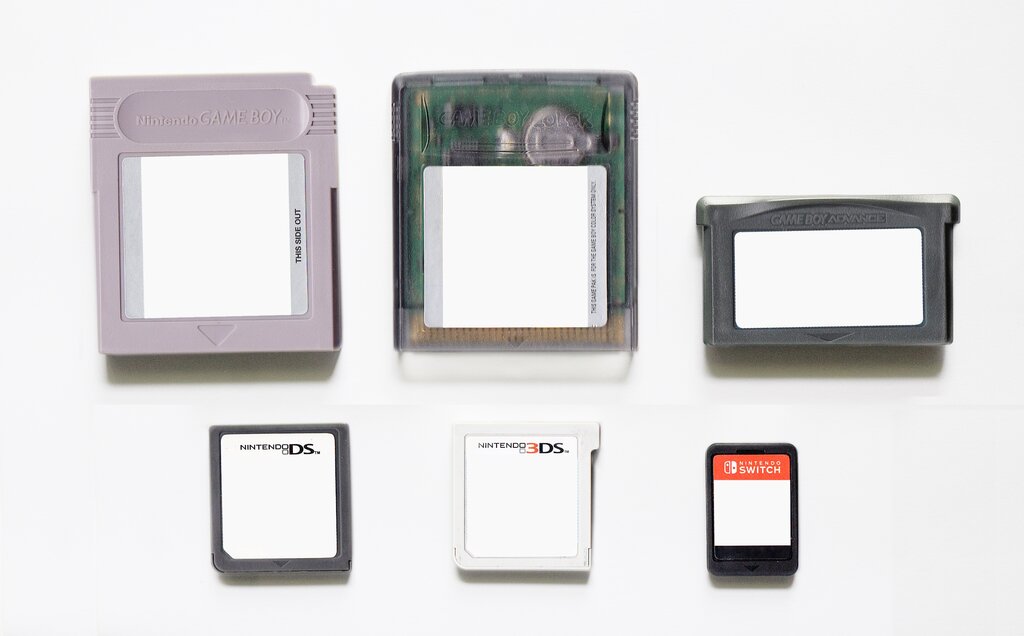
If you prefer having a physical collection, game cartridges are incredibly simple to use. Just open the small slot cover on the top right of your console and insert the cartridge. The game's icon will immediately appear on your HOME Menu, ready to launch.
Managing Your Library
As your game collection grows, you'll need to manage your storage. The Switch OLED Model comes with 64 GB of internal storage, but you can expand this significantly with a microSD card. As we covered in the System Settings section, you can manage your data to make sure you always have room for a new game.
If you're running low on space, you have a couple of options. You can archive software, which deletes the game data to free up space but keeps your save file and the game's icon on your HOME Menu. If you want to play it again later, you can simply redownload it from the eShop.
Archiving is the best way to free up space without losing your progress. Deleting a game removes both the game and its save data permanently.
Your save data is precious. It's always stored separately from the game data, right on the console's internal memory. This means even if you archive a game or lose a physical cartridge, your progress is safe. For extra security, a Nintendo Switch Online membership allows you to back up your save files to the cloud. This protects them if something happens to your console.
Keeping Things Fresh
Games and system software receive periodic updates to add new features, fix bugs, and improve performance. If your Switch is connected to the internet, it will automatically download these updates in the background.
If you want to check for an update manually, you can. Just highlight the game's icon on the HOME Menu, press the + button on your Joy-Con, and navigate to the "Software Update" tab. From there, you can prompt the console to search for any available updates online.
Your console's main software, called the system software, also gets updated. These updates usually happen automatically when your console is in sleep mode and connected to Wi-Fi, ensuring your Switch is always running its best.
Time to check what you've learned about managing your games.
What is the primary difference between archiving a game and deleting it?
Where is your game save data stored by default on the Nintendo Switch?
Now you're ready to build and manage your own library of games.