CMS Setup and Configuration
Website Maintenance
Keeping Your Site Healthy
Launching a website is just the beginning. Like a car, a website needs regular maintenance to run smoothly, stay secure, and work reliably for your visitors. Neglecting it can lead to slowdowns, errors, or even security breaches. Fortunately, managing a CMS-based site doesn't require a mechanic. Just a little routine care is all it takes.
Website maintenance is something that every single website needs to perform, so it's essential to develop a maintenance plan for your site (or hire someone to do it for you).
This ongoing process involves a few key tasks: keeping your software updated, backing up your data, monitoring performance, and following basic security rules. Let's walk through each one.
The Update Cycle
Remember how you installed your CMS, theme, and plugins? The developers behind that software are constantly working to improve it. They release updates to patch security holes, fix bugs, and add new features. Applying these updates is one of the most important maintenance tasks you can perform.
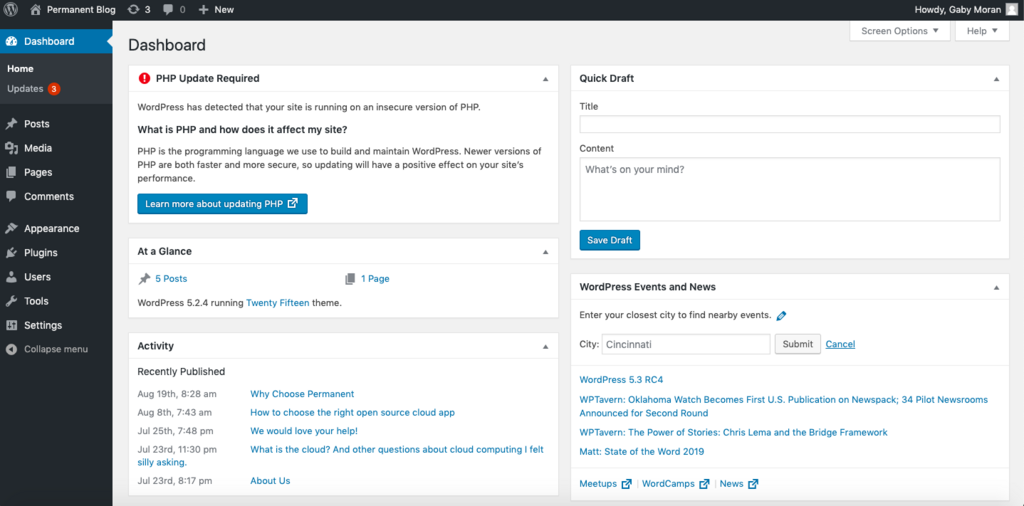
Most CMS dashboards have a dedicated section that notifies you when updates are available for the core software, your theme, or any installed plugins. It's a good practice to check this at least once a week.
An outdated plugin or theme is a common entry point for hackers. Keeping your site's components updated is your first line of defense against security threats.
Before you update, it's always a good idea to back up your site first. While updates are usually smooth, conflicts can occasionally cause problems. A recent backup ensures you can restore your site quickly if anything goes wrong.
Your Website's Safety Net
A backup is a complete copy of your website's files and its database. Think of it as a spare key or an insurance policy. If your site is ever compromised, or if an update causes a critical error, you can restore it from a backup and get back online quickly.
How often should you run backups? It depends on how frequently your site changes. A blog with daily posts might need daily backups, while a simple business website that's updated monthly might only need weekly or monthly backups. Many hosting providers offer automated backup services, and there are also numerous plugins that can handle the job for you.
It's also wise to store your backups in more than one location. Keeping a copy on your web server is convenient, but you should also download and store copies on a local computer or a cloud storage service like Google Drive or Dropbox. This protects you in case something happens to the server itself.
Simple Security Habits
Good security doesn't have to be complicated. By following a few best practices, you can significantly reduce your website's vulnerability to unauthorized access.
Use Strong Passwords: A strong password is long, complex, and unique. Combine upper and lower-case letters, numbers, and symbols. Avoid common words or personal information. A password manager can help you generate and store strong, unique passwords for all your accounts.
Enable Two-Factor Authentication (2FA): 2FA adds a second layer of security to your login process. After entering your password, you'll need to provide a second piece of information, usually a code sent to your phone. This means that even if someone steals your password, they still can't get in.
Manage User Permissions: If you have multiple people working on your site, give them only the permissions they need. A CMS allows you to assign different roles (like Administrator, Editor, or Author) with different capabilities. An author doesn't need access to site-wide settings, and limiting their permissions reduces potential security risks.
Troubleshooting 101
Even with regular maintenance, you might occasionally run into issues. Here are a few common problems and how to approach them.
| Problem | Possible Cause | First Steps |
|---|---|---|
| Site is slow | A new plugin, large image files, or hosting issues. | Deactivate your most recently installed plugin to see if that helps. Check your media library for oversized images. Contact your hosting provider. |
| "White Screen of Death" | A theme or plugin conflict, often after an update. | If you can access your dashboard, try deactivating all plugins and switching to a default theme. If not, you may need to do this via your server's file manager. |
| Changes not appearing | Caching issues. | Clear your browser's cache. If you use a caching plugin on your site, clear its cache as well. |
| Error messages | Outdated software or incompatible plugins. | Ensure your CMS, themes, and plugins are all up to date. If the error appeared after an update, it might be an incompatibility. Restore from your backup. |
When troubleshooting, remember to only change one thing at a time. This helps you pinpoint the exact cause of the problem. And if you get stuck, your hosting provider's support team and the official forums for your CMS are valuable resources.
Why is regular website maintenance considered essential for a CMS-based site?
What is the most critical first step to take before updating your CMS core, theme, or plugins?
By building these simple habits into your routine, you can ensure your website remains a secure, reliable, and effective tool for years to come.