Mastering Canva Intermediate Design
Animation and Video Integration
Bring Your Designs to Life
Static images are great, but designs that move have a special power to grab and hold attention. Motion can turn a simple graphic into an engaging piece of content. Whether it's for social media, a presentation, or a website, adding a bit of animation can make your message more memorable. Luckily, Canva makes it simple to add that professional touch without needing any complex software.
Use animation and transitions elegantly to create content that stimulates engagement and enhances understanding.
We'll walk through three ways to add motion: animating individual elements, creating your own animated GIFs, and embedding videos directly into your designs.
Animating Elements
The simplest way to add motion is by animating the individual elements already in your design. This could be a line of text, an icon, a photo, or a shape. When you add animation, you control how that element appears on, or disappears from, the screen.
To do this, just click on the element you want to animate. In the toolbar that appears at the top of the editor, you’ll see an “Animate” button. Clicking it opens a panel with a whole library of animation effects. You can make an object fade in, slide from the side, tumble onto the page, and much more.
You can control the animation's direction, speed, and intensity to get the exact look you want. You can even apply animations to an entire page at once for a quick, dynamic transition.
Experiment with different effects. A subtle fade-in can add a touch of elegance to a presentation, while a bouncy “Pop” animation can make a social media post feel more fun and energetic.
Try animating just your call-to-action button or key piece of information. This small bit of motion guides the viewer's eye right where you want it to go.
Creating Animated GIFs
Sometimes a short, looping animation is exactly what you need. GIFs are perfect for social media, emails, or websites. In Canva, you create a GIF by treating each page of your design as a single frame in the animation.
Start by creating your first frame on page one. Then, add a new page and create the second frame, making small adjustments to the elements you want to animate. Continue this process for as many frames as you need. You can duplicate pages to make minor changes quickly. Once you’ve designed all your frames, you’re ready to turn them into a GIF.
Click the “Share” button in the top-right corner, select “Download,” and choose “GIF” from the file type dropdown menu. Make sure to select all the pages you want to include in your animation. Canva will then stitch them together into a single, looping GIF file, ready to use.
Embedding Video Clips
For more complex or longer-form motion, you can embed videos directly into your designs. This is great for creating video presentations, social media stories, or ads. Canva has a library of stock videos you can use, or you can upload your own.
To add a video, go to the “Elements” tab on the left-hand side and search for “Videos,” or go to the “Uploads” tab to add your own file. Once a video is in your design, you can drag and drop it just like a photo. You can resize it, crop it, or even place it inside a frame for a creative effect.
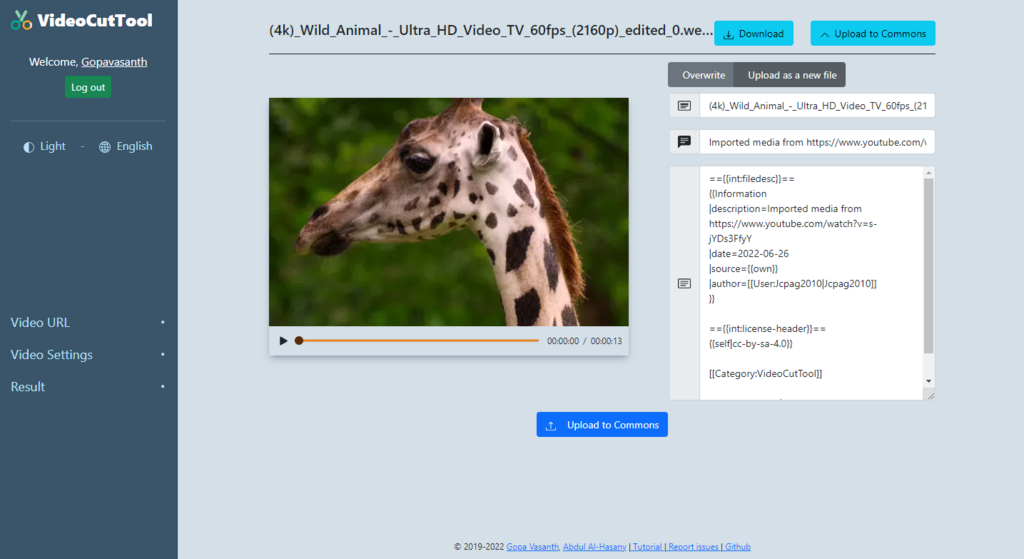
Canva’s video editor is surprisingly powerful. You can trim your video clips to show just the part you want, adjust the volume, and even control playback settings. For example, you can have a video loop continuously or play just once.
Combining video with animated text and graphics is a great way to create professional-looking content that tells a story and keeps your audience hooked.
To add a 'tumble' effect to a single photo in your Canva design, where would you find the animation options?
When creating a GIF in Canva, what does each page of your design represent?
With these tools, you can move beyond static images and create designs that are more dynamic, engaging, and effective.