Mastering Microsoft Workplace Tools
Introduction to Microsoft 365
More Than Just a Name Change
You've probably heard of Microsoft Office, the classic software suite with apps like Word and Excel. For a long time, you'd buy it in a box and install it on one computer. Then came Office 365, a subscription service that gave you the latest versions of these apps plus online features.
In 2020, Microsoft renamed Office 365 to Microsoft 365. This wasn't just a marketing move. It signaled a shift. Microsoft 365 is much more than just the traditional Office apps. It's an integrated platform of applications and cloud services designed to work together, helping you be more productive whether you're working alone or with a team.
Microsoft 365 offers a cloud-based solution that enhances collaboration, automates workflows, and improves productivity.
Think of it less as a collection of separate programs and more as a single, connected toolkit.
The Core Components
Microsoft 365 is built around a set of core applications and services. Some are familiar, while others might be new to you. Each has a specific job, but their real power comes from how they connect.
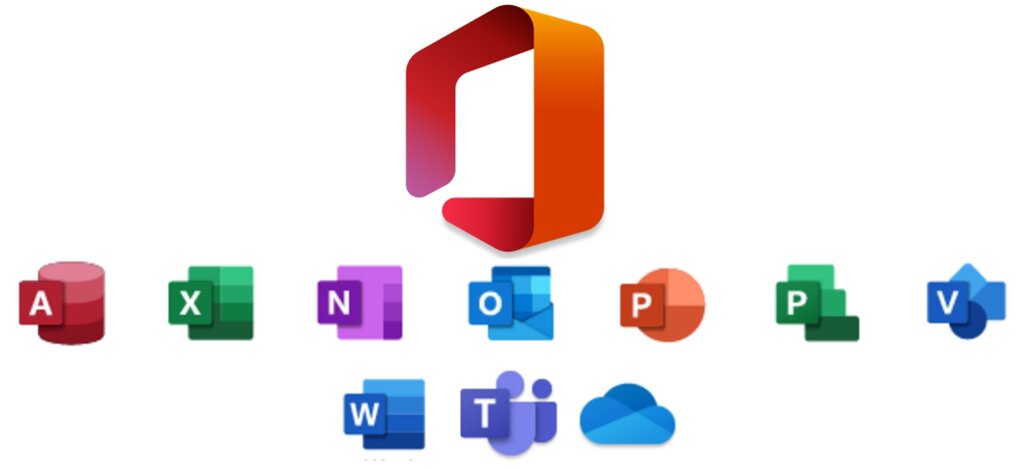
Here's a quick look at the main players:
- Word, Excel, and PowerPoint: These are the foundational apps for creating documents, spreadsheets, and presentations. They've been staples for decades and remain essential for creating polished, professional content.
- Outlook: This is your command center for communication. It brings together email, calendars, and contacts into one place, helping you manage your schedule and conversations.
- OneDrive: Think of this as your personal cloud storage. It’s a place to save your files and access them from any device. It's perfect for your own drafts and work-in-progress documents.
- SharePoint: When you need to collaborate with a team, SharePoint is the tool. It’s used to create internal websites and shared document libraries where your whole team can access and work on files together.
- Teams: This is the hub for teamwork. It combines chat, video meetings, file storage, and app integration. It's where real-time collaboration happens.
| App | Primary Role |
|---|---|
| Word | Creating documents |
| Excel | Analyzing data |
| PowerPoint | Building presentations |
| Outlook | Managing email & calendars |
| Teams | Real-time team communication |
| OneDrive | Personal cloud storage |
| SharePoint | Shared team content |
How It All Works Together
The magic of Microsoft 365 is integration. All the components are designed to communicate with each other seamlessly. This connected ecosystem helps streamline your work and reduce the friction of switching between different tools.
For example, you can co-author a PowerPoint presentation with colleagues in real-time. The file itself might be stored in a SharePoint library, and your team can discuss changes and updates in a dedicated Teams channel without ever leaving the app.
You can also attach a file from your OneDrive directly into an Outlook email, sharing a link instead of a large file. This ensures everyone is working from the same version of the document. This level of integration is what sets Microsoft 365 apart as a productivity platform.
Use OneDrive for drafts and private files, SharePoint for team documents and sites, and Teams for real-time collaboration.
Understanding this basic structure is the first step. Each application has its own depth, but knowing how they fit together is key to unlocking the suite's full potential.
What was the primary reason for Microsoft rebranding Office 365 to Microsoft 365?
You need to create a central hub for your team's project, including shared document libraries and an internal website. Which Microsoft 365 application is designed for this purpose?