Invoice 2 Go on iPhone
Utilizing Additional Features
Go Beyond Basic Invoicing
You've mastered the art of creating, sending, and managing invoices. Now it's time to unlock the features that can truly streamline your business operations. Invoice2go offers powerful tools to track expenses, automate billing for repeat clients, and connect with other apps you already use. Let's put these features to work.
Manage Expenses on the Go
Keeping track of business expenses is crucial for understanding your profitability and preparing for tax season. Instead of juggling spreadsheets or shoeboxes full of receipts, you can manage everything directly within Invoice2go. This keeps your income and outgoings all in one place.
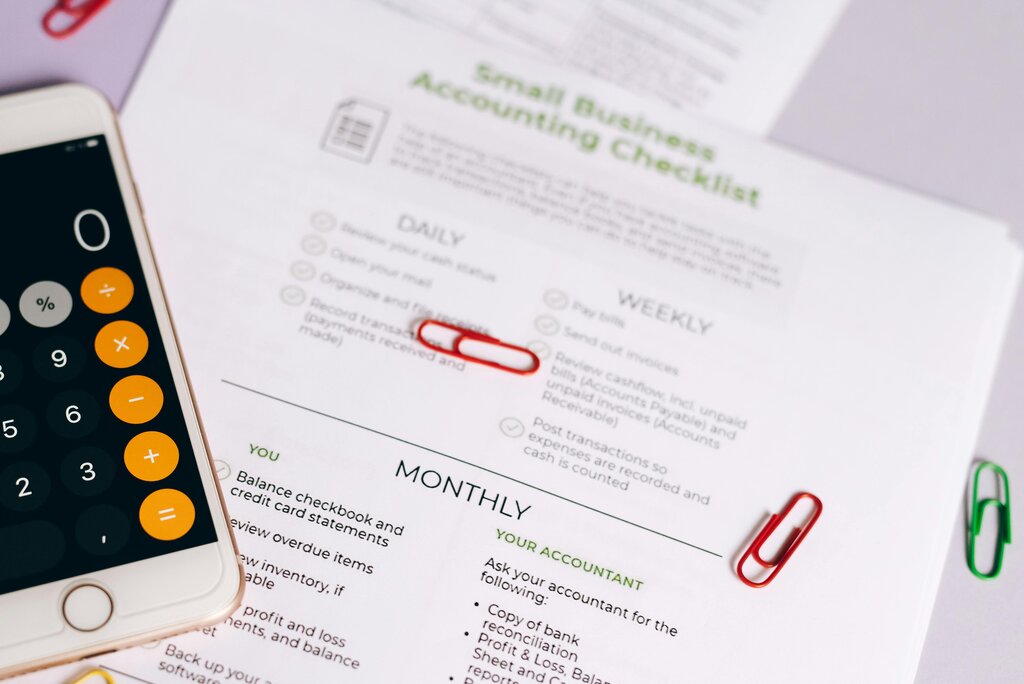
To add a new expense, navigate to the "Expenses" section from the main menu. Here, you can log every business-related purchase. You'll typically enter the amount, the vendor, the date, and a category for the expense, such as 'Supplies' or 'Travel'. This categorization makes it easy to see where your money is going.
One of the most useful features is the ability to attach a photo of a receipt. Just snap a picture with your iPhone's camera and link it to the expense entry. This creates a digital record, saving you from losing paper receipts.
You can also assign expenses to specific clients or projects. This allows you to see the exact costs associated with a job, helping you calculate its true profitability and informing future quotes.
Automate Your Billing
For clients you work with on a regular basis, creating the same invoice month after month is repetitive. Recurring invoices let you automate this process. You set up the invoice once, define a schedule, and Invoice2go will automatically generate and send it for you.
To get started, create an invoice as you normally would. Before saving, look for an option to make it a recurring invoice. You'll then be prompted to set the schedule.
| Frequency | When to Use It |
|---|---|
| Weekly | For ongoing projects with weekly billing cycles. |
| Bi-weekly | For clients billed every two weeks. |
| Monthly | Perfect for retainers, subscriptions, or monthly service agreements. |
| Annually | Useful for yearly membership fees or annual service contracts. |
Once you've set the frequency, you can also define the start date and, if necessary, an end date. The app takes care of the rest, ensuring your clients are billed on time, every time. This not only saves you administrative work but also helps maintain a consistent cash flow.
Connect With Other Apps
Invoice2go can connect with other business applications to create a seamless workflow. These integrations allow data to flow between different platforms, reducing manual entry and the chance of errors. For example, you might connect your accounting software or a calendar app.
To find available integrations, head to the "Settings" section and look for a menu item like "Integrations" or "Connected Apps." From there, you can browse the available options and follow the on-screen instructions to link your accounts. A common integration is with accounting software like QuickBooks or Xero, which automatically syncs your invoice and payment data, making bookkeeping much simpler.
Using a financial planning app to track invoices and process payments will make organizing your finances worlds easier.
By integrating the tools you rely on, you can build a more efficient system for managing your business finances from your iPhone.
Now, let's test your knowledge on these advanced features.
When tracking business expenses in Invoice2go, what is the primary benefit of assigning an expense to a specific client?
Which of the following are required to set up the schedule for a recurring invoice?