Excel Formatting for EndNote Data
Organizing Bibliographic Data
Structure Your Data
Once your bibliographic data is in Excel, the first step is to give it a solid structure. Think of your spreadsheet like a filing cabinet. You wouldn't toss all your papers into one drawer. Instead, you'd use different folders for different types of documents. In Excel, columns are your folders.
Each piece of information should get its own column. For example, put author names in one column, the publication year in another, and the article title in a third. This practice, known as making your data 'tidy', is essential. It prevents confusion and makes your dataset much easier to work with later on.
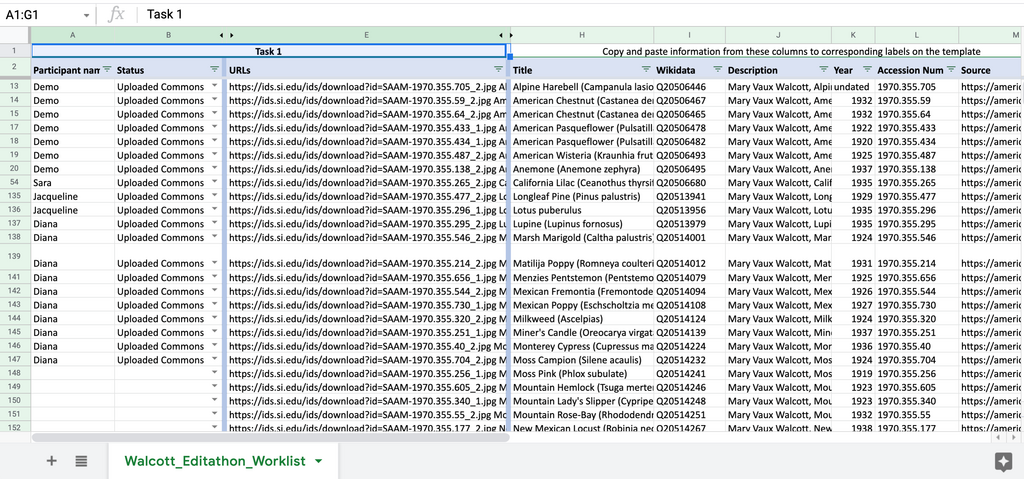
Every column needs a header. A header is just a label at the top of the column that tells you what's inside, like 'Author' or 'Year'. Keep headers short, descriptive, and unique. It’s also a good idea to make them bold so they stand out from your data.
Keep It Consistent
Consistency is key to making your data useful. If your entries are inconsistent, you'll run into problems when you try to sort or analyze them. For example, if you list one author as 'Smith, J. D.' and another as 'Smith, John,' Excel will treat them as two different people.
Establish a standard format for your entries and stick to it. Decide on one way to write dates (e.g., YYYY-MM-DD), names (e.g., Last Name, First Initial), and any recurring terms. If you're cataloging journal names, for instance, decide whether to use abbreviations or the full title, but don't mix them. A little discipline here saves a lot of headaches later.
Consistent data is clean data. Clean data is easy to analyze.
Find What You Need
With a large list of references, finding specific information can be challenging. This is where sorting and filtering come in handy. These simple tools help you quickly organize and navigate your data without changing the data itself.
Sorting allows you to rearrange your entire dataset based on the contents of a specific column. You could sort your references alphabetically by author's last name to find a particular study, or chronologically by publication year to see how research has evolved over time. To sort, just select your data, go to the 'Data' tab, and click 'Sort'.
Filtering is even more powerful. It lets you temporarily hide rows that don't meet certain criteria, so you can focus only on the data you're interested in. For example, you could filter your list to show only articles published after 2020 or only those that appeared in a specific journal.
To add filters, select your headers, go to the 'Data' tab, and click the 'Filter' button. Drop-down arrows will appear on each header, allowing you to choose what to show.
Ready to check your understanding?
What is the primary principle of making bibliographic data 'tidy' in a spreadsheet?
Why is consistency in data entry, such as always using the 'Last Name, First Initial' format for authors, so important?
By structuring, standardizing, and using Excel's built-in tools, you can turn a simple list of references into a powerful research tool.