WordPress Web Development Essentials
WordPress Basics
What is WordPress?
At its heart, WordPress is a Content Management System, or CMS. Think of it as a tool that helps you create, manage, and publish content on the web without needing to write code. You can build a website, a blog, or an online store using a simple, user-friendly interface.
WordPress has grown from a simple blogging platform into the cornerstone of modern web publishing.
It all started in 2003 as a straightforward platform for blogging. But over the years, it evolved into a powerful and flexible system that now powers over 40% of all websites on the internet. This growth is thanks to its open-source nature, meaning a global community of developers constantly improves it.
Your Control Center The Dashboard
Once you log into your WordPress site, you'll land on the Dashboard. This is your mission control. From here, you can manage every aspect of your site, from creating new content to changing settings. It looks a bit busy at first, but it's organized logically.
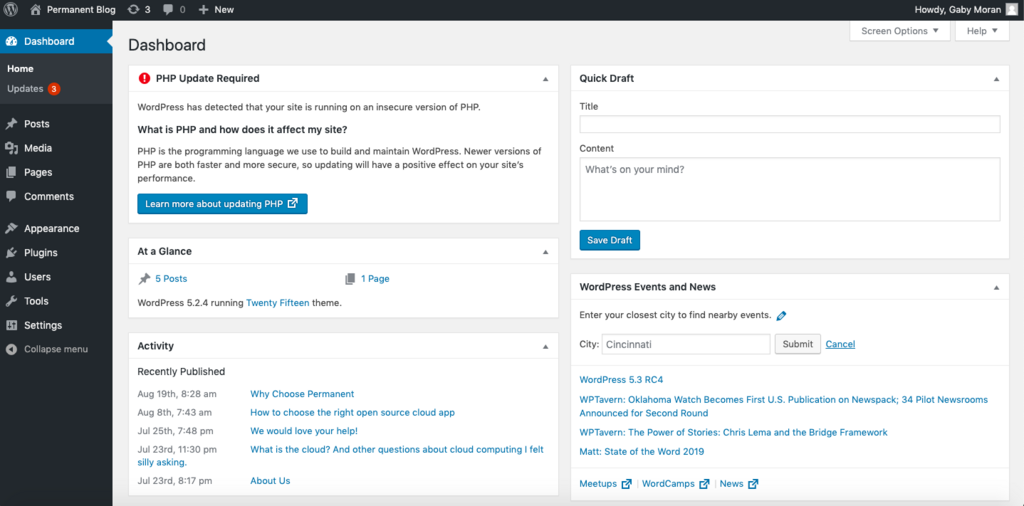
The main navigation is the dark menu running down the left side of the screen. This menu contains links to all of your site's administrative screens. The large area in the middle of the screen is your main workspace, which contains widgets like "At a Glance" and "Quick Draft" to give you quick access to common tasks.
| Menu Item | Purpose |
|---|---|
| Posts | Create and manage blog posts. |
| Media | Upload and manage images, videos, and files. |
| Pages | Create and manage static pages. |
| Comments | Moderate comments left by visitors. |
| Users | Manage who can access and edit your site. |
| Settings | Configure your site's basic settings. |
Posts vs Pages
One of the first things to understand in WordPress is the difference between Posts and Pages. They might seem similar, but they serve different purposes.
Posts are for timely content. They are entries listed in reverse chronological order on your site's blog page. Think of them as news articles or journal entries. They can be organized with categories and tags, and they're designed to encourage conversation through comments.
Pages are for static, timeless content. These are your core website pages, like "About Us," "Contact," or "Services." They aren't tied to a specific date and don't use categories or tags. Pages can also be organized into a hierarchy, with parent pages and sub-pages.
| Feature | Posts | Pages |
|---|---|---|
| Timing | Dynamic, time-sensitive | Static, timeless |
| Organization | Categories & Tags | Parent/Child Hierarchy |
| Examples | Blog articles, news | About, Contact, Privacy Policy |
| Homepage | Can appear on the blog page | Exist as standalone content |
The Media Library
Your website isn't just text. Images, videos, audio files, and documents bring it to life. The Media Library is where you manage all of these files. You can upload new files directly to the library or add them while editing a post or page.
When you upload an image, WordPress allows you to add important information to it:
- Alt Text (Alternative Text): This describes the image for screen readers and search engines. It's crucial for accessibility and SEO.
- Title: An internal name for the media file.
- Caption: Text that displays below the image.
- Description: A more detailed explanation for internal use.
Keeping your Media Library organized is helpful. You can search and filter your files by date or file type, making it easy to find what you need as your site grows.
User Roles and Permissions
WordPress is built for collaboration. You can grant different people access to your site with specific permissions, which are controlled by assigning them a role. This ensures that users only have access to the features they need, which is great for security and workflow.
There are five default user roles, each with a different set of capabilities.
Choosing the right role is key. For example, if you hire a writer, you might make them a Contributor so you can review their work before it goes live. If you trust them to publish on their own, the Author role would be more appropriate.
At its core, what is WordPress?
Which of the following best describes a WordPress "Page"?
You now have a solid grasp of the fundamental pieces of WordPress. You understand the dashboard, the key content types, and how to manage media and users. This foundation is the first step to building and managing your own website.