WordPress Theme Development from Scratch
Theme Anatomy Basics
The Two-File Minimum
A WordPress theme can feel like a complex machine with dozens of interconnected parts. But to get WordPress to simply recognize a theme, you only need two files: style.css and index.php. These files must be placed inside their own folder within the /wp-content/themes/ directory of your WordPress installation. The name you give this folder is what WordPress uses to identify the theme directory itself.
Everything about your theme—its templates, styles, and functions—will live inside this single folder.
The Theme's ID Card
The style.css file does more than just hold your CSS rules. Its primary job, from the perspective of WordPress, is to act as an information file. At the very top of this file, you must include a specially formatted comment block. This header comment tells WordPress all the essential details about your theme.
/*
Theme Name:  My Custom Theme
Theme URI:   https://example.com/my-custom-theme/
Author:      Your Name
Author URI:  https://example.com/
Description: A brief and clear description of the theme.
Version:     1.0
License:     GNU General Public License v2 or later
License URI: https://www.gnu.org/licenses/gpl-2.0.html
Tags:        custom-background, custom-logo, two-columns
Text Domain: mycustomtheme
*/

/* Your regular CSS rules start here */
body {
  font-family: sans-serif;
}
Without this header, WordPress won't see your folder as a theme. Only the Theme Name and Author are strictly required, but it's best practice to include the others. The Text Domain is crucial for making your theme translation-ready, and the Tags help users find your theme if you submit it to the official WordPress theme directory.
The Ultimate Fallback
The second required file is index.php. This file is the foundation of the template hierarchy in WordPress. Think of it as the default, catch-all template. If WordPress needs to display a page—be it a blog post, a category archive, or a search result—it looks for the most specific template file first (like single.php for a single post). If it can't find one, it falls back to a more general template, and so on, until it eventually reaches index.php.
Every request can be handled by
index.phpif no other template file exists. It's the system's safety net.
To get started, your index.php file can be completely empty. The file just needs to exist. As long as it's there alongside your properly formatted style.css, your theme is technically valid.
Making It Official
With your new theme folder containing style.css and index.php, you can now activate it. Navigate to Appearance → Themes in your WordPress dashboard. You should see your theme listed among the others, displaying the information you provided in the style.css header.
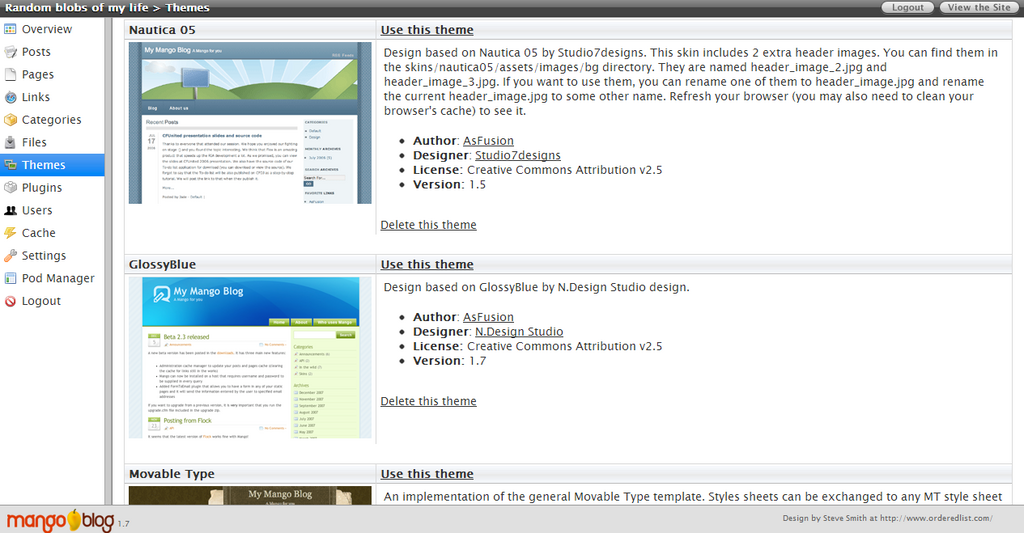
You might notice your theme preview is blank. To fix this, you can add an optional but highly recommended file: screenshot.png. WordPress automatically looks for a file with this exact name in your theme's root folder. It uses this image as the theme's thumbnail in the dashboard.
Once you click the "Activate" button on your theme, WordPress will start using its files to render your site. Since index.php is empty, you'll just see a blank white page, but it's a start. You now have a recognized, functioning theme ready for you to build upon.