WordPress Development Fundamentals
Introduction to WordPress
What is WordPress?
At its heart, WordPress is a Content Management System, or CMS. Think of a CMS as a toolkit that lets you build and manage a website without needing to write code from scratch. Instead of building a house brick by brick, you're using pre-made sections and a user-friendly interface to put everything together.
A CMS provides the structure for your website, handling everything from user accounts to content storage, so you can focus on what your site actually looks and says.
WordPress started in 2003 as a simple platform for bloggers. It was designed to make publishing online easy for everyone. Over the years, it grew into a powerful and flexible system that now powers over 40% of all websites on the internet. From personal blogs to massive e-commerce stores and corporate sites, WordPress is the engine behind a huge portion of the web.
Two Flavors of WordPress
When people talk about WordPress, they could be referring to one of two different things: WordPress.com or WordPress.org. The distinction is crucial.
WordPress.com is a hosted service. Think of it like renting an apartment. The landlord (WordPress.com) handles all the maintenance, security, and setup. You can move in and start decorating right away, but you have rules to follow and less freedom to make major changes. It's a great option for beginners who want a simple blog or website without worrying about technical details.
WordPress.org is self-hosted software. This is like owning your own house. You have to find your own land (a web hosting provider) and build the house yourself (install the WordPress software). It requires more work upfront, but you have complete freedom to customize, modify, and build whatever you want. This is the version that developers and serious website owners use.
| Feature | WordPress.com | WordPress.org |
|---|---|---|
| Hosting | Included | You find your own |
| Cost | Free with paid tiers | Software is free, but hosting costs money |
| Customization | Limited | Unlimited |
| Maintenance | Handled for you | Your responsibility |
Setting Up Your Workshop
Before you start building a website for the world to see, it's wise to practice in a private space. For this, developers use a local development environment. It's essentially a mini web server that runs on your own computer, allowing you to build and test a WordPress site without needing an internet connection or a hosting plan.
This setup is your sandbox. You can experiment with themes, test plugins, and even break things without any real-world consequences. Once you're happy with your site, you can then move it to a live server.
Tools like Local by Flywheel, XAMPP, or MAMP make it easy to create a local WordPress installation in just a few clicks.
The Control Panel
Once you have WordPress installed, you’ll manage your entire site from the WordPress dashboard. This is the backend control panel where you'll write posts, change the site's appearance, and configure settings.
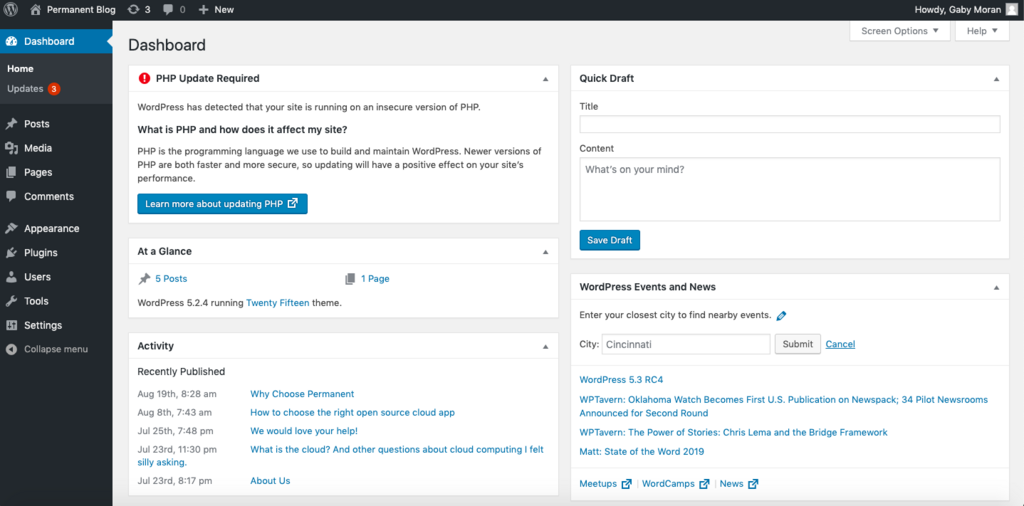
The main navigation menu on the left side is your guide. Here’s a quick tour of the most important sections:
- Posts: This is where you write and manage blog articles.
- Media: Your library for all uploaded images, videos, and other files.
- Pages: Used for creating static content, like an "About" or "Contact" page.
- Appearance: This is where you control your site's visual design by managing themes, menus, and widgets.
- Plugins: Here, you can add new features and functionality to your site with add-on software.
- Settings: Contains all the core configuration options for your website, from its title to how comments are handled.
Getting comfortable with the dashboard is the first step to mastering WordPress. It’s the command center for everything you’ll build.
What is the primary function of a Content Management System (CMS) like WordPress?
Which version of WordPress is a self-hosted software, giving you complete control and flexibility but requiring you to set up your own hosting?