WordPress Client Handover
Understanding WordPress Basics
The Heart of Your Website
Before diving into WordPress, it helps to understand what a Content Management System, or CMS, is. Think of a CMS as a digital toolkit that lets you build and manage a website without needing to know how to code. You can create pages, write blog posts, and upload images through a user-friendly interface.
WordPress is the world's most popular CMS, powering a huge portion of the internet. It started as a simple blogging tool but has since grown into a powerful platform capable of running everything from personal portfolios to complex e-commerce stores and corporate websites.
The key takeaway is that a CMS separates your content (text, images) from the design. This means you can change the entire look of your site without rewriting a single word.
Meet the Dashboard
Once you log into your WordPress site, you'll land on the Dashboard. This is your command center. From here, you can control every aspect of your website. It might look a little intimidating at first, but it's organized quite logically.
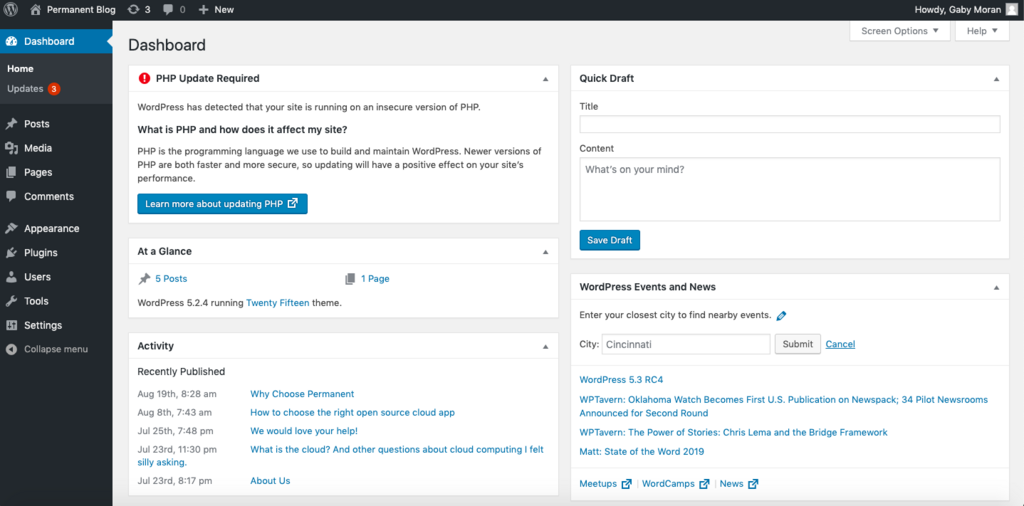
On the left side, you'll find the main navigation menu. This is how you'll get to different sections of your site's backend. You'll see links for creating posts and pages, managing comments, changing the site's appearance, and adding new features. The large area on the right contains various widgets that offer quick insights, like site activity, news, and a place to jot down a quick draft for a blog post.
Themes and Plugins
Two of the most important concepts in WordPress are themes and plugins. Understanding the difference is crucial to building and managing your site effectively.
Theme
noun
A collection of files that control the design, layout, and visual presentation of your website's content.
A theme is like the outfit your website wears. It dictates the colors, fonts, and overall layout. You can change your site's entire look and feel simply by switching themes, all without touching your actual content. There are thousands of free and premium themes available, suiting almost any purpose.
Plugin
noun
A piece of software containing a group of functions that can be added to a WordPress website to add new features or extend existing functionality.
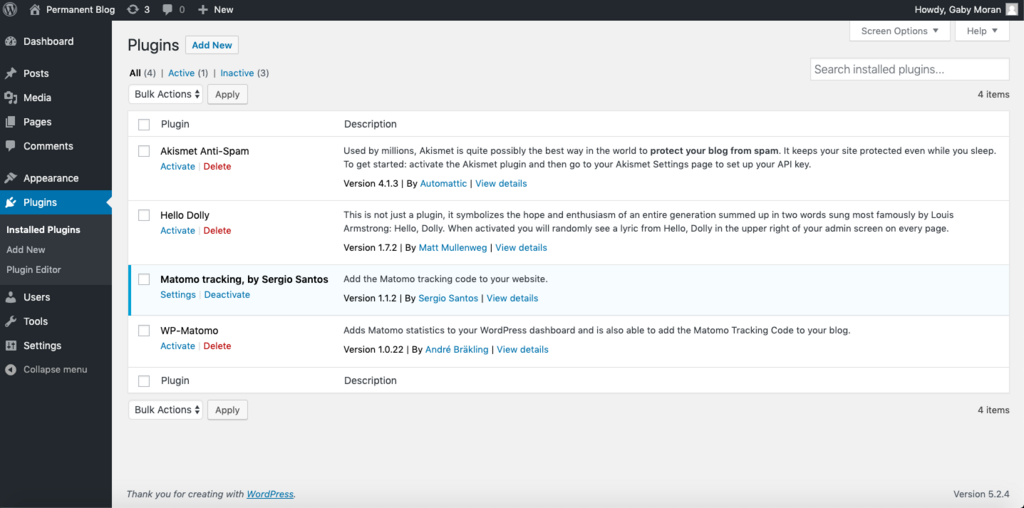
If a theme is the outfit, plugins are the accessories and tools. They add functionality that isn't part of the core WordPress software. Want to add a contact form, improve your site's SEO, or even turn your site into an online store? There's a plugin for that. Just like apps for your phone, plugins let you customize your site to do exactly what you need it to do.
User Roles and Permissions
WordPress is built for collaboration. You can have multiple people working on a single website, and you can control exactly what each person is allowed to do using user roles. Each role comes with a specific set of permissions.
| Role | Key Permissions |
|---|---|
| Administrator | Has full control over the entire site. Can add users, change themes, install plugins, and delete content. |
| Editor | Can publish and manage all posts and pages, including those written by other users. |
| Author | Can write, publish, and manage their own posts. They cannot edit other users' posts. |
| Contributor | Can write and manage their own posts but cannot publish them. An Editor or Administrator must approve their work. |
| Subscriber | Can only log in and manage their own profile. This role is often used for membership sites. |
Choosing the right roles for your team members is important for keeping your site secure and running smoothly. You wouldn't want to give someone Administrator access if they only need to write blog posts.
What is the primary purpose of a Content Management System (CMS)?
If you want to add an online store to your WordPress site, which of the following would you install?
With these fundamentals, you have a solid foundation for navigating WordPress. You understand the dashboard is your control panel, themes handle the look, plugins add features, and roles manage user access.