Wireshark Network Analysis
Introduction to Wireshark
Your Network's Microscope
Every time you browse a website, send an email, or stream a video, your device sends and receives information in tiny bundles called packets. Most of the time, this all happens invisibly. But what if you need to see what's actually going on? What if a connection is slow, or you suspect something strange is happening on your network?
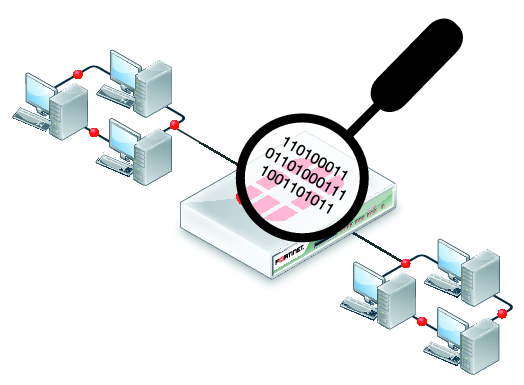
This is where Wireshark comes in. It's a network protocol analyzer, which is a powerful tool that captures and displays the data traveling over a network. Think of it as a microscope for your internet traffic, letting you examine individual packets in incredible detail.
Wireshark is used by network administrators, security professionals, and developers for many tasks:
- Troubleshooting network problems: Find out why a website is loading slowly or a device can't connect.
- Analyzing security issues: Inspect suspicious traffic to detect malware or unauthorized access.
- Learning network protocols: See how protocols like HTTP, DNS, and TCP work in the real world.
It captures traffic in real time and can also open saved capture files from other sources. It's an essential tool for anyone who needs a clear view of what’s happening under the hood of their network.
Wireshark, a network analysis tool formerly known as Ethereal, captures packets in real time and display them in human-readable format.
Getting Wireshark Running
Wireshark is free, open-source software available for all major operating systems. The installation process is straightforward, but there are a few platform-specific details to keep in mind.
| Operating System | Installation Steps |
|---|---|
| Windows | Download the installer from the official Wireshark website. During installation, make sure to also install Npcap, which is the library Wireshark uses to capture live network data. |
| macOS | Download the installer from the official Wireshark website. You may also need to install ChmodBPF to grant capture permissions. Follow the prompts during the Wireshark installation. |
| Linux (Debian/Ubuntu) | You can often install it from the command line: sudo apt-get install wireshark. During installation, you'll be asked if non-superusers should be able to capture packets. For ease of use, select Yes. Then, add your user to the wireshark group: sudo usermod -aG wireshark $(whoami) and log out and back in. |
Once installed, you can launch Wireshark and start exploring.
A Tour of the Interface
When you first open Wireshark and start a capture, the screen can look a bit overwhelming. It's packed with information, but it's organized into a few key sections. Let's break down the main window.
The interface is primarily divided into three main panes.
1. Packet List Pane This is the top section and it shows a summary of each packet captured. Each line is a single packet, with columns like:
- No.: The packet's number in the capture sequence.
- Time: The timestamp when the packet was captured.
- Source: The address (usually an IP address) that sent the packet.
- Destination: The address that received the packet.
- Protocol: The highest-level protocol identified (e.g., DNS, HTTP, TCP).
- Info: A brief summary of the packet's contents.
2. Packet Details Pane When you click on a packet in the list above, this middle pane comes to life. It shows a detailed, expandable tree view of the protocols and fields within that single packet. You can click the arrows to expand each protocol layer (like Ethernet, IP, and TCP) and see the specific values for that layer.
3. Packet Bytes Pane This bottom pane displays the raw data of the selected packet, exactly as it was captured. It's shown in two formats side-by-side: hexadecimal on the left and the corresponding ASCII text on the right. Clicking on a field in the Packet Details pane will highlight the corresponding bytes here, which is extremely useful for deep analysis.
Getting comfortable with these three panes is the first step to mastering Wireshark. Now, let's test what you've learned.
What is the primary function of Wireshark?
In the Wireshark interface, which pane provides a high-level summary of all captured packets in a sequential list?
With this foundation, you're ready to start exploring network traffic on your own.