Windows Server Essentials
Windows Server Overview
What Is a Server OS?
The Windows you use on your laptop or desktop is designed for one person. It's built for browsing the web, writing documents, and playing games. A server operating system is different. It's designed to manage network resources and provide services to multiple users and computers at once. Think of it as the backstage manager for an office or a website, making sure everyone has what they need, from file access to network connectivity.
Microsoft's server operating system is called Windows Server. It looks a bit like its desktop counterpart but is packed with powerful tools for managing users, data, and applications on a network.
Versions and Editions
Just like the regular Windows, Windows Server comes in different versions released every few years. You'll see names like Windows Server 2016, 2019, 2022, and 2025. Each new version adds features and improves on security and performance.
Within each version, there are also different editions, tailored for different needs. The two most common are Standard and Datacenter.
| Edition | Best For | Key Feature |
|---|---|---|
| Standard | Small to medium-sized businesses | Good for physical servers or environments with few virtual machines. |
| Datacenter | Large-scale virtualization | Allows for an unlimited number of virtual machines. Best for cloud and big data centers. |
There's also an Essentials edition for very small businesses, which is a simpler, more limited option. Choosing the right edition depends on the size of your organization and how heavily you plan to use virtualization.
Server Roles and Features
A fresh installation of Windows Server doesn't do much out of the box. You have to tell it what its job is. You do this by adding roles and features.
A role is a primary job you assign to a server. Think of it as the server's main purpose. Some common roles include:
- Active Directory Domain Services (AD DS): Manages user accounts, passwords, and security for a network.
- DNS Server: Translates human-readable domain names (like
www.example.com) into computer-readable IP addresses. - DHCP Server: Automatically assigns IP addresses to devices when they connect to the network.
- Web Server (IIS): Hosts websites and web applications.
A feature is a smaller program or service that supports the server's roles or adds extra capability. For example, you might add Failover Clustering as a feature to ensure a critical service stays online even if one server fails.
This modular approach is powerful. You only install what you need, which reduces the server's attack surface and saves system resources.
Installation: GUI vs Core
When you install Windows Server, you have a crucial choice to make: install it with a graphical user interface (GUI) or as a command-line-only version called Server Core.
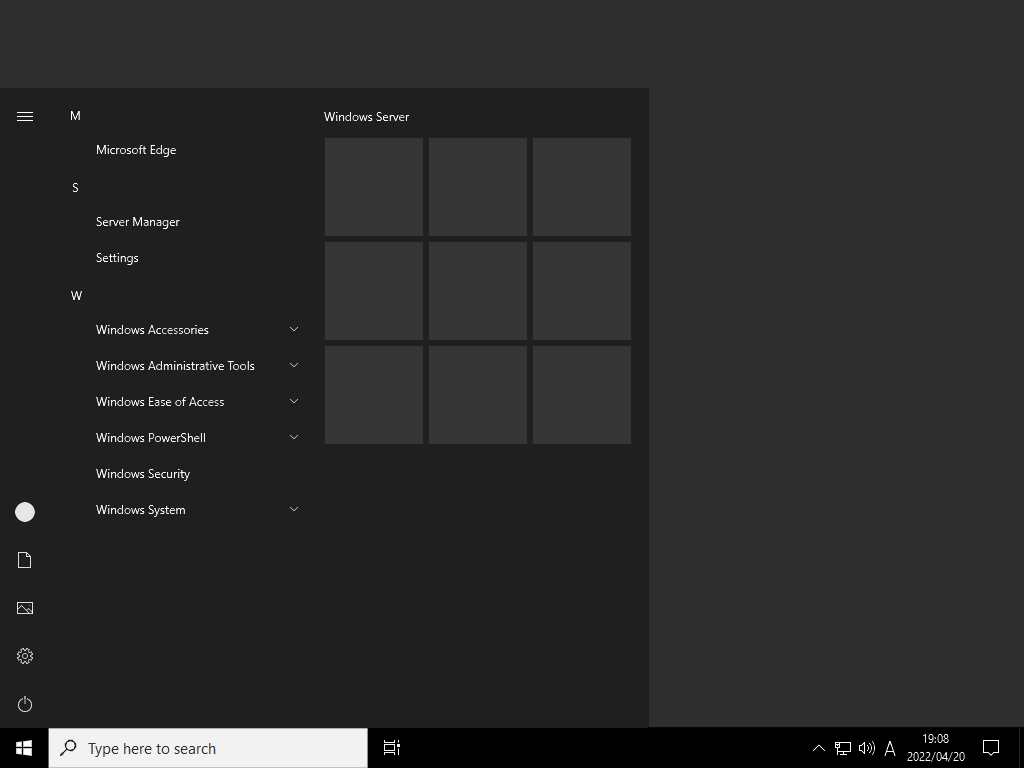
Desktop Experience (GUI) This is the familiar Windows environment with a desktop, taskbar, Start menu, and File Explorer. It's easier to navigate for those accustomed to desktop Windows and is required for some applications that need a graphical interface to manage.
Server Core Server Core is a minimal installation. There's no desktop, no Start menu, just a command prompt. You manage everything by typing commands in PowerShell or Command Prompt, or by using remote management tools from another computer.
# This is what you see when you log into Server Core
# You manage the system from this PowerShell prompt
PS C:\Users\Administrator>
Why choose Server Core? It uses fewer system resources (RAM and disk space) and has a smaller footprint, which means fewer updates and a smaller potential attack surface. It's the preferred choice for many experienced administrators, especially for infrastructure roles like DNS or DHCP.
Navigating Server Manager
If you install the Desktop Experience, your main tool will be Server Manager. It launches automatically when you log in and gives you a central dashboard to manage the server.
From Server Manager, you can:
- View the server's status at a glance.
- Add or remove roles and features.
- Launch other administrative tools.
- Manage other servers on your network from one console.
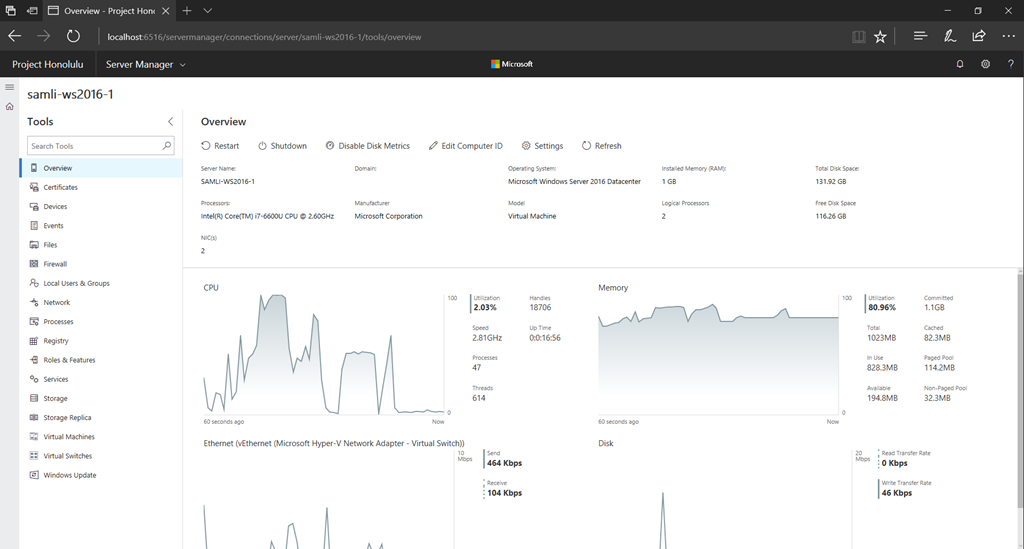
The left-hand pane lets you select specific roles you've installed (like DNS or File Services) to see their status and access role-specific tools. For everything else, the Tools menu in the top right corner is your gateway. It contains a long list of utilities for more specific tasks, from Active Directory management to disk performance monitoring.
Windows Server skills are essential for business and organizational success.
Now that you have a grasp of the fundamentals, let's test your knowledge.
What is the primary function that distinguishes a server operating system, like Windows Server, from a desktop operating system like Windows 11?
An administrator needs to configure a new server to automatically provide IP addresses to client computers as they join the network. Which server role must be installed to accomplish this?
Understanding these core concepts is the first step toward effectively managing a Windows Server environment.