Windows Installation From USB
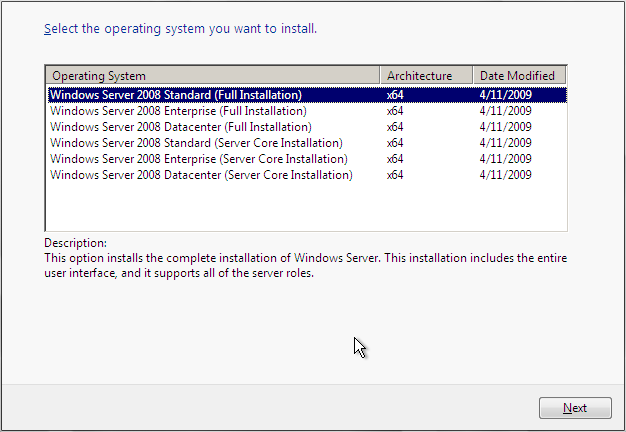
Understanding Windows Versions
Choosing Your Windows 11
Microsoft Windows isn't a one-size-fits-all operating system. Just like a car might come in different models—a standard sedan, a sport version, a family minivan—Windows comes in different editions. Each one is designed for a specific type of user, from a student writing essays to a large corporation managing thousands of computers.
The main editions you'll encounter for Windows 11 are Home and Pro. While they look and feel almost identical, the key differences are under the hood, relating mostly to security and networking features.
| Feature | Windows 11 Home | Windows 11 Pro |
|---|---|---|
| Target User | Everyday personal use, gaming, browsing | Professionals, small businesses, power users |
| BitLocker Encryption | No | Yes (Encrypts your entire drive for security) |
| Remote Desktop | Client only (You can connect to other PCs) | Host & Client (Other PCs can connect to yours) |
| Group Policy | No | Yes (Advanced settings for administrators) |
| Windows Sandbox | No | Yes (A safe, isolated space to test apps) |
For most people, Windows 11 Home is the perfect choice. It has everything you need for day-to-day tasks, from browsing the web to playing games.
Windows 11 Pro adds features that are useful in a business environment. If you need to connect securely to an office network, protect sensitive data with full-disk encryption (BitLocker), or manage settings for multiple users, Pro is the way to go. It also includes tools like Windows Sandbox, which lets you safely run suspicious programs without affecting your main system.
System Requirements
Before you can install Windows 11, you need to make sure your computer is up to the task. Microsoft set specific hardware requirements to ensure the operating system runs smoothly and securely. Here are the main ones:
- Processor: 1 gigahertz (GHz) or faster with 2 or more cores on a compatible 64-bit processor.
- RAM: 4 gigabytes (GB) or more.
- Storage: 64 GB or larger storage device.
- System Firmware: UEFI, Secure Boot capable.
- TPM: Trusted Platform Module (TPM) version 2.0.
The TPM requirement is the most common hurdle for older PCs. A TPM is a small security chip on your computer's motherboard that helps protect sensitive data, like encryption keys. Most computers made in the last several years include one, but it may need to be enabled in your system's settings (often called the BIOS or UEFI).
Check Your Current Version
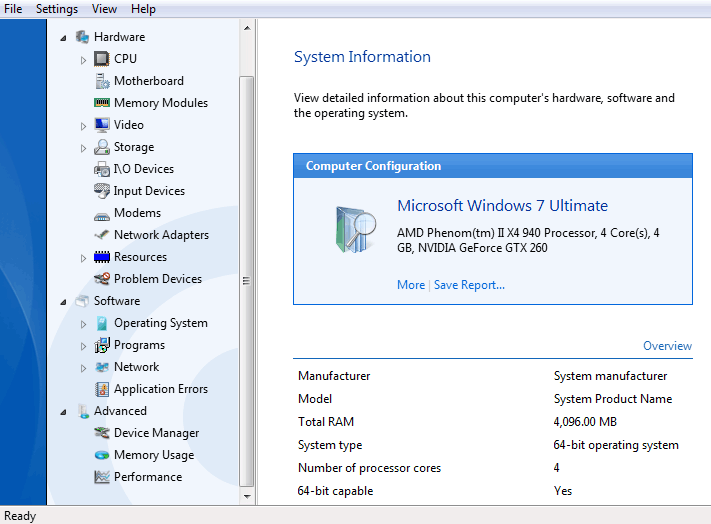
Not sure what version of Windows you're running now? Finding out is simple. This is useful for checking if you have Home or Pro and whether your system is 32-bit or 64-bit. Windows 11 requires a 64-bit processor.
Here are two easy ways to check:
1. Using the Settings App
- Open the Start Menu and go to Settings.
- Click on System.
- Scroll down and select About.
This screen will show your Windows edition, version, and system type (64-bit or 32-bit).
Another quick method is the "Run" command.
2. Using the Run Command
- Press the Windows key + R on your keyboard to open the Run dialog box.
- Type
winverand press Enter.This will open a small window displaying your exact Windows version and build number.
Now that you can identify your current system and understand the different editions of Windows 11, let's test your knowledge.
A small business owner needs to encrypt the entire hard drive of their work laptop to protect sensitive client data. Which feature, exclusive to Windows 11 Pro, is designed for this purpose?
A user is evaluating their current PC for an upgrade to Windows 11. Which of the following configurations meets the minimum system requirements?
Knowing which edition fits your needs and whether your hardware is ready is the first critical step before starting any installation.