WhatsApp for Seniors Made Easy
Introduction to WhatsApp
What is WhatsApp?
WhatsApp is a free application for your smartphone that lets you message and call friends and family using the internet. Instead of using your mobile plan's text messages or call minutes, it uses a Wi-Fi connection or your phone's cellular data. This makes it a popular way to stay in touch, especially with people in other countries, without worrying about long-distance charges.

It’s a simple tool for sending text messages, making phone calls, and even video chatting, all from one place.
Getting Started
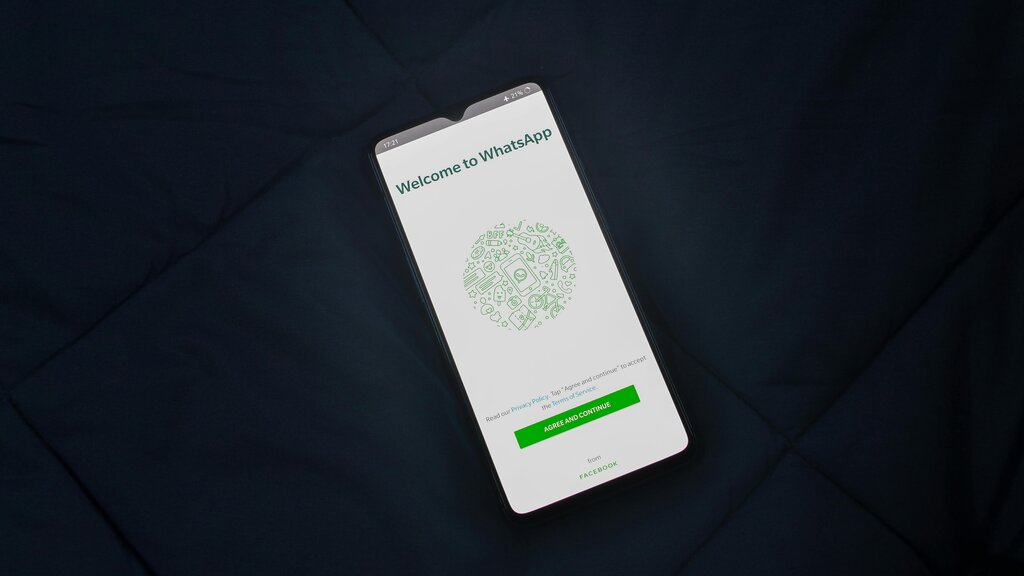
First, you need to install WhatsApp on your smartphone. If you have an iPhone, open the App Store. If you use an Android phone, open the Google Play Store. Search for "WhatsApp" and tap the "Install" or "Get" button.
Once it's installed, open the app. It will ask for your phone number to create your account. You'll receive a text message with a verification code to confirm it's really you. After that, WhatsApp may ask for permission to access your contacts. It's a good idea to allow this, as it will automatically show you who in your address book already uses the app.
Sending Messages and Photos
Once you're set up, you'll see a list of your chats. To start a new conversation, look for an icon that looks like a new message bubble or a plus sign, usually at the bottom or top of the screen. Tap it, and then select a person from your contact list.
This opens a chat window. Type your message in the text box at the bottom and tap the paper airplane or arrow icon to send it.
For example: "Hi, just trying out WhatsApp! Let me know if you get this."
Want to share a photo? In the chat window, look for a paperclip or plus (+) icon next to the text box. Tapping it will give you options to take a new photo with your camera or choose an existing one from your phone's photo gallery. Select your picture, and you can even add a caption before sending.
Voice and Video Calls
WhatsApp isn't just for texting. You can make voice and video calls for free over the internet. This is especially useful for talking with loved ones who are far away.
To make a call, open the chat with the person you want to contact. At the top of the screen, you'll see two icons: a telephone and a video camera.
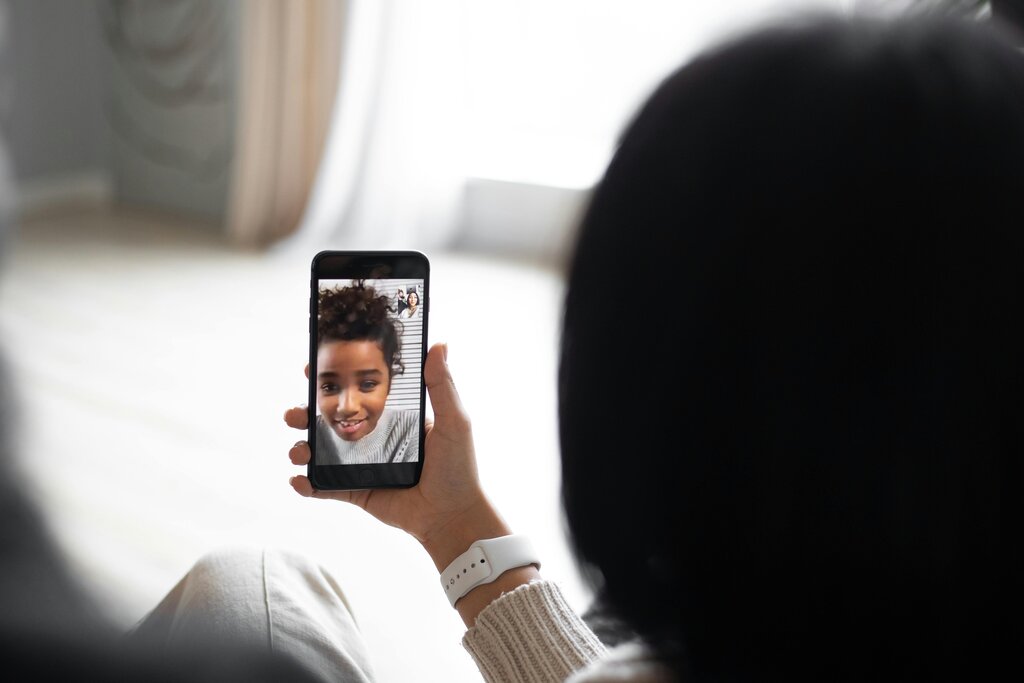
Tap the telephone icon to start a regular voice call. It works just like a normal phone call, but it uses your internet connection.
Tap the video camera icon to start a video call. Your phone's front-facing camera will turn on, allowing you to see the other person and for them to see you. Remember, these calls use data, so it's best to be connected to Wi-Fi if you plan on chatting for a while.
Staying Safe and Private
It's important to know who can see your information. WhatsApp gives you control over your privacy through its settings. You can find them by tapping on the "Settings" tab (often a gear icon), and then selecting "Privacy."
Here are a few key settings you can adjust:
| Setting | What it Controls | Your Options |
|---|---|---|
| Last Seen & Online | Who can see the last time you used WhatsApp. | Everyone, My Contacts, My Contacts Except..., Nobody |
| Profile Photo | Who can see your profile picture. | Everyone, My Contacts, My Contacts Except..., Nobody |
| About | Who can see the short "About" message on your profile. | Everyone, My Contacts, My Contacts Except..., Nobody |
| Read Receipts | Lets others see if you've read their messages (the two blue checkmarks). If you turn this off, you won't be able to see when others read your messages either. | On / Off |
A good starting point is to set "Last Seen" and "Profile Photo" to "My Contacts." This ensures that only people you have saved in your phone's address book can see your picture and when you were last active. It adds a simple layer of security and peace of mind.
What is the main advantage of using WhatsApp for calls and messages instead of your regular phone plan?
To install WhatsApp on an Android phone, you should search for it in the...