Webpage Creation Essentials
Introduction to HTML
The Blueprint of the Web
Every website you visit, from a simple blog to a complex news site, is built on a foundation of HTML. HTML stands for HyperText Markup Language, and it's the standard language used to create and structure the content on a webpage. Think of it as the skeleton of a house. It defines the basic framework: where the walls go, where the doors are, and how the rooms are laid out. Without this structure, there's just a jumble of materials.
HTML (Hypertext Markup Language) defines the structure and contents of a web page – where things go, how they are laid out, and what’s on the page
HTML uses a system of tags to mark up the content. These tags tell the web browser—like Chrome or Firefox—how to display the information. For example, a tag can tell the browser, "This text is a heading," or "This text is a paragraph."
Most tags come in pairs: an opening tag and a closing tag. The opening tag looks like <p>, and the closing tag has a forward slash: </p>. Everything between these two tags is considered part of that element.
Element
noun
A complete piece of content in an HTML document, consisting of an opening tag, the content itself, and a closing tag.
Anatomy of an HTML Page
Every HTML document has a standard structure that it must follow. It's like a template that provides a consistent starting point for any webpage.
<!DOCTYPE html>
<html>
  <head>
    <title>My First Webpage</title>
  </head>
  <body>
    <!-- Content goes here -->
  </body>
</html>
Let's break that down:
<!DOCTYPE html>: This is a special declaration at the very top of the file. It tells the browser that the document is an HTML5 page.<html>: This is the root element that wraps all the content on the entire page.<head>: This element contains meta-information about the page. This is stuff that isn't displayed directly on the webpage itself, like the page title that appears in the browser tab.<body>: This is where the magic happens. All the visible content of your webpage—headings, paragraphs, images, and links—goes inside the<body>tags.
Adding Basic Content
Now let's add some content inside the <body>.
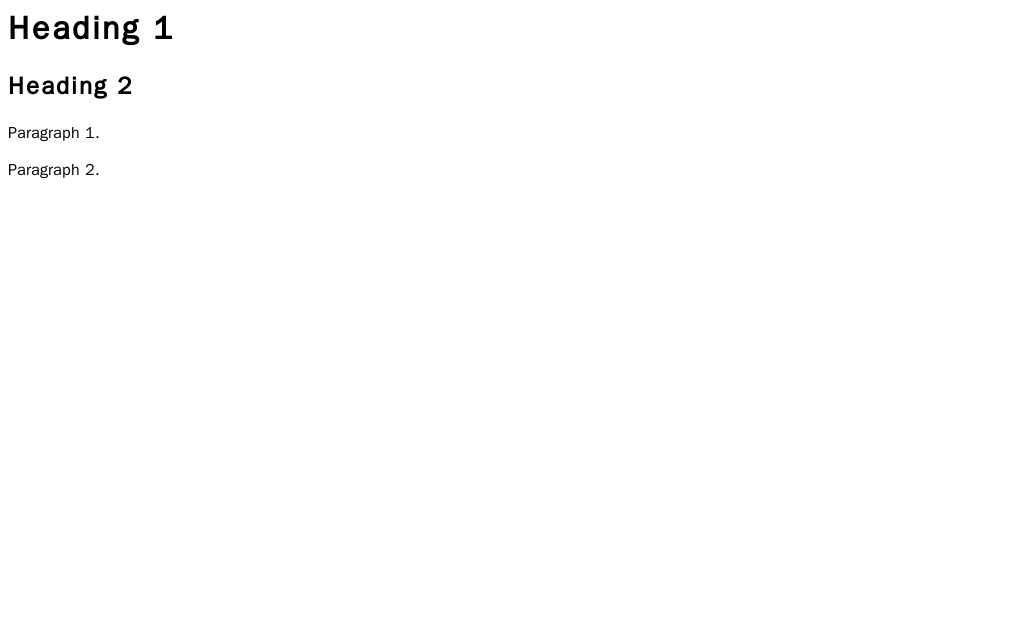
The most common tags you'll use are for headings and paragraphs. Headings are created with
<h1>through<h6>tags.<h1>is the most important, top-level heading, while<h6>is the least important.
Paragraphs are created with the <p> tag. Web browsers automatically add a bit of space before and after a paragraph, separating it from other elements.
<body>
  <h1>This is a Main Heading</h1>
  <p>This is a paragraph of text. It introduces the main idea of the page.</p>
  <h2>This is a Subheading</h2>
  <p>This is another paragraph, providing more detail under the subheading.</p>
</body>
What about lists? HTML gives us two primary types. An unordered list (<ul>) is for a list of items where the order doesn't matter, like a shopping list. A ordered list (<ol>) is for when the sequence is important, like step-by-step instructions. In both cases, each individual list item is wrapped in an <li> tag.
<!-- An unordered list -->
<ul>
  <li>Apples</li>
  <li>Oranges</li>
  <li>Bananas</li>
</ul>

<!-- An ordered list -->
<ol>
  <li>First, open the box.</li>
  <li>Second, read the instructions.</li>
  <li>Third, assemble the product.</li>
</ol>
Links and Attributes
The web wouldn't be a web without links. To create a link, we use the anchor tag, <a>. But the tag alone isn't enough. We need to tell the browser where the link should go. We do this with an attribute.
Attributes provide extra information about an element and are always placed inside the opening tag. For a link, the most important attribute is href, which stands for "hypertext reference." It specifies the URL the link points to.
<a href="https://www.example.com">Visit Example.com</a>
In that example, href is the attribute name, and "https://www.example.com" is the attribute value. The text between the opening <a> and closing </a> tags is what becomes the clickable link on the page.
The basic format for an attribute is always
name="value".
Let's put everything together into one complete, simple webpage.
<!DOCTYPE html>
<html>
  <head>
    <title>All About My Favorite Fruit</title>
  </head>
  <body>
    <h1>The Amazing Apple</h1>
    <p>The apple is a delicious and healthy fruit.</p>

    <h2>Why Apples are Great</h2>
    <ul>
      <li>They are crunchy.</li>
      <li>They come in many varieties.</li>
      <li>They are good for you!</li>
    </ul>

    <p>To learn more, you can <a href="https://en.wikipedia.org/wiki/Apple">visit the Wikipedia page</a>.</p>
  </body>
</html>
If you save that code in a file with a .html extension (like index.html) and open it in a web browser, you'll see your first webpage. It won't look fancy, but it has structure, and that's the essential first step.
Time to check your understanding.
What does HTML stand for?
The visible content of a webpage, such as headings, paragraphs, and images, should be placed inside which pair of tags?
You've now learned how to create the fundamental structure of any webpage using HTML. Next, you'll discover how to add style and make it look good.