Web Page Creation Fundamentals
HTML Basics
The Blueprint of a Web Page
Every website you visit, from a simple blog to a massive online store, is built on a foundation of HTML. Think of HTML (HyperText Markup Language) as the skeleton of a web page. It provides the basic structure and tells the web browser how to organize the content you see.
HTML isn't a programming language. It's a markup language, which means it uses special markers, called tags, to define different pieces of content.
Every HTML document follows a standard structure. It starts with a declaration that tells the browser it's an HTML document. Then, all content is wrapped inside an <html> tag. Inside that, you'll find two main sections: the <head> and the <body>.
<!DOCTYPE html>
<html>
  <head>
    <title>My First Web Page</title>
  </head>
  <body>
    <!-- Content for the page goes here -->
  </body>
</html>
The <head> section contains metadata, which is information about the page. This includes things like the page title that appears in your browser tab, but it's not visible on the page itself. The <body> is where the magic happens. Everything you see—text, images, links, and forms—goes inside the body.
Writing with Tags
HTML works using elements, which are created with tags. Most tags come in pairs: an opening tag like <p> and a closing tag like </p>. The slash in the closing tag is important; it signals the end of that element. Whatever content you put between these tags is affected by them.
Let's look at some of the most common tags for structuring text.
Heading
noun
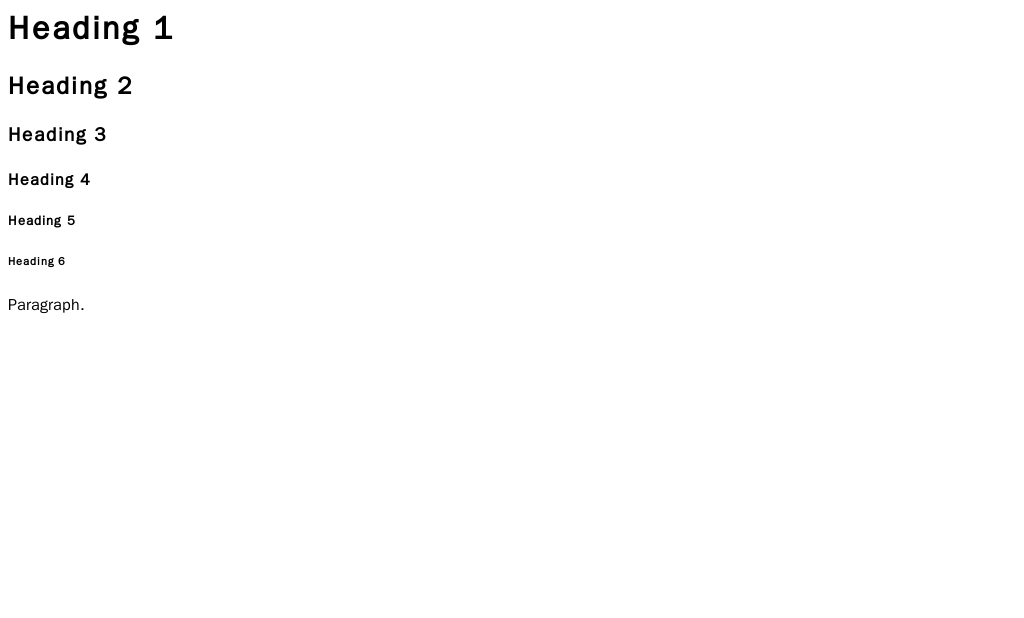
Headings are used to create titles and subtitles on a page. They range from <h1> (the most important) to <h6> (the least important). Using headings correctly helps organize your content for both readers and search engines.
For regular text, you'll use the paragraph tag, <p>. It creates a block of text, with space automatically added before and after it.
<h1>This is a main heading</h1>
<p>This is a paragraph of text. It introduces the topic.</p>
<h2>This is a subheading</h2>
<p>This is another paragraph, providing more detail.</p>
Lists are another essential tool for organizing information. HTML gives us two main types:
- Unordered Lists (
<ul>): For lists where the order doesn't matter. Each item is marked with a bullet point. - Ordered Lists (
<ol>): For lists where the order is important, like a recipe. Each item is numbered.
In both cases, each individual list item is wrapped in an <li> tag.
<ul>
  <li>Apples</li>
  <li>Oranges</li>
  <li>Bananas</li>
</ul>

<ol>
  <li>First, gather your ingredients.</li>
  <li>Next, mix them together.</li>
  <li>Finally, bake in the oven.</li>
</ol>
Adding More Detail with Attributes
Tags define the type of content, but attributes provide extra information about an element. They are always added to the opening tag and usually come in name/value pairs, like name="value".
The most common use of attributes is for creating links and embedding images.
To create a hyperlink, you use the anchor tag, <a>. Its most important attribute is href (hypertext reference), which specifies the URL you want to link to.
<a href="https://www.wikipedia.org">Visit Wikipedia</a>
For images, we use the <img> tag. This is a self-closing tag, meaning it doesn't need a separate closing tag. It requires two key attributes:
src: The source of the image file, which is its URL or file path.alt: Alternative text that describes the image. This is crucial for accessibility, as screen readers will read it aloud to visually impaired users. It also displays if the image fails to load.
<img src="images/cat.jpg" alt="A fluffy orange cat sleeping on a rug">
Collecting Information with Forms
Forms are how websites collect information from users, whether it's for a search bar, a login page, or a contact form. The entire form is contained within a <form> element.
Inside the form, you use different input elements to collect data. The <input> tag is very versatile, and its behavior changes based on its type attribute.
| Input Type | Description |
|---|---|
type="text" | A single-line text field. |
type="password" | A text field where characters are hidden. |
type="email" | A field for an email address. |
type="submit" | A button that submits the form. |
For longer text input, like a comment box, you'd use the <textarea> element. It's also important to label your inputs using the <label> tag. This tells users what each field is for and improves accessibility.
<form>
  <label for="username">Username:</label><br>
  <input type="text" id="username" name="username"><br><br>

  <label for="password">Password:</label><br>
  <input type="password" id="password" name="password"><br><br>

  <input type="submit" value="Log In">
</form>
This code creates a simple login form. The for attribute on the <label> connects it to the <input> with the matching id, which is a great practice for making your forms easy to use for everyone.
What is the primary purpose of the <body> tag in an HTML document?
Which attribute is essential for an <img> tag to function correctly and is also crucial for web accessibility?
With these basic building blocks, you can structure almost any kind of content for the web. Mastering these tags and attributes is the first essential step in web development.