Web Development Mastery Notes
Advanced HTML Elements
Building Interactive Forms
Beyond simple text fields, HTML forms can capture a wide range of user input. By using different input types and attributes, you can create forms that are intuitive, accessible, and powerful. These elements allow you to gather structured data, from simple yes/no answers to detailed user feedback.
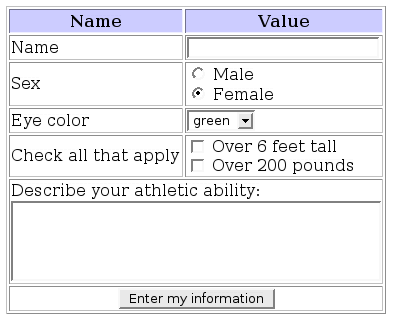
Let's look at a more complex form. This example includes labels for accessibility, dropdown menus, radio buttons for single-choice selections, checkboxes for multiple selections, and a larger text area for open-ended responses. The for attribute on a <label> links it to a specific input, so clicking the label focuses on the input field. This is great for usability.
<form action="/submit-data" method="post">
  <label for="name">Name:</label><br>
  <input type="text" id="name" name="user_name" required><br><br>

  <label for="color">Favorite Color:</label><br>
  <select id="color" name="user_color">
    <option value="red">Red</option>
    <option value="blue">Blue</option>
    <option value="green">Green</option>
  </select><br><br>

  <p>Are you over 18?</p>
  <input type="radio" id="age_yes" name="age" value="yes">
  <label for="age_yes">Yes</label><br>
  <input type="radio" id="age_no" name="age" value="no">
  <label for="age_no">No</label><br><br>

  <p>What pets do you own?</p>
  <input type="checkbox" id="pet_dog" name="pets" value="dog">
  <label for="pet_dog">Dog</label><br>
  <input type="checkbox" id="pet_cat" name="pets" value="cat">
  <label for="pet_cat">Cat</label><br><br>

  <label for="comments">Comments:</label><br>
  <textarea id="comments" name="user_comments" rows="4" cols="50"></textarea><br><br>

  <input type="submit" value="Submit">
</form>
Notice the different type attributes on the <input> element, like text, radio, checkbox, and submit. The <select> element creates a dropdown list, and <textarea> provides a multi-line text box. Attributes like required ensure the user fills out a field before submission.
Organizing Data with Tables
Tables are perfect for displaying data in a grid, like spreadsheets or financial reports. The basic structure involves a <table> element containing rows (<tr>), which in turn contain either header cells (<th>) or data cells (<td>). Headers are bold and centered by default, clearly labeling the columns.
For more complex data, you can group rows into a head (<thead>), body (<tbody>), and foot (<tfoot>). This adds semantic meaning and allows browsers to handle large tables more efficiently, like keeping the header visible while scrolling. You can also make cells span multiple columns or rows using the colspan and rowspan attributes.
<table border="1">
  <caption>Monthly Sales Report</caption>
  <thead>
    <tr>
      <th>Month</th>
      <th>Sales</th>
      <th>Expenses</th>
    </tr>
  </thead>
  <tbody>
    <tr>
      <td>January</td>
      <td>💲10,000</td>
      <td>💲8,000</td>
    </tr>
    <tr>
      <td>February</td>
      <td>💲12,000</td>
      <td>💲9,000</td>
    </tr>
  </tbody>
  <tfoot>
    <tr>
      <td colspan="2">Total Profit:</td>
      <td>💲5,000</td>
    </tr>
  </tfoot>
</table>
Giving Your Content Meaning
Not all HTML tags are created equal. Some, like <div> and <span>, are generic containers—they tell the browser how to group content but nothing about what the content is. In contrast, semantic HTML elements describe the meaning of the content they enclose.
Using semantic tags tells the browser, search engines, and assistive technologies (like screen readers) what role each piece of content plays on the page.
HTML5 introduced a set of semantic elements to define the different parts of a webpage. Instead of using <div id="header">, you can just use <header>. This makes your code cleaner and more meaningful.
| Tag | Purpose |
|---|---|
<header> | Introductory content for a page or section, often containing navigation. |
<nav> | A block of navigation links. |
<main> | The primary, unique content of the page. |
<article> | A self-contained piece of content, like a blog post or news story. |
<section> | A thematic grouping of content, typically with a heading. |
<aside> | Content that is tangentially related, like a sidebar or call-out box. |
<footer> | Closing content for a page or section, often with copyright or contact info. |
Using these tags correctly provides a clear structure that benefits everyone.
Semantic HTML not only improves the readability of your code but also enhances accessibility and SEO.
This structure gives a clear and logical outline of the page, making your website more robust and easier for both people and machines to understand.
Ready to test your knowledge? Let's see what you've learned about these advanced HTML elements.
What is the primary purpose of the for attribute in an HTML <label> element?
If you want to allow a user to select multiple hobbies from a list, which input type is the most suitable choice?
By mastering forms, tables, and semantic tags, you can create web pages that are not only visually structured but also rich with meaning and functionality.