Web Development Mastery
Introduction to HTML
The Skeleton of the Web
Every website you visit, from a simple blog to a complex news site, is built on a foundation of HTML. HTML stands for HyperText Markup Language, and it's the standard language used to create and structure the content of a webpage. Think of it like the skeleton of a human body. It provides the essential structure and holds everything in place, but it doesn't define the appearance, like skin color or clothing style. That's the job of other technologies like CSS, which we'll ignore for now.
HTML, or HyperText Markup Language, provides the skeleton for your web content.
An HTML document is just a plain text file with a .html extension. Web browsers read these files and render them into the visual pages we see. The magic lies in the "markup" part of the name. We use special markers called tags to tell the browser how to structure the content.
The Basic Blueprint
Every HTML page follows a standard structure. It helps the browser understand the document and display it correctly. At the very top, <!DOCTYPE html> tells the browser that the document is an HTML5 page. The rest of the content is wrapped in <html> tags.
Inside the <html> tags, there are two main parts: the <head> and the <body>.
The
<head>contains metadata—information about the page, like its title, that isn't displayed in the main window. The<body>contains all the content that you actually see on the page, like text, images, and links.
Here’s what a bare-bones HTML document looks like:
<!DOCTYPE html>
<html>
  <head>
    <title>My First Web Page</title>
  </head>
  <body>
    <h1>Hello, world!</h1>
    <p>This is a paragraph.</p>
  </body>
</html>
Content Building Blocks
HTML gives us a variety of tags to structure our content. The most common ones are for creating headings and paragraphs.
Headings are defined with <h1> through <h6> tags. <h1> is the most important heading, usually the main title of the page, while <h6> is the least important. Using headings correctly helps organize your content for both readers and search engines.
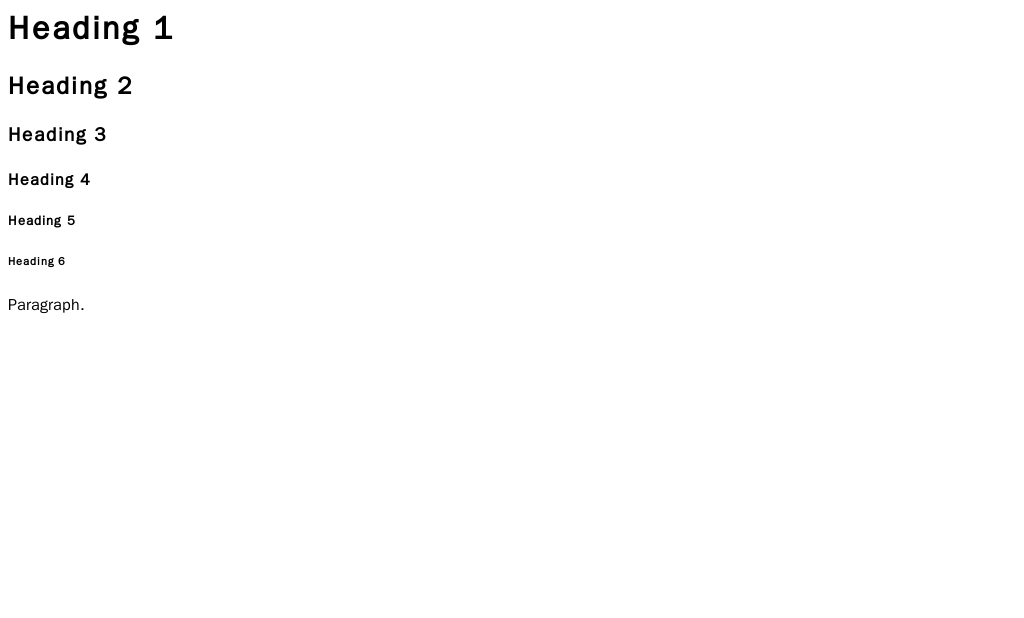
For regular text, we use the <p> tag, which stands for paragraph. It creates a block of text separated from other content.
Lists are another fundamental way to organize information. There are two main types:
- Unordered lists
<ul>for items where the order doesn't matter. Each item is marked with a<li>(list item) tag. - Ordered lists
<ol>for items where the order is important, like step-by-step instructions. These items also use the<li>tag.
<!-- An unordered list -->
<ul>
  <li>Apples</li>
  <li>Oranges</li>
  <li>Bananas</li>
</ul>

<!-- An ordered list -->
<ol>
  <li>First, do this.</li>
  <li>Next, do that.</li>
  <li>Finally, do this last thing.</li>
</ol>
Connecting and Showing
The web is all about connecting pages. We do this with links, which are created using the anchor tag, <a>. The href attribute specifies the destination URL.
<a href="https://www.wikipedia.org">Go to Wikipedia</a>
To embed images, we use the <img> tag. This tag is self-closing and requires two important attributes: src (source) to point to the image file, and alt (alternative text) to describe the image. Alt text is crucial for accessibility, as it's read aloud by screen readers for visually impaired users, and it's displayed if the image fails to load.
<img src="cute_cat.jpg" alt="A fluffy orange cat sleeping on a sunny windowsill">
You can also embed other media like videos using the <video> tag, providing the file path in the src attribute.
<video src="my_awesome_video.mp4" controls>
  Your browser does not support the video tag.
</video>
Notice the controls attribute? That's a boolean attribute that tells the browser to show default video controls like play, pause, and volume.
Forms for User Input
HTML also allows you to collect information from users through forms. A form is a container for different types of input elements, like text fields, checkboxes, radio buttons, and submit buttons.
The <form> tag wraps the entire form, and the <input> tag is used for most input fields. The type attribute of the <input> tag determines what kind of input it will be.
<form>
  <label for="username">Username:</label><br>
  <input type="text" id="username" name="username"><br>

  <label for="password">Password:</label><br>
  <input type="password" id="password" name="password"><br><br>

  <input type="submit" value="Submit">
</form>
The <label> tag is important for accessibility, as it associates a text label with a specific form control. When a user clicks on the label, the browser focuses on the corresponding input element.
Writing with Meaning
In the early days of the web, developers often used generic tags like <div> to group content for styling purposes. While this works, it doesn't give any clues about what the content is. This is where semantic HTML comes in.
Semantic tags describe their meaning to both the browser and the developer. For example, instead of using a <div> for your page's header, you should use the <header> tag. For navigation links, use <nav>. For the main content, use <main>. A self-contained piece of content, like a blog post or a news article, should be wrapped in an <article> tag.
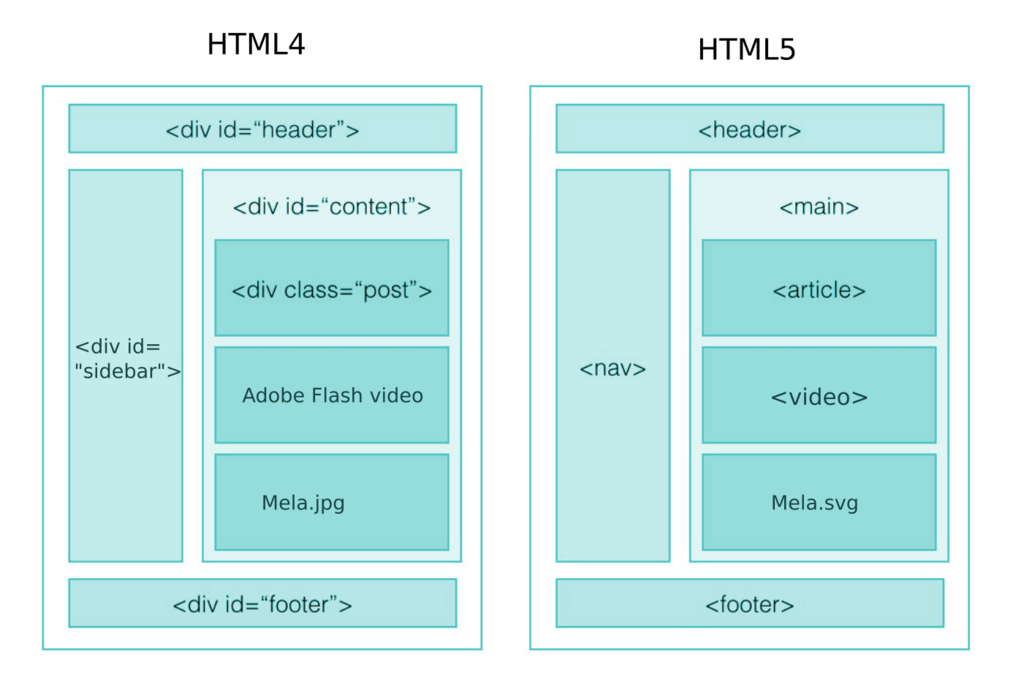
Semantic HTML not only improves the readability of your code but also enhances accessibility and SEO.
Using semantic tags helps screen readers navigate the page, allows search engines to better understand and rank your content, and makes your code easier for other developers to read and maintain.
What does HTML stand for?
What are the two main sections nested directly inside the <html> tag of a standard HTML document?
That's a quick tour of HTML's foundational elements. By using these tags to structure your content, you're building the solid skeleton that every great website needs.