Warp Terminal Claude AI Integration
Introduction to Warp Terminal
Meet Warp
The terminal is a powerful tool for developers, but its interface hasn't changed much in decades. Warp is a modern, Rust-based terminal that reimagines the command-line experience. It’s designed to be faster, easier to use, and more intelligent than traditional terminals.
Warp is an AI-powered terminal that enhances command-line productivity with smart suggestions, inline editing, and customizable features.
Instead of a single, endless stream of text, Warp organizes your commands and their outputs into distinct blocks. This makes it simple to navigate, copy output, or re-run a specific command. It also features a modern text editor, similar to what you'd find in an IDE, with features like cursor positioning and text selection. The built-in AI can suggest commands, debug errors, and explain complex scripts.
Installation and Setup
Getting Warp is straightforward. It's currently available for macOS and Linux.
- Download Warp: Visit the official Warp website and download the appropriate installer for your operating system.
- Install: On macOS, you can drag the application to your Applications folder. On Linux, you can follow the installation instructions for your distribution, which typically involves using a package manager.
- Launch: Open Warp for the first time. You may be asked to sign in to enable cloud features like syncing settings and sharing workflows, but it's optional for basic use. Once launched, you'll see a familiar blinking cursor, ready for your first command.
Navigating the Interface
Warp's interface feels both familiar and new. The main window is your session, where you'll do most of your work. Each command you enter, along with its output, is grouped into a "block." You can easily scroll through these blocks, click on them to copy commands or results, and share them with your team. This block-based approach keeps your workspace clean and organized.
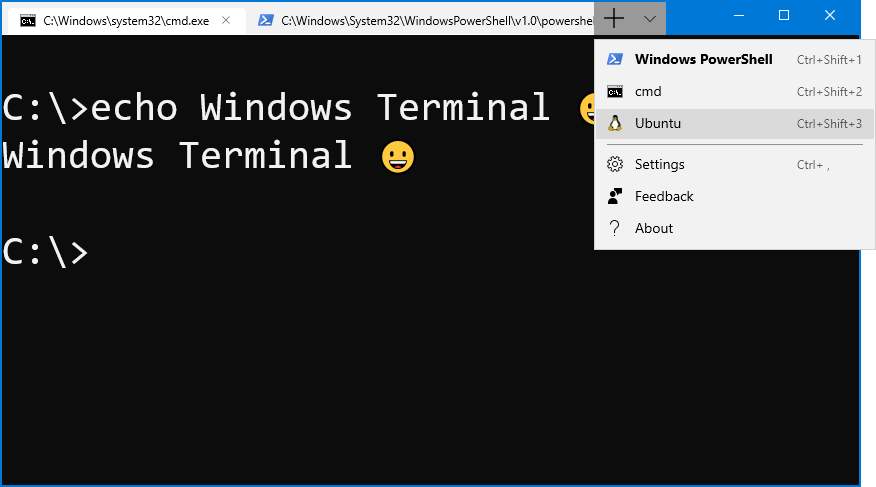
At the top, you'll find tabs for managing multiple terminal sessions. A key feature is the Command Palette, which you can open with Ctrl-Shift-P. This lets you quickly search for features, open new tabs, or access saved workflows without memorizing complex shortcuts.
Running Basic Commands
Executing commands in Warp is just like any other terminal. Type your command and press Enter. For example, to list the files in the current directory, you'd use the ls command.
ls -l
The output will appear in a new block directly below your input. You can run other basic commands to get a feel for the workflow, such as pwd to see your current directory or echo "Hello, Warp!" to print a message.
pwd
echo "Hello, Warp!"
Where Warp starts to shine is with its AI integration. If you're unsure about a command, you can ask Warp directly. Start a line with a # symbol to ask a question in natural language.
For example, try typing
# how do I find all files ending in .txt?and press Enter. Warp AI will suggest the command you need.
This feature turns the terminal from a tool you need to memorize into a conversational partner that helps you get work done faster. Now you have a basic grasp of what Warp is and how to use it. Time to test your knowledge.