Visual Studio Code for Credit Research
VS Code Basics
Your Coding Home Base
Think of a code editor as a word processor specifically designed for writing code. It helps you with syntax, organization, and navigating your projects. While you could technically write code in a plain text app, a good editor makes the process smoother and far less prone to errors.
You should also learn how to use a basic coding editor such as Visual Studio Code - which is like the Microsoft Word of coding.
Visual Studio Code, or VS Code for short, is a free, powerful, and wildly popular code editor from Microsoft. It’s lightweight but can be extended with thousands of add-ons to suit any programming language or workflow. It strikes a great balance between a simple text editor and a full-blown Integrated Development Environment (IDE).
Installation
Getting VS Code is straightforward. First, head to the official website at code.visualstudio.com.
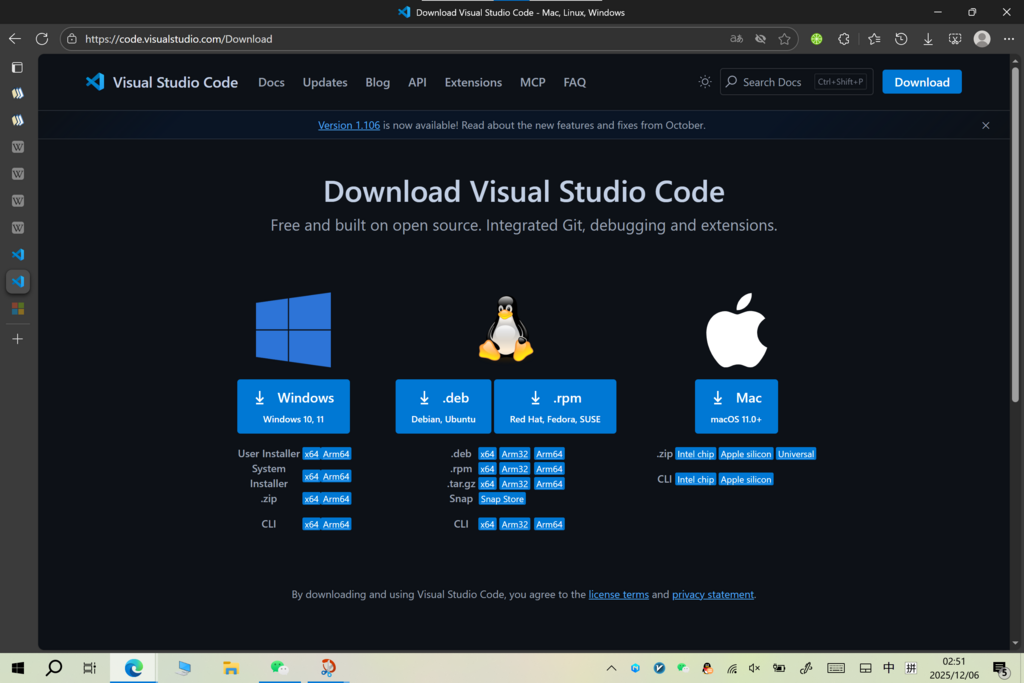
The website will automatically suggest the correct download for your operating system. Download the installer and run it, following the on-screen prompts. The default settings are fine for now; you can change them later.
A Tour of the Interface
When you first open VS Code, the interface is broken down into a few key areas. Understanding these will help you navigate your projects efficiently.
Here’s a breakdown of each part:
- Activity Bar: This thin vertical bar on the far left holds icons to switch between different views, like the File Explorer, Search, and Source Control.
- Side Bar: Next to the Activity Bar, this panel displays the content for the selected view. Most often, you'll see your project's file and folder structure here.
- Editor Group: This is the main space where you'll open and edit your files. You can open multiple files in tabs and even split the editor to view files side-by-side.
- Panel: This section at the bottom can be toggled on and off. It houses the integrated terminal, debugging console, and a list of problems or errors in your code.
- Status Bar: The bar at the very bottom provides information about your open file and project, like the current programming language, line and column number, and error counts.
Making It Your Own
One of the best features of VS Code is its customizability. You can change almost anything to match your preferences.
You can access all settings through the Command Palette. Open it by pressing Ctrl+Shift+P (Windows/Linux) or Cmd+Shift+P (macOS), then type 'Settings'. You can choose to open the UI-based settings editor or edit the settings.json file directly.
A simpler way to open settings is to click the gear icon in the bottom-left corner of the Activity Bar and select 'Settings', or use the keyboard shortcut
Ctrl+,(Windows/Linux) orCmd+,(macOS).
A popular first step is changing the color theme. The Command Palette is great for this. Open it and type 'Color Theme'. You can then browse and preview installed themes with your arrow keys.
You can also adjust settings like font size, word wrap behavior, and how tabs are handled. Spend a few minutes exploring the settings to see what’s possible. Don't worry about breaking anything; you can always reset to the default configuration.
What is the primary role of a code editor like VS Code?
In the VS Code interface, which area contains the icons for switching between major views like the Explorer, Search, and Source Control?
Now you have a basic but powerful code editor set up and ready to go. You know how to get around the interface and tweak it to your liking, which is a solid foundation for any coding project.