Video Editing Fundamentals
Importing Media
Starting Your Project Right
Before you can make a single cut or add any flashy effects, you need to bring all your raw materials into your video editing software. This process, called importing, is more than just clicking a button. It's the foundational step that sets up your entire project for success. A well-organised project is easier to work with, less prone to errors, and saves you headaches down the line.
Your media assets are the building blocks of your video. These typically fall into three categories: video clips (your primary footage), audio files (music, dialogue, sound effects), and graphics (logos, images, lower thirds).
A Key aspect to editing is File Management, this may be one of the most important things as if you don’t organise your project media then you may end up losing footage or not end up using amazing shots in your final piece.
The Blueprint: Project Folders
Organisation starts before you even launch your editing software. The best practice is to create a dedicated parent folder for each new video project. Inside this main folder, you should create a series of subfolders to keep your different media types separate. This simple habit prevents a chaotic mess of files and makes finding specific assets effortless.
When your editing software imports a file, it doesn't usually copy the file itself. Instead, it creates a link to the file's location on your computer. If you move or delete that original file, the link breaks, and your software will show an error like "Media Offline." A disciplined folder structure prevents this from happening.
This structure is a common starting point. You can add more subfolders as needed. For example, under '02_Audio', you might have separate folders for 'Music', 'Voiceover', and 'Sound Effects'. The key is to create a system that is logical and repeatable for all your projects.
Bringing Media into Your Workspace
With your folders organised, you can now launch your editing software and start importing. Most programs offer several ways to do this:
- Menu Bar: Look for an option like
File > Import. This will open your computer's file browser, allowing you to navigate to your project folders and select the media you want to use. - Media Browser: Many applications have a built-in 'Media Browser' panel. This is often the best option, as it's designed to read and display video formats and their metadata correctly.
- Drag and Drop: You can also drag files directly from your computer's file explorer into the project panel or media bin of your software.
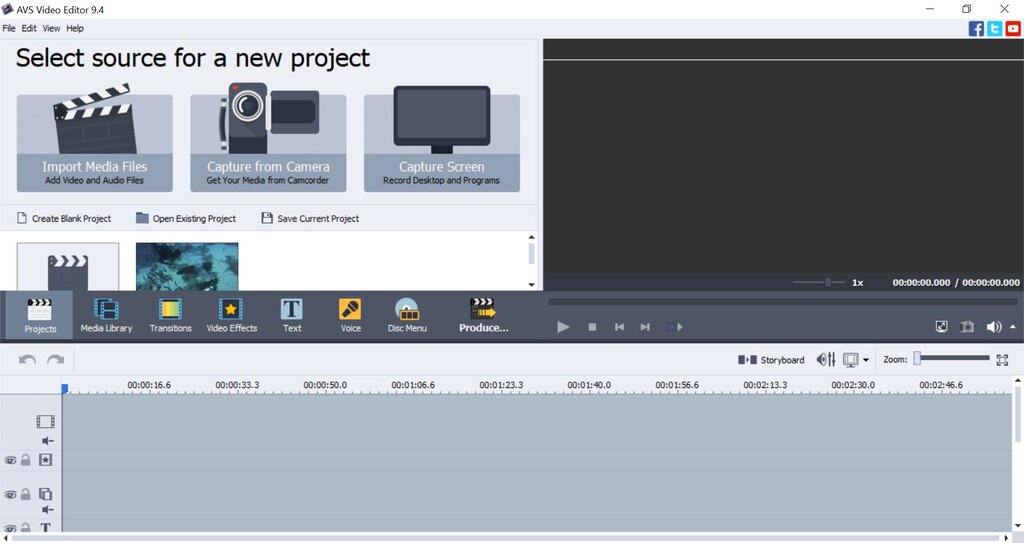
Once imported, your files will appear in the software's 'Project Panel' or 'Media Bin'. This is a virtual representation of your files. It's a good idea to recreate your folder structure within this panel. Most software allows you to create 'bins' (which are essentially folders) to keep your imported clips as organised as they are on your hard drive.
Different media types have their own considerations:
- Video Clips: These are your primary footage. They come in various formats (like .MP4 or .MOV) and codecs. Your software's media browser is often best for handling these.
- Audio Files: This includes music tracks (WAV, MP3, AAC), voiceovers, and sound effects. Keeping them separate from your video's original audio makes the mixing process much easier later on.
- Graphics: For still images, PNG files are often preferred over JPEGs because they support transparency. This is essential for things like logos or lower-third titles that need to appear over your video footage without a solid background box.
What is the primary benefit of creating a structured folder system for your media before starting a video editing project?
When you import a media file into most video editing applications, the software creates a direct copy of the file inside your project file.
Properly importing and organising your media is the first step toward a smooth and professional editing workflow. It’s a habit that pays off throughout the entire creative process.