Upgrade to Windows 11
Check System Requirements
Can Your PC Run Windows 11?
Before you can upgrade to Windows 11, you need to make sure your computer has the right hardware. It’s like checking if you have the right ingredients before you start cooking. Without them, the final dish just won't work.
Microsoft set some specific minimum requirements for this upgrade. Many computers running Windows 10 can handle it, but it's not a guarantee, especially for older machines. The key is ensuring your system isn't just powerful enough, but also has specific security features built-in.
| Component | Minimum Requirement |
|---|---|
| Processor | 1 GHz or faster with 2+ cores on a compatible 64-bit chip |
| RAM | 4 gigabytes (GB) |
| Storage | 64 GB or larger |
| System Firmware | UEFI, Secure Boot capable |
| TPM | Trusted Platform Module version 2.0 |
| Graphics Card | DirectX 12 or later with WDDM 2.0 driver |
You'll also need a high-definition display and an internet connection for the initial setup. While the list seems technical, there’s a simple way to check everything at once.
The Easy Way to Check
The most straightforward method to see if your PC is ready for Windows 11 is to use Microsoft's own tool, called the PC Health Check app. You can download it for free from the Microsoft website.
Once installed, you run the app and click a single button to check for Windows 11 compatibility. It scans your hardware and software and gives you a clear yes or no. If the answer is no, it will tell you exactly which requirements your system failed to meet. This takes all the guesswork out of the process.
Understanding the Hurdles
For many PCs that fail the compatibility check, the culprits are two security features: TPM 2.0 and Secure Boot. These might sound complicated, but their jobs are simple: they make your computer harder to hack.
TPM
noun
Stands for Trusted Platform Module. It's a dedicated microchip designed to provide hardware-based security functions. It acts like a secure vault for sensitive data like encryption keys and login credentials, keeping them safe from software-based attacks.
Secure Boot is another security layer. It's part of your computer's UEFI firmware (the modern replacement for the old BIOS system). When you turn on your computer, Secure Boot checks to make sure every piece of software starting up, from the operating system down to device drivers, is signed and trusted by the manufacturer. It's like a bouncer at the door, making sure no malicious code can sneak in during the boot-up process.
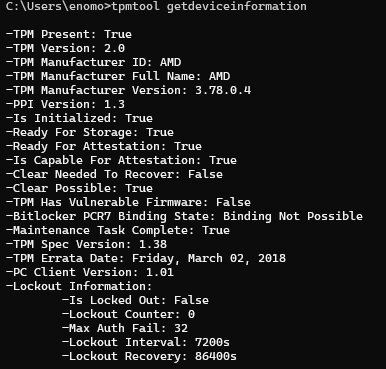
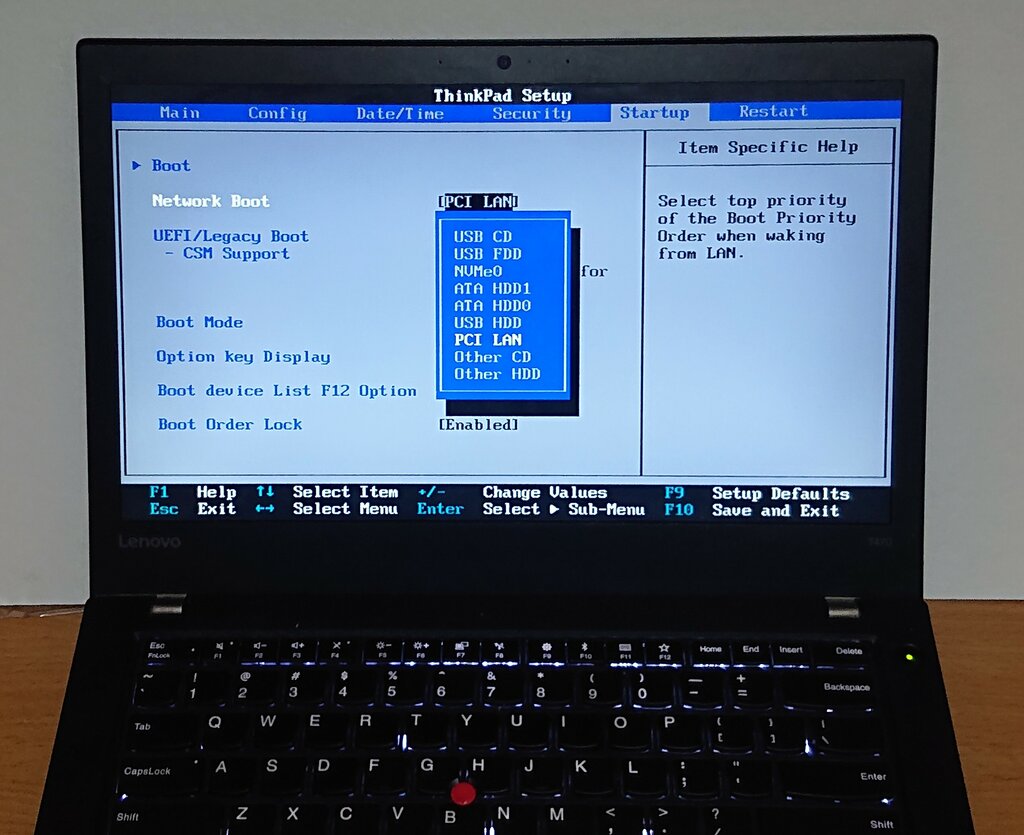
Sometimes, a computer has both TPM 2.0 and Secure Boot capabilities, but they are disabled in the system's settings. If the PC Health Check tool says your PC is incompatible because of these features, it's worth checking your computer's UEFI/BIOS. Restart your computer and press the designated key (often F2, F10, or DEL) to enter the setup menu. Look for settings related to "Security," "Boot," or "Advanced" to find and enable them.
What If It's a No?
If your PC still doesn't meet the requirements after checking your UEFI/BIOS settings, you have a couple of options. If the issue is with RAM or storage, you might be able to upgrade those components. However, if the processor isn't on the compatible list or your system lacks a TPM 2.0 chip, a hardware upgrade becomes much more difficult or impossible.
In that case, the best option is to continue using Windows 10. It’s a stable and secure operating system, and Microsoft will continue to support it with security updates until October 14, 2025. This gives you plenty of time to plan for a new computer when you're ready.
Staying with Windows 10 is perfectly safe until its end-of-support date. There's no immediate rush to upgrade if your hardware isn't ready.
What is the name of the tool Microsoft provides to check if a computer is ready for Windows 11?
If the PC Health Check app says your PC is incompatible, which two security features are the most common culprits?
Now that you know how to check for compatibility, you're ready to see if your own system makes the cut.