Ubuntu Server Last Boot Time
Introduction to Ubuntu Command Line
Welcome to the Command Line
Think of the command line, or terminal, as a different way to talk to your computer. Instead of clicking on icons and menus, you type commands. It’s a direct, powerful way to get things done once you learn the language. It might look plain, but it gives you precise control over your system.
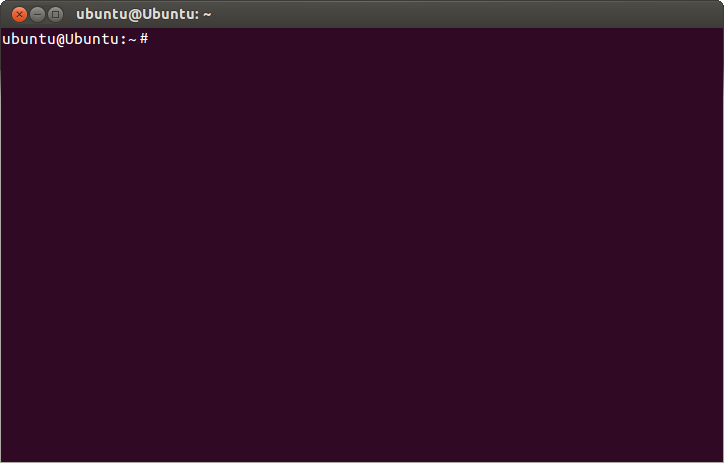
When you open the terminal, you'll see a prompt. This is the computer's way of saying, "I'm ready for your command." It usually includes your username and the computer's name, followed by a dollar sign ($).
Finding Your Way Around
Your computer organizes everything in a tree-like structure of files and directories (which you might know as folders). The very top of this tree is called the root directory, represented by a single slash /.
To figure out where you are in this structure, you use the pwd command, which stands for "print working directory."
pwd
/home/ubuntu
This tells you your current location. Now, what's inside this directory? For that, use the ls command, which means "list."
ls
Desktop  Documents  Downloads  Music  Pictures  Videos
Commands often have options that modify their behavior. Options usually start with a hyphen. For example, adding the -l option to ls gives a "long" listing with more details.
ls -l
total 24
drwxr-xr-x 2 ubuntu ubuntu 4096 Oct 26 10:20 Desktop
drwxr-xr-x 2 ubuntu ubuntu 4096 Oct 26 10:20 Documents
drwxr-xr-x 2 ubuntu ubuntu 4096 Oct 26 10:20 Downloads
To move around, you use cd, for "change directory." Just type cd followed by the name of the directory you want to go to. To go back up one level, you use cd .. because .. is a special shortcut for the parent directory.
# Move into the Documents directory
cd Documents

# Check where you are now
pwd
/home/ubuntu/Documents

# Go back to the home directory
cd ..
Managing Files and Folders
The command line makes it easy to create, move, copy, and delete files and directories.
To create a new directory, use mkdir (make directory).
mkdir MyProjects
To create a new, empty file, use the touch command.
touch MyProjects/notes.txt
The mv command does two things: it moves files and it renames them. If the last argument is a directory, it moves the file there. If it's another filename, it renames the file.
# Create a file
touch report.txt

# Rename it
mv report.txt final_report.txt

# Move it into the MyProjects directory
mv final_report.txt MyProjects/
To copy a file, use the cp command. It takes two arguments: the source file and the destination file name.
cp MyProjects/final_report.txt backup_report.txt
Finally, to remove files, use the rm command. To remove an empty directory, use rmdir. If you want to remove a directory and everything inside it, use rm -r (for recursive).
Be very careful with rm. There is no trash can or undo button on the command line. Once something is deleted, it's gone for good.
# Remove a single file
rm backup_report.txt

# Remove a directory and all its contents
rm -r MyProjects
Let's test your knowledge of these new commands.
What is the primary way you interact with a computer through the command line?
Which command would you use to find out your current location in the file system?
That's a quick tour of the basics. By practicing these commands, you build a foundation for using the command line to do much more powerful things.