Todoist for Project Management Mastery
Getting Started
Creating Your Account
First, you'll need to create a free Todoist account. You can sign up using your Google account, Apple ID, or a standard email and password. The process is straightforward and takes less than a minute.
Once you've signed up, you'll be taken directly to your new, empty task list. This is where you'll manage everything.
Finding Your Way Around
The Todoist interface is clean and designed to keep you focused. It’s broken down into three main areas.
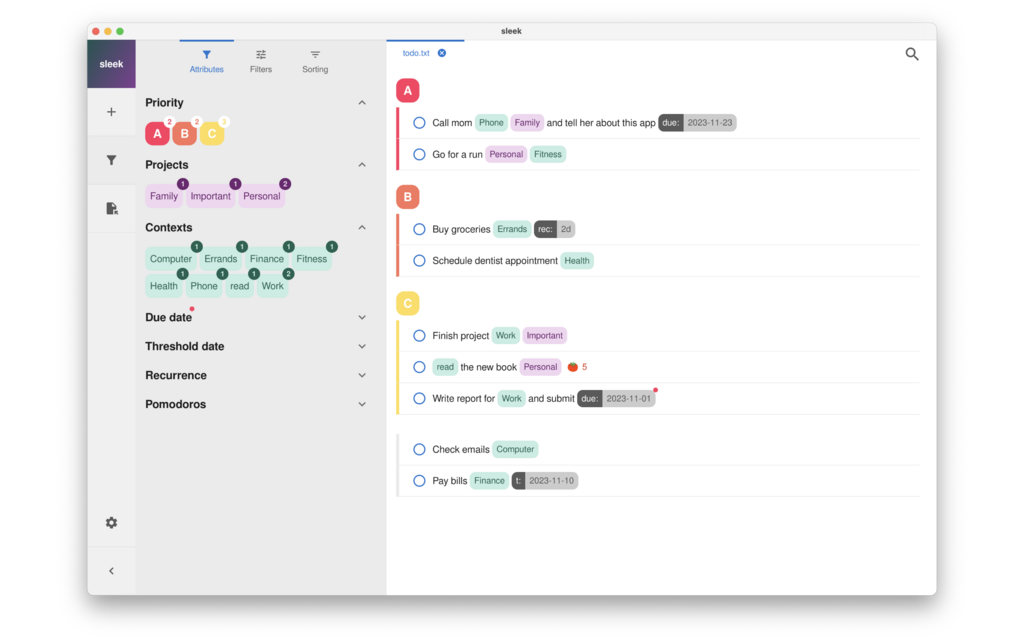
On the left side, you have your main navigation menu. This is how you'll jump between different views and projects.
In the center is your task list. This is the main workspace where you'll see the tasks for the view you've selected.
At the top, you'll find a search bar, a button for adding tasks quickly, and access to your settings.
Core Features
Todoist is powerful, but it starts with a few simple building blocks. Let's look at the absolute essentials.
The simplest way to add a task is to click the '+' icon at the top of the screen. A small window will pop up where you can type out your to-do item and hit enter.
Every new account comes with a few default views in the left-hand navigation panel:
-
Inbox: This is the default home for any new task you create without assigning it to a specific project. It's a great place to quickly capture ideas before you have time to organize them.
-
Today: This view automatically shows you every task that is due today. It helps you focus on what needs to get done right now.
-
Upcoming: Here, you can see all your tasks laid out on a calendar for the next week and beyond. This is useful for planning ahead.
When you add a task, you can also give it a due date. You can type dates naturally, like "tomorrow at 4pm" or "next Friday," and Todoist will understand and schedule it for you. Tasks with dates will automatically appear in your Today and Upcoming views when the time is right.
Now that you understand the basics, let's check your knowledge.
When you first sign up for Todoist, where are you taken?
What is the primary purpose of the 'Inbox' view?
With these fundamentals, you're ready to start capturing and organizing your tasks.