Telstra Home Internet Setup
NBN Technology Setup
Get Your Hardware Hooked Up
Before you can get online with the NBN, you need to physically connect your hardware. The specific gear and cables you use depend on the technology connecting your premises to the wider network. We’ll cover the three main types you'll encounter with Telstra: Fibre to the Premises (FTTP), Fibre to the Node/Basement (FTTN/B), and Hybrid Fibre Coaxial (HFC).
Your first task is to identify which setup you have. Each has distinct wall outlets and connection boxes. Let's look at how to wire each one up to your Telstra Smart Modem.
Fibre to the Premises (FTTP)
If you have an FTTP connection, you're getting a fibre optic line run directly to your home. This means you'll have an NBN Connection Box, also known as a Network Termination Device (), installed inside your property. This box is the bridge between the external fibre network and your internal home network.
Your Telstra Smart Modem doesn't plug into a phone line. Instead, it connects directly to this NTD.
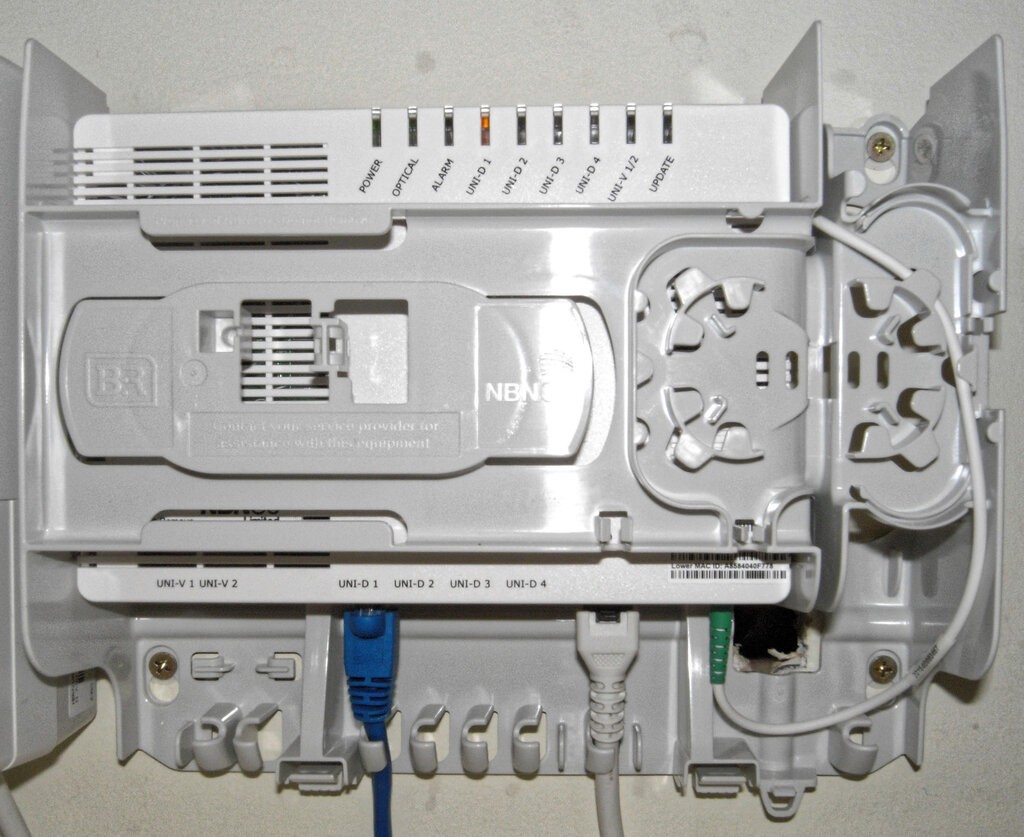
Look at the bottom of the NTD. You'll see several data ports, usually labelled 'UNI-D1', 'UNI-D2', and so on. For a standard Telstra service, you must use the port.
- Take the supplied red-ended Ethernet cable. Plug one end into the red WAN port on the back of your Telstra Smart Modem 3.
- Plug the other end into the UNI-D1 port on your NBN Connection Box.
That's it. Once the modem and NTD are powered on, they will establish a Layer 1 physical link. The 'WAN' or 'Internet' light on your modem should eventually turn solid green or blue, indicating it has successfully connected to the NBN network.
FTTN and HFC Connections
Unlike FTTP, both FTTN/B and HFC connections use a segment of existing network infrastructure to complete the final leg of the journey into your home. This means the hardware you interact with is slightly different.
Fibre to the Node/Basement (FTTN/B)
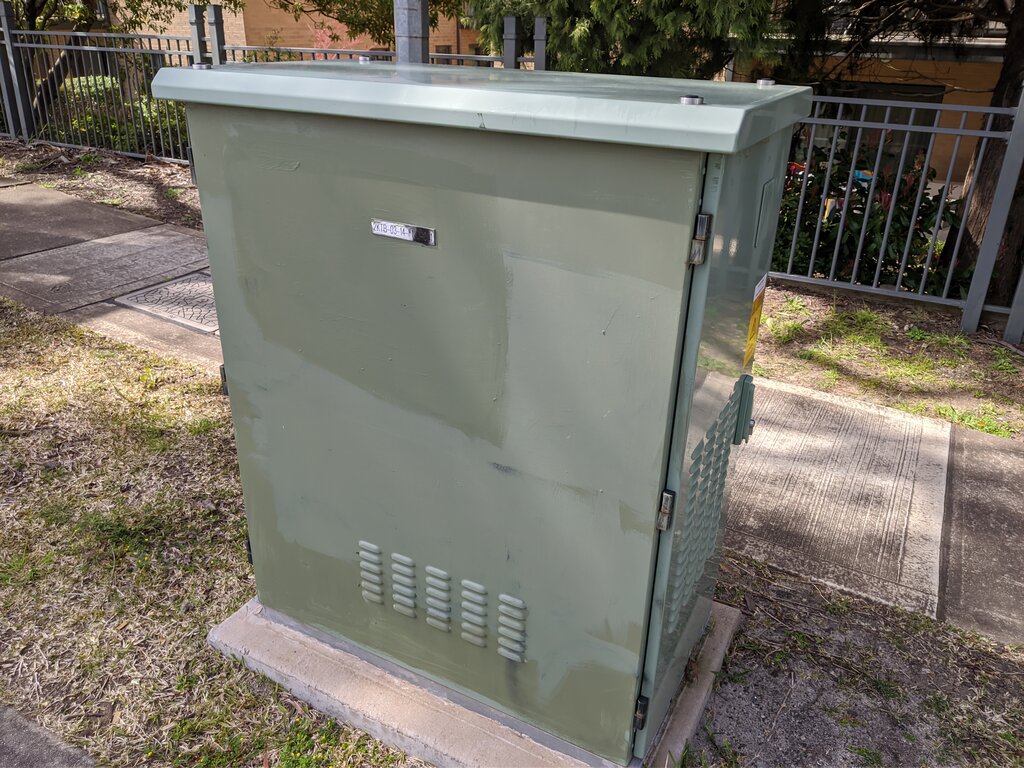
With FTTN/B, fibre is run to a central cabinet (the node) in your street or the communications room in your building (the basement). The connection from there to your premises uses the existing copper phone lines. This technology relies on a protocol called [{
}] to deliver high-speed data over this copper pair. Your connection point is a standard telephone wall socket. You’ll need to:
- Plug a phone cable into the DSL port on your Telstra Smart Modem 3.
- Connect the other end of the cable directly to your primary phone socket.
Your modem will then begin the process of 'syncing' with the node. The DSL light on the modem will flash while it negotiates a connection and will become solid once a stable VDSL2 link is established. If you have other phone sockets, it's best to use the first one on the line entering your home for the strongest signal. Avoid using long phone extension cords, as they can degrade the signal quality and reduce your speeds.
Hybrid Fibre Coaxial (HFC)
If your home was previously served by cable TV or internet, you likely have an HFC connection. This uses fibre to a node in your area, and then existing 'pay TV' coaxial cable for the final connection to your house.
Your connection point will be a coaxial wall outlet. An NBN technician will install a dedicated NBN connection box (often a small black Arris-branded device) that connects to this outlet. This box functions similarly to the NTD in an FTTP setup.
- Ensure the coaxial cable is screwed securely from the wall outlet to the NBN HFC connection box.
- Use the Ethernet cable to connect from the HFC connection box's single active port to the red WAN port on your Telstra Smart Modem 3.
The lights on the HFC box will indicate its status. Once the 'Online' light is solid, it's ready, and your modem can establish its connection.
Your Telstra Smart Modem
Regardless of your NBN technology, the Telstra Smart Modem 3 is the hub of your home network. Here’s a quick rundown of the important ports:
| Port | Colour | Function |
|---|---|---|
| WAN | Red | Connects to your NBN NTD (for FTTP/HFC) or a separate gateway. This is your 'Internet In' port. |
| DSL | Grey | Connects to a telephone wall socket (for FTTN/B). It uses an RJ11 cable. |
| LAN | Yellow | Local Area Network ports for connecting wired devices like PCs, smart TVs, or printers. |
| Phone | Green | Used for the NBN phone service, if you have one. Connects a standard telephone handset. |
The key is to use the correct input port for your connection type. If you plug an FTTN line into the WAN port, or an FTTP line into the DSL port, it simply won't work. The modem is designed to detect the active connection type and configure itself accordingly, but only if you’ve physically cabled it correctly.
With the correct cables in the correct ports, your Layer 1 physical connection is complete. Your modem can now communicate with the NBN network and get you online.
For a standard Telstra Fibre to the Premises (FTTP) connection, which port on the NBN Connection Box (NTD) must you plug your modem into?
When setting up either an FTTP or HFC connection, which port on the Telstra Smart Modem receives the cable from the NBN connection box?