Teaching AI Productivity for Friends
Setup and Interface Essentials
Getting Your Tools Ready
Before diving in, let's get the applications set up. While you can use AI assistants like ChatGPT and Claude in a web browser, their desktop apps offer a smoother experience. Think of it like using a dedicated word processor instead of writing in a browser tab. It's less distracting and often faster.
Desktop apps come with handy features like system-wide shortcuts. You can summon your AI assistant with a quick keyboard command, no matter what you're doing on your computer. They also tend to handle file uploads and management more cleanly than a browser tab might.
First, download and install the Claude desktop application from their official website. The process is straightforward, similar to installing any other software on your computer.
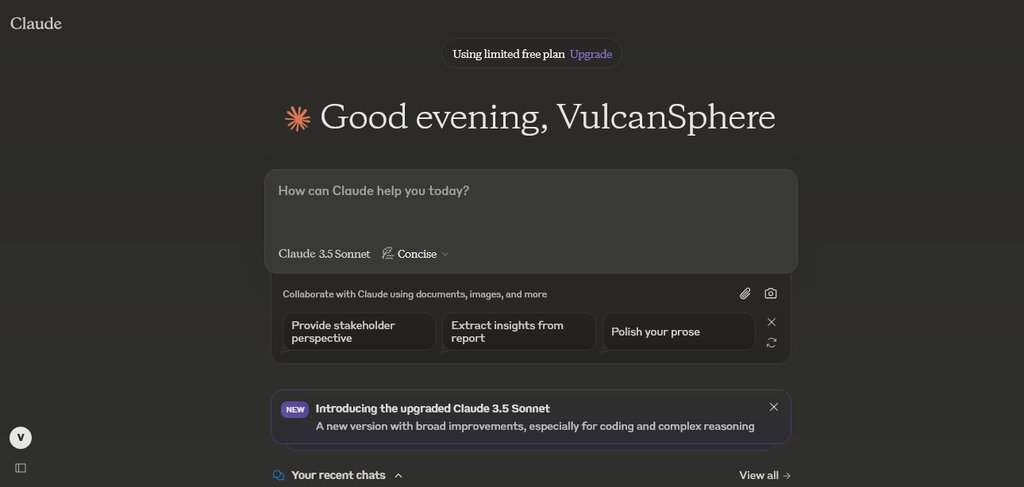
Next, do the same for ChatGPT. Both applications will guide you through creating an account or logging in. Once you're in, you'll have a dedicated space for all your AI conversations.
Your AI Workspace
Every conversation you have with an AI happens within a 'context window.' Think of this like your desk space. When you start a new project, you clear your desk and lay out only the relevant papers. The AI's context window is similar; it only 'remembers' the current conversation. Starting a new chat is like clearing your desk for a new topic.
This is why your conversation history, usually found on a sidebar to the left, is so important. Each entry is a separate desk space, a self-contained project. You can jump back into an old conversation, and the AI will have all the 'papers' for that specific topic ready to go.
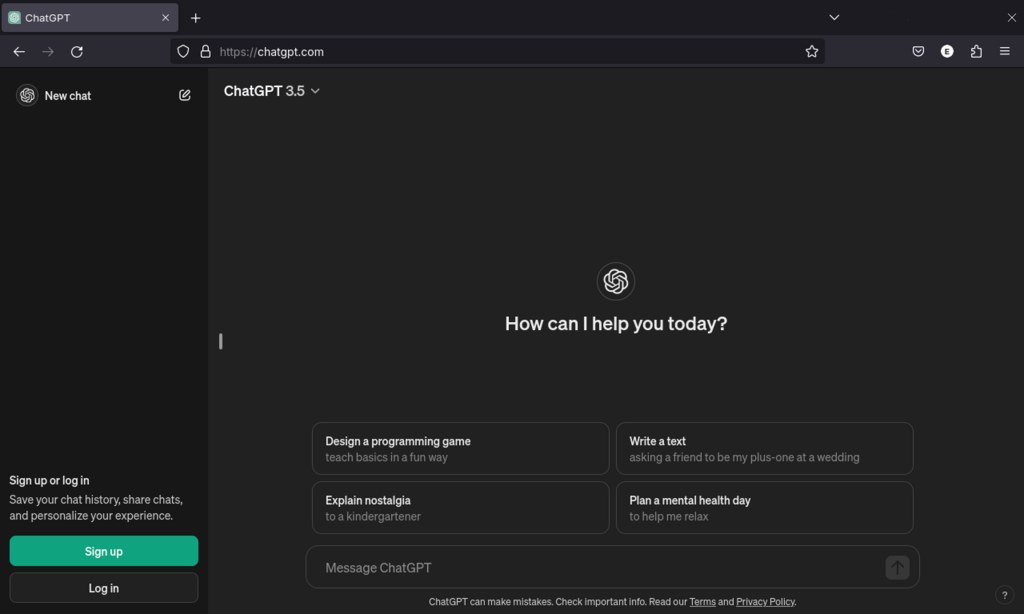
Claude's interface has a unique feature called Projects. This lets you group related conversations together, which is helpful for organizing big tasks. It also has a special window for 'Artifacts'. When the AI generates something like code, a business plan, or a list, it can appear in this dedicated space. This keeps the main chat clean and gives you a structured output you can easily copy and use.
Key Features to Know
ChatGPT offers specialized tools for different jobs. You can access these through a dropdown menu. One key feature is 'Data Analysis,' which lets you upload files like spreadsheets or documents and ask ChatGPT to analyze them, create charts, or summarize the content. It's like having a data analyst on call.
Another powerful feature is GPTs. These are custom versions of ChatGPT that have been tailored for specific tasks, like writing marketing copy, creating images, or planning a trip. You can browse a store of GPTs made by others or even create your own without any coding.
In both applications, you have control over your data. In the settings, you can usually find privacy options to manage your conversation history. You can choose to disable chat history, which means your conversations won't be saved or used to train the models. You can also export or delete your data entirely.
For beginners, it's worth exploring these settings to understand your options. For now, keeping your chat history on is useful, as it allows you to revisit past conversations and pick up where you left off.
| Feature | ChatGPT | Claude |
|---|---|---|
| Organization | Single list of conversations | 'Projects' to group conversations |
| Special Outputs | Inline in the chat | 'Artifacts' window for code, text |
| Customization | GPTs (Custom-built AIs) | Not a primary feature |
| File Handling | 'Data Analysis' mode | Direct file uploads in chat |
Let's review these core concepts before moving on.
According to the text, what is a primary advantage of using a dedicated desktop AI application compared to using a web browser?
The text compares the AI's 'context window' to a desk space. What does starting a new chat represent in this analogy?
Now that you're comfortable with the basic layout and features, you're ready to start putting these tools to work.