Stream Deck AI Automation
Stream Deck Basics
Meet Your New Command Center
The Elgato Stream Deck is a small box that plugs into your computer's USB port. It’s covered in buttons, but they aren't normal buttons. Each one is a tiny customizable screen that can launch apps, open websites, trigger keyboard shortcuts, and much more. It's like having a personalized remote control for all your digital tasks.
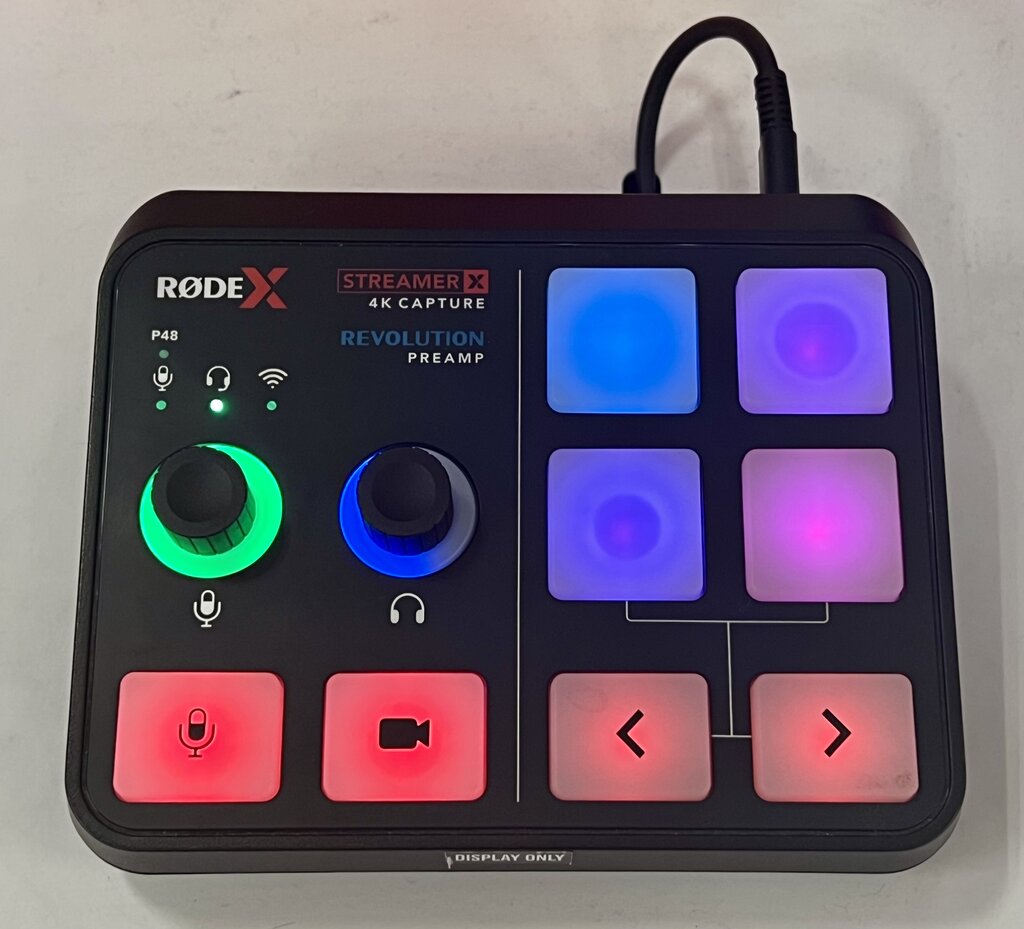
Originally designed for video game streamers to switch scenes and trigger sound effects, the Stream Deck has found a home on the desks of programmers, designers, and office workers. Anyone who wants to automate repetitive tasks can benefit. Think of it as a physical manifestation of your most-used shortcuts, always ready at your fingertips.
Setting Up Your Deck
Getting started is straightforward. First, plug the Stream Deck into a USB port on your computer. Next, go to the Elgato website and download the official Stream Deck software. The installation is a standard process for both Windows and macOS.
Once installed, open the application. You'll see an interface that mirrors the physical buttons on your device. On the right side of the screen is a list of actions you can assign. To configure a button, you simply drag an action from the list on the right and drop it onto one of the button squares on the left. It's that simple.
Configuring Basic Actions
Let’s program a few simple buttons. A common first step is to create a button that opens a frequently used website.
- Find the Website action in the right-hand panel under the "System" category.
- Drag it onto an empty button square in the main window.
- A configuration panel will appear at the bottom. Give your button a Title, like "Google". This text will appear on the physical button.
- In the URL field, type in
https://www.google.com.
The physical button on your Stream Deck will instantly update with the title. Press it, and your default web browser will open to that URL.
You can do the same for launching applications. Drag the Open action onto a button, and the software will ask you to select an application on your computer. Once you choose one, you can press the button to launch it anytime.
Try creating a few more buttons. For example, make one to open your email client and another to launch your favorite music app. You can also customize the button's icon by clicking it in the software.
Managing with Profiles
You'll quickly run out of buttons if you try to map everything to one screen. That's where profiles come in. A profile is a complete set of button configurations. You can create different profiles for different tasks and switch between them easily.
For instance, you might have one profile for your daily work tasks (opening spreadsheets, launching your work chat app) and another for creative work (launching photo editing software, shortcuts for specific tools). Some applications can even trigger a profile switch automatically. When you open Photoshop, the Stream Deck can switch to your "Photoshop" profile without you having to do anything.
To create a new profile, look for the profile manager in the Stream Deck software, usually near the top-left corner. You can create a new blank profile or duplicate your existing one to make modifications.
Time to check your understanding of these core concepts.
What is the primary function of an Elgato Stream Deck?
What are the first two essential steps for setting up a new Stream Deck?
With these fundamentals, you're ready to start building workflows that save you time and effort. The real power of the Stream Deck comes from combining these simple actions into powerful sequences, which we'll explore later.