Stencyl Game Development Mastery
Stencyl Interface
Getting Around in Stencyl
Stencyl lets you build games visually, without writing code. The first step is getting comfortable with its workspace. Think of it as your digital workshop. Once you know where all the tools are, you can start building.
Your Command Center
When you open Stencyl, the first thing you'll see is the Dashboard. This is your main hub for managing everything. From here, you can create new games, open existing ones, and access all the bits and pieces that make up your project.
The Dashboard is split into a few key areas.
- My Games: This is a list of all your current projects. When you start a new game, it will show up here.
- StencylForge: This is an online marketplace where you can download free and paid assets like art, sounds, and game logic to use in your projects.
- Resource Library: This is the vertical panel on the left. It’s a list of all the building blocks for your game: Actors (characters), Scenes (levels), Sounds, and more. You'll use this to organize and access your game's assets.
Building Your World
When you double-click on a Scene in your Resource Library, you open the Scene Designer. This is where you visually construct your game's levels. You can place your characters, build the environment with tiles, and set up the stage for your game to unfold. It’s like being a director and a set designer at the same time.
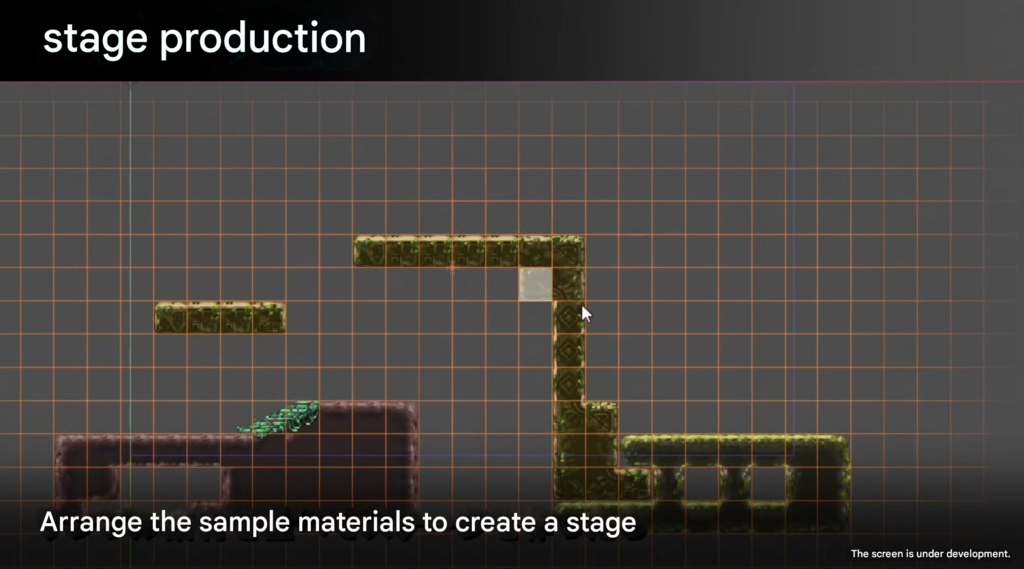
Inside the Scene Designer, you have your main canvas, which is the level itself. You also have palettes for placing tiles (the terrain and background) and adding Actors to the scene. You can also work with layers to create depth, like having a background that sits behind the main action.
Making Things Happen
A game isn't just static images; it's about interaction. This is where the Behavior Editor comes in. By attaching behaviors to your Actors, you give them life. You define how they move, react to button presses, and interact with other objects in the world.
The Behavior Editor is where you'll spend most of your time defining your game's logic using drag-and-drop code blocks.
Instead of writing lines of code, you work with pre-made blocks that represent actions and events. For example, you might use a block that says "when the 'up arrow' is pressed" and connect it to another block that says "move 10 pixels up." It’s a powerful and intuitive way to program your game's rules.
Customize Your Workspace
Stencyl's interface is flexible. You can rearrange the panels in the Scene and Behavior editors to fit your workflow. For instance, you might want your actor palette on the left instead of the right. To move a panel, just click and drag its title bar to a new location.
You can also find more options under the File > Preferences (or Stencyl > Preferences on Mac) menu. Here, you can change themes, adjust default settings, and tweak the environment to make it your own.
Let's test what you've learned about the Stencyl interface.
What is the primary hub in Stencyl for managing all your games, projects, and assets?
If you want to visually build a level by placing characters and arranging terrain with tiles, which Stencyl editor would you use?
Now that you're familiar with the key parts of Stencyl's interface, you're ready to start bringing your game ideas to life.