Solidworks Fundamentals For Beginners
SolidWorks Interface
Your Digital Workbench
Opening SolidWorks for the first time is like stepping into a high-tech workshop. There are tools everywhere, but everything is organized for efficiency. Your screen is divided into a few key areas, each with a specific purpose. Mastering this layout is the first step to creating complex 3D models with ease.
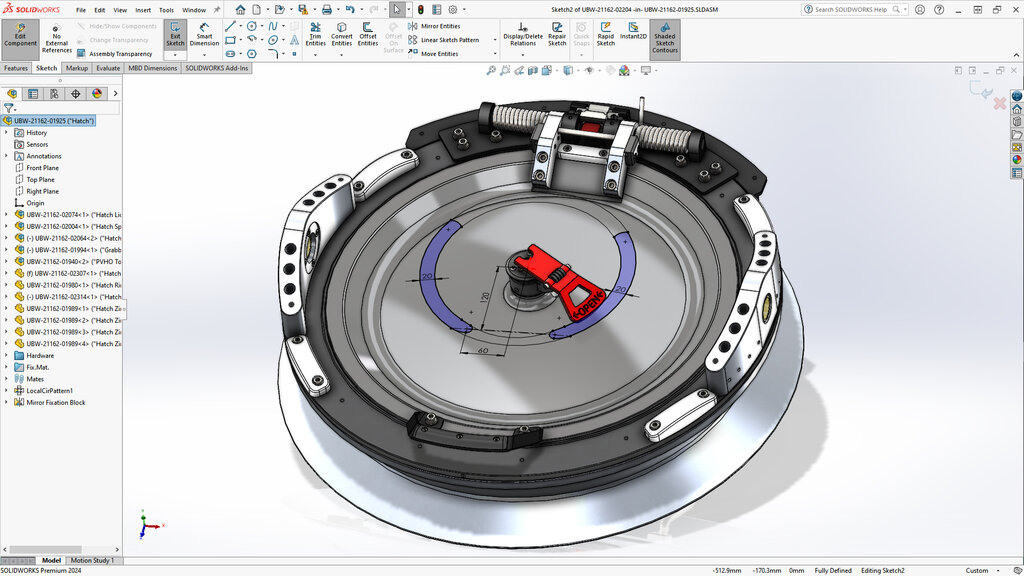
Think of the interface as your workbench. You have your main work area, your toolbox, and a blueprint that tracks your progress. Let's break down these core components.
The Main Work Areas
Most of your time in SolidWorks will be spent interacting with three main sections: the Command Manager, the Feature Manager Design Tree, and the Graphics Area.
Graphics Area: This is the large, central part of your screen where your 3D model appears. It's your virtual workspace. You'll rotate, zoom, and pan your view here to see your design from every angle. It's where the visual creation and manipulation happen.
Command Manager: Located at the top of the screen, the Command Manager is a dynamic toolbar that organizes commands into tabs based on their function. You'll see tabs like 'Features', 'Sketch', and 'Evaluate'. Clicking a tab brings up a set of related tools. For example, the 'Sketch' tab contains tools for drawing lines, circles, and rectangles, while the 'Features' tab has tools for creating 3D shapes from those sketches, like 'Extruded Boss/Base'.
Feature Manager Design Tree: Typically found on the left side of the screen, this is a log of everything you do to create your part. Every sketch, extrusion, and cut is listed here in chronological order. It's an editable history of your model. You can go back, select an item in the tree, and modify it. This parametric approach is a core strength of SolidWorks, as changes automatically update the rest of the model.
Essential Supporting Tools
Beyond the main three areas, a few other elements complete the interface. The Menu Bar sits at the very top of the window, providing access to all commands through traditional drop-down menus like 'File', 'Edit', and 'View'. While the Command Manager provides quick access to common tools, the Menu Bar is a comprehensive directory of every available function.
You can also activate various Toolbars for specialized tasks. These are customizable sets of icons that can be docked around the Graphics Area for even faster access to your most-used commands.
Finally, the Status Bar at the bottom of the window provides important feedback. It tells you the status of your current sketch (e.g., 'Under Defined' or 'Fully Defined') and shows the coordinates of your cursor. It's a subtle but crucial guide that helps you understand what the software is doing and what it needs from you.
Which component of the SolidWorks interface organizes commands into function-based tabs like 'Features' and 'Sketch'?
What is the primary purpose of the Feature Manager Design Tree?