Software Development Ecosystem Fundamentals
Terminal Mastery
Navigating Your System
The command line is a developer's home base. It's where you'll run compilers, manage servers, and interact with version control. Getting comfortable with navigation is the first step toward mastery. At any point, you can find out exactly where you are in the file system by using the pwd (print working directory) command. This command prints the full path from the system's root directory to your current location.
$ pwd
/Users/your-username/Projects/website
This full path is known as an absolute path. It's a complete address that works from anywhere in the system. The other type of path is a relative path, which is a path from your current location. Relative paths are shorter and often more convenient for moving around nearby directories.
Here are some key symbols for relative paths:
.refers to your current directory...refers to the parent directory (one level up).
Let's say you're in /Users/your-username/Projects and you want to go to the website directory inside it. You could use the absolute path, but it's shorter to use the relative one with the cd (change directory) command.
# Using a relative path
$ cd website

# Now, let's go back up to the parent directory
$ cd ..
Beyond just moving around, you'll constantly be creating, modifying, and deleting files and directories. The command line offers a suite of tools for this, which are far quicker than using a graphical file explorer once you get the hang of them.
| Command | Purpose | Example |
|---|---|---|
mkdir | Make a new directory | mkdir new-project |
touch | Create a new, empty file | touch index.html |
mv | Move or rename a file/directory | mv old-name.txt new-name.txt |
rm | Remove a file | rm temporary.log |
rm -r | Remove a directory and its contents | rm -r old-project |
Working with Streams
In the command line, every program automatically gets three communication channels called standard streams: standard input (stdin), standard output (stdout), and standard error (stderr).
stdinis the channel for sending information to a program.stdoutis the channel for the program's normal output.stderris a separate channel for error messages.
By default, stdin is your keyboard, and both stdout and stderr are your terminal screen. This setup is simple, but the real power comes from redirecting these streams. The > operator redirects stdout to a file, overwriting the file if it exists. The >> operator also redirects stdout but appends the output to the end of the file instead.
# Create a file with some text
echo "Hello, world!" > greeting.txt

# Append another line to the same file
echo "Welcome to the command line." >> greeting.txt
To view the contents of your new file, you can use cat (concatenate) or less. The cat command prints the entire file to the screen, which is great for short files. For longer files, less is better because it allows you to scroll up and down.
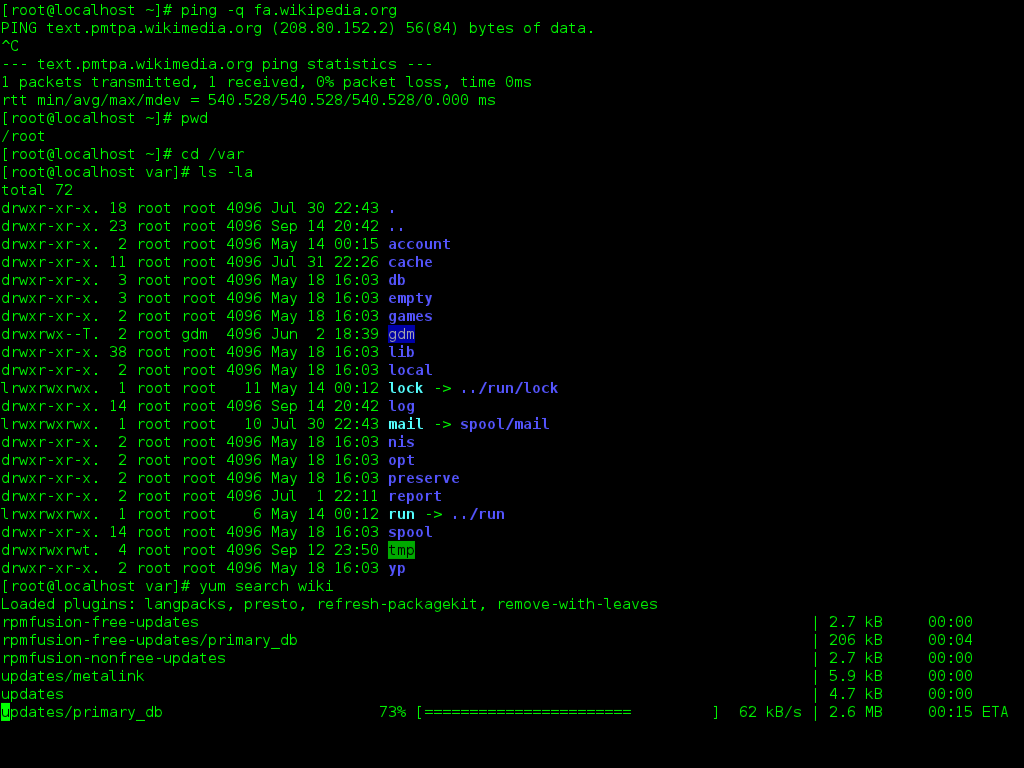
Perhaps the most powerful tool is the pipe |. A pipe takes the stdout of the command on its left and uses it as the stdin for the command on its right. This lets you chain commands together to perform complex tasks. For example, you can list all files in a directory, then use grep to filter that list for only the files ending in .md.
ls | grep ".md"
Customizing Your Environment
How does your shell know where to find programs like ls, grep, or git? It looks them up using an environment variable called PATH. An is a dynamic value that affects the processes running on your computer. The PATH variable contains a list of directories, and when you type a command, the shell searches those directories for an executable file with that name.
You can view the contents of your
PATHvariable by runningecho $PATH.
The shell is also highly customizable. Most developers use either Bash or Zsh as their shell. While they are largely similar for everyday use, they have different configuration files. For (Bourne-Again Shell), you customize it by editing a file in your home directory called ~/.bashrc. For Zsh (Z Shell), the file is ~/.zshrc.
These files are just shell scripts that run every time you open a new terminal. You can add custom aliases (shortcuts for longer commands), modify your PATH, or change the appearance of your command prompt.
# Example of a custom alias in .bashrc or .zshrc

# This creates a shortcut `ll` for the command `ls -la`
alias ll='ls -la'
After editing your .bashrc or .zshrc file, you need to either open a new terminal or run source ~/.bashrc (or source ~/.zshrc) for your changes to take effect in the current session.
Now that you have a deeper understanding of the command line, it's time to test your knowledge.
You are currently in the directory /Users/dev/project/src. Which of the following commands uses a relative path to navigate to the /Users/dev/project directory?
What is the primary difference between using the > and >> operators for output redirection?
Becoming fluent in the command line is a process of building muscle memory. The more you use it, the more these commands will become second nature, dramatically speeding up your development workflow.