Shopify Admin Essentials
Shopify Admin Overview
Your Shopify Command Center
Welcome to your Shopify admin. Think of this as the control room for your entire online business. From here, you’ll add products, manage orders, and track your store’s performance. Everything you need is just a few clicks away.
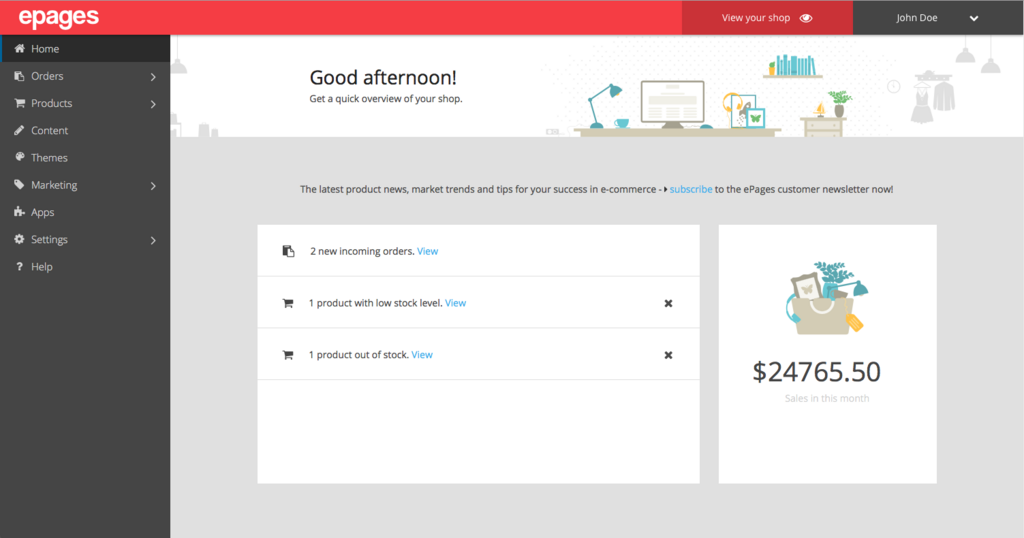
When you first log in, you'll see the Home dashboard. This page gives you a snapshot of your daily tasks and your store's recent activity. You'll find tips, a feed of recent sales, and reminders for any orders that need to be fulfilled. But the real power lies in the main navigation menu on the left side of your screen.
The Main Menu
The sidebar menu is your map to every part of your store. Let's walk through the most important sections. You don't need to master them all at once, but it's good to know what's there.
The main menu groups actions into logical categories:
- Orders, Products, Customers: The core of your business. This is where you manage what you sell, who you sell to, and the sales themselves.
- Analytics, Marketing, Discounts: Tools for growing your business. Here you'll track your progress, create campaigns, and set up promotions.
- Online Store: This section lets you customize the look and feel of your website, from themes and blog posts to navigation menus.
- Settings: The control panel for technical details like payment methods, shipping zones, taxes, and more.
Take a moment to click into each one. You won't break anything! Getting a feel for where things are located is the first step to managing your store confidently.
Quick Navigation with Search
As your store grows, you might not remember exactly where every single setting is. That's where the admin search bar comes in. It's located at the top of your admin page and is one of the most powerful tools at your disposal.
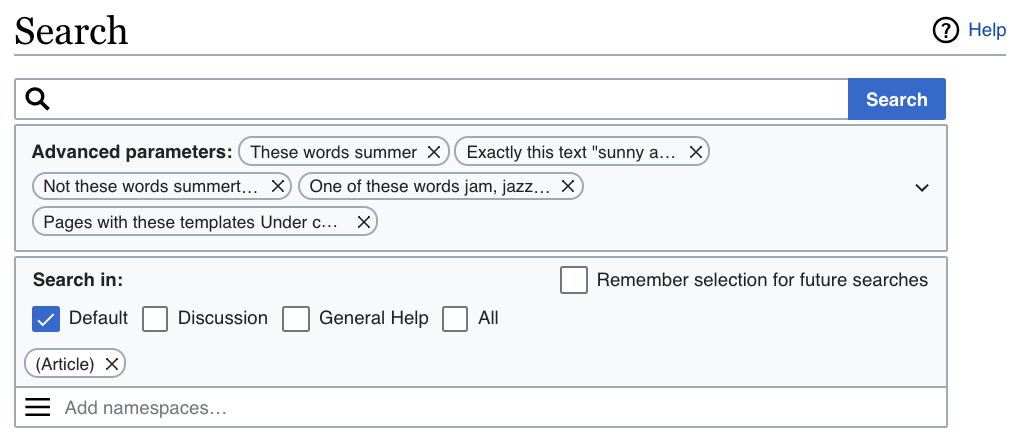
You can use it to find almost anything without clicking through menus. Try searching for:
- A specific product by name
- A customer's name or email
- An order number
- A feature you want to use, like "gift cards"
- A settings page, like "shipping"
The search bar will show you direct links to products, orders, customers, and relevant sections of your admin. It's a huge time-saver.
Pro Tip: Use the keyboard shortcut Cmd+K (on Mac) or Ctrl+K (on Windows) to instantly open the search bar from anywhere in your Shopify admin.
What is the primary function of the Home dashboard when you first log in to your Shopify admin?
According to the text, what is the 'map' to every part of your store?
Getting comfortable with the Shopify admin is all about exploring. Click around, see what each section does, and use the search bar whenever you're unsure. Soon, navigating your store's backend will feel like second nature.