Selenium VBA Automation Basics
Introduction to Selenium and VBA
Two Tools for Automation
Imagine you have a robot that can use a web browser just like a person. It can click buttons, fill out forms, and copy text from a webpage. That's essentially what Selenium is. It’s a tool that lets you control a web browser using code.
Selenium is an open-source program that automates web browsers.
Now, think about Microsoft Excel. It's great for organizing data, but what if you want to automate tasks inside Excel? That’s where Visual Basic for Applications, or VBA, comes in. It's a programming language built into Microsoft Office applications. You can write VBA scripts to manipulate data, create reports, and automate almost any repetitive task you do in a spreadsheet.
Why Use Them Together?
Selenium is powerful for web tasks, and VBA is perfect for spreadsheet tasks. When you combine them, you can build automations that bridge the gap between your local data and the web.
Let’s say you have a list of 100 products in an Excel file. You need to check the price for each one on a supplier's website. Doing this manually would be tedious. Instead, you can write a VBA script in your Excel file that tells Selenium what to do. The script reads a product name from a cell, opens a web browser, navigates to the website, types the product name into the search bar, and copies the price back into another cell in your spreadsheet. It then repeats this for all 100 products.
This combination is incredibly useful for:
- Data Scraping: Automatically gathering information from websites and organizing it in a spreadsheet.
- Automated Form Filling: Populating web forms with data from Excel rows.
- Report Generation: Logging into a web portal, downloading a report, and formatting it in Excel without any clicks.
A Glimpse at the Code
To make this work, you first need to install a special library that allows VBA to communicate with Selenium. Once that's set up, the code to perform a simple action is surprisingly straightforward.
Here’s a basic VBA script that starts the Chrome browser and navigates to a specific website. This is the starting point for any web automation you'd want to build.
Sub OpenWebsite()
    ' Declare a new WebDriver object
    Dim driver As New Selenium.WebDriver

    ' Start the Chrome browser
    driver.Start "chrome"

    ' Navigate to a specific URL
    driver.Get "https://www.google.com"

    ' The browser will remain open
    ' until the script ends or you close it
End Sub
In this example, driver is our robot. We tell it to start Chrome and then Get a specific webpage. From here, you could add more commands to find elements on the page, type text, or click links, all controlled from your Excel file.
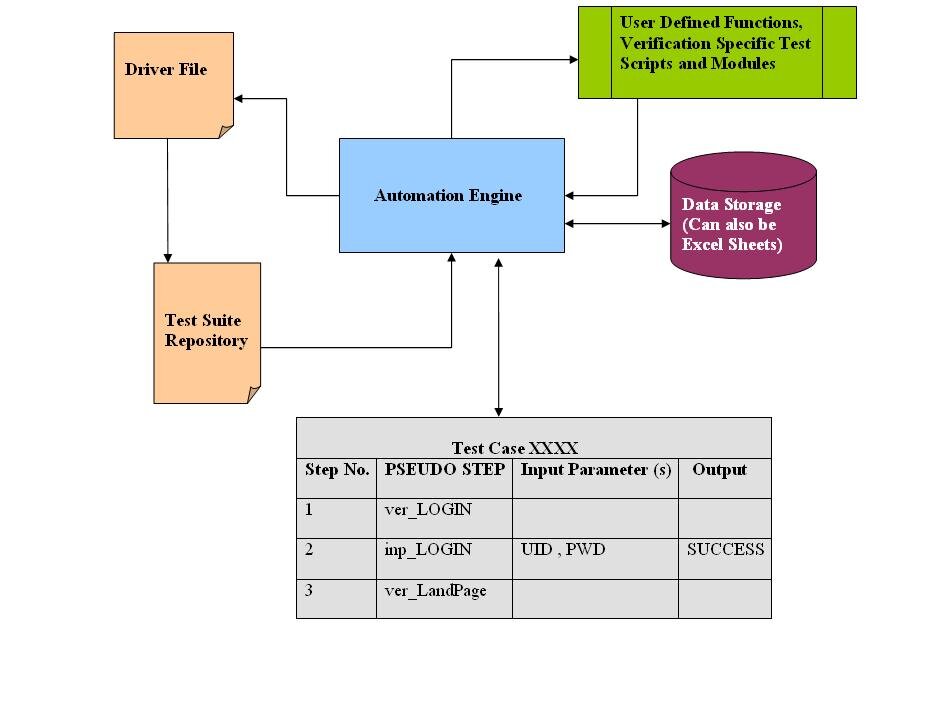
By integrating these tools, you're not just automating a single application. You're creating a bridge between the data you manage in spreadsheets and the vast information available on the web.
What is the primary role of Selenium when used in conjunction with VBA for Excel?
Imagine you have a list of products in an Excel sheet and you want to automatically find their prices on a website. Which tool is responsible for reading the product name from the Excel cell?
This combination opens up a world of possibilities for automating everyday tasks, saving time and reducing the chance of human error.