Scratch Programming Fundamentals
Introduction to Scratch
What is Scratch?
Scratch is a creative learning platform where you can program your own interactive stories, games, and animations. Developed by the MIT Media Lab, it’s designed to be fun and easy to use, especially for beginners.
Instead of typing complex code, you snap together colorful blocks that represent commands. It's like building with digital LEGOs, but the result is a program that you can run and share with others.
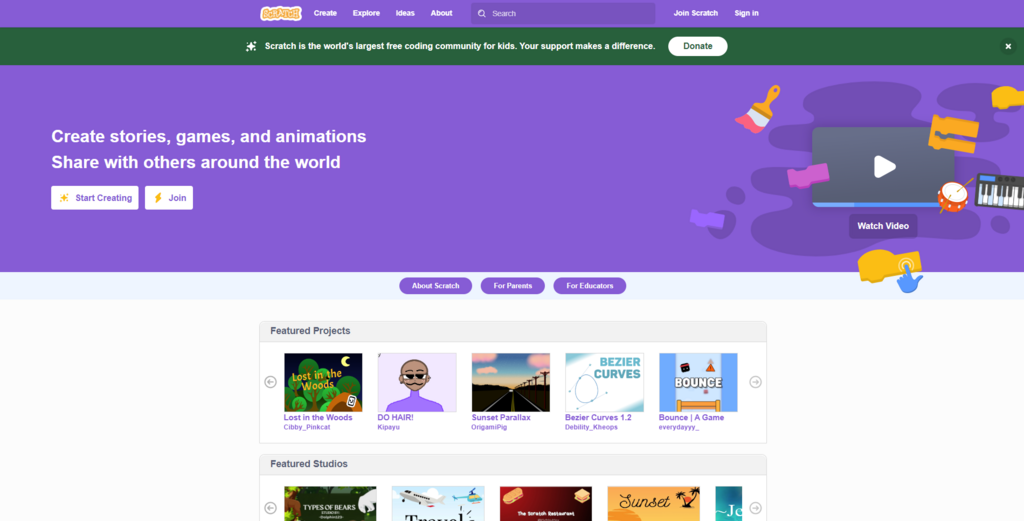
Scratch is a fantastic platform for kids to take their first steps into the exciting world of coding.
Getting Started
Before you can start creating, you’ll need a free account. This allows you to save your projects and share them with the Scratch community. Just visit the Scratch website and look for the "Join Scratch" button. You'll choose a username and password, and that's it.
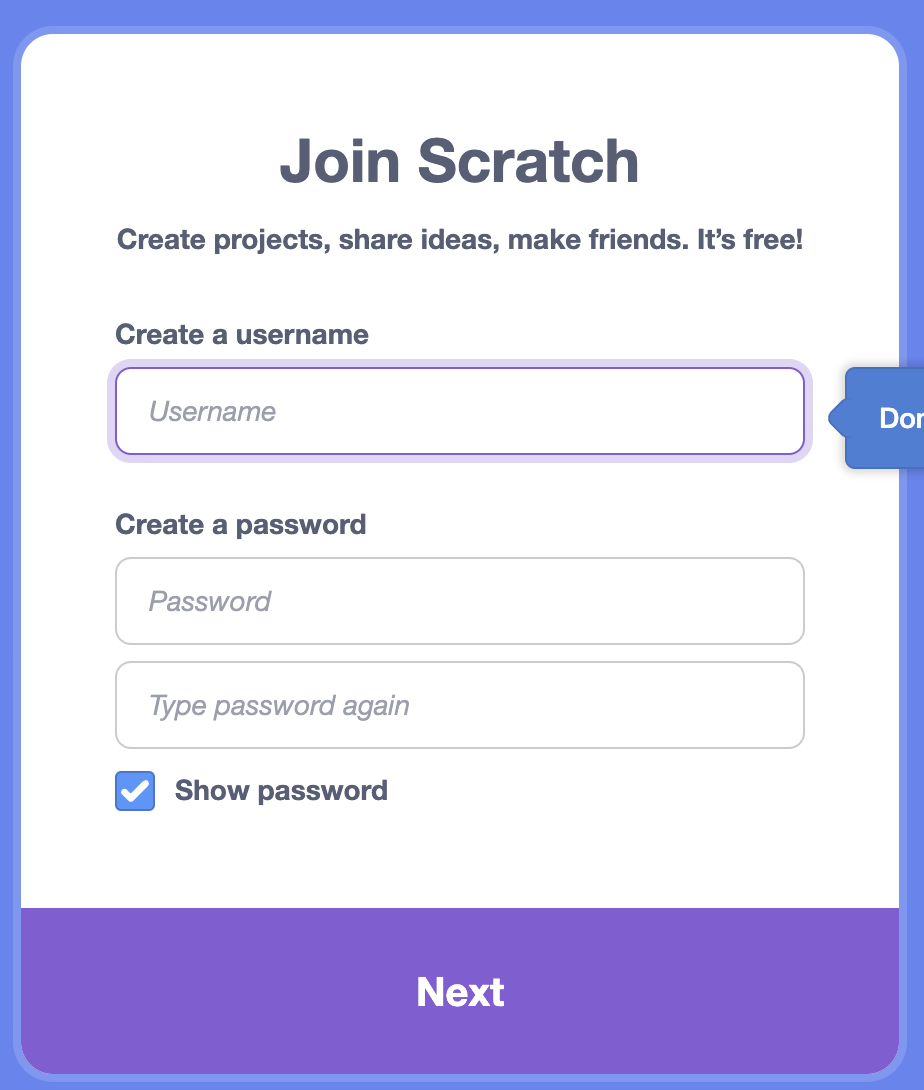
Once you're logged in, you can click the "Create" button to jump into the Scratch editor. This is your digital workshop, and it's where all the magic happens.
The Scratch Editor
The editor might look like a lot at first, but it’s organized into a few key areas. Let's take a quick tour.
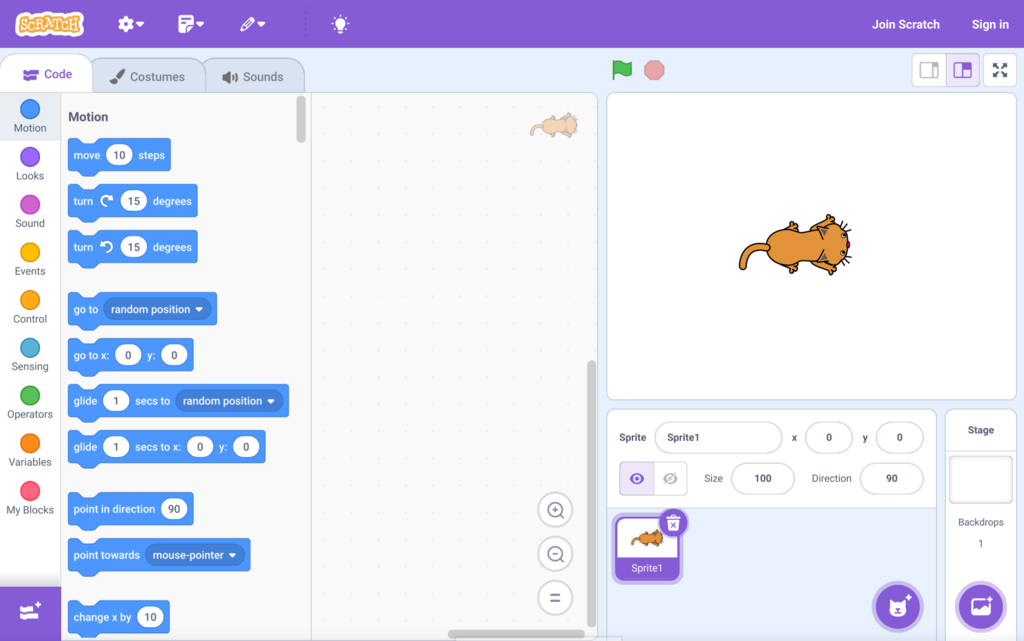
On the right side is the Stage. This is where your project comes to life. It’s the performance area where your characters will move, talk, and interact. Think of it as the screen for your game or the stage for your animation.
The characters and objects on the stage are called Sprites. By default, every new project starts with the Scratch Cat sprite. You can add new sprites from a library, draw your own, or upload images. The area below the stage lets you see and manage all the sprites in your project.
On the left is the Blocks Palette. This is your toolbox. It contains all the code blocks you'll use to program your sprites. The blocks are organized into categories by color and function, like Motion (blue), Looks (purple), and Sound (pink). To create a program, you simply drag blocks from the palette into the middle area, called the Script Area, and snap them together.
Each sprite has its own script area. The blocks you place there only affect that specific sprite.
To run your program, you click the green flag icon above the stage. To stop it, you click the red stop sign. It's that simple.
In the Scratch editor, what is the name of the area where your project is displayed and comes to life?
What are the programmable characters and objects in a Scratch project called?
That's a quick look at the basics of Scratch. Now you know your way around the editor and are ready to start exploring what each of the code blocks can do.