Scratch Coding Projects Mastery
Introduction to Scratch
What Is Scratch?
Scratch is a creative learning environment where you can build your own interactive stories, games, and animations. Instead of typing complex code, you snap together colorful blocks, much like building with digital LEGO bricks. This visual approach makes programming more intuitive and fun.
Developed at the MIT Media Lab, Scratch is designed to help beginners learn to think creatively, reason systematically, and work collaboratively. It provides a playful entry point into the world of coding without the frustration of complicated syntax.
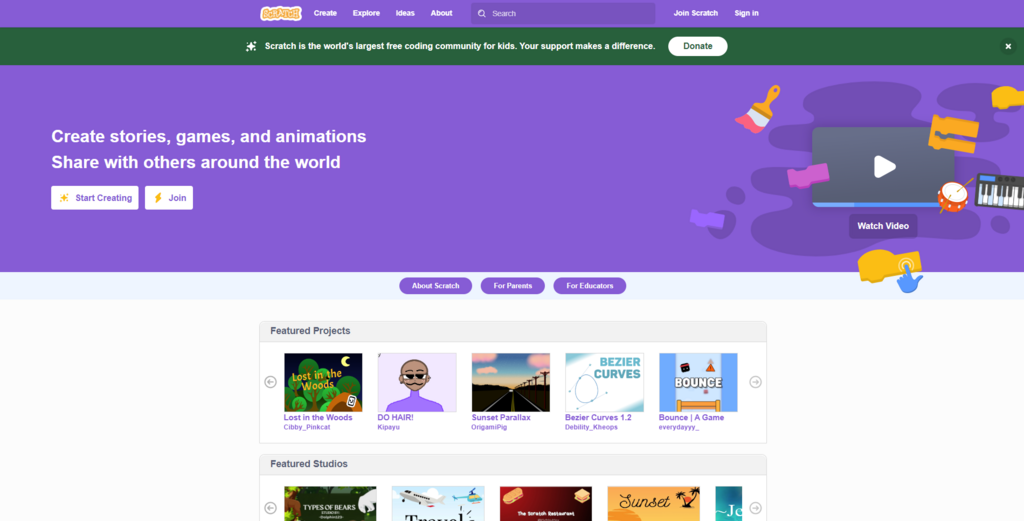
Scratch is a block programming language that is really easy to learn.
Exploring the Interface
When you open a new Scratch project, you'll see an editor with three main sections. Getting to know these areas is the first step toward bringing your ideas to life.
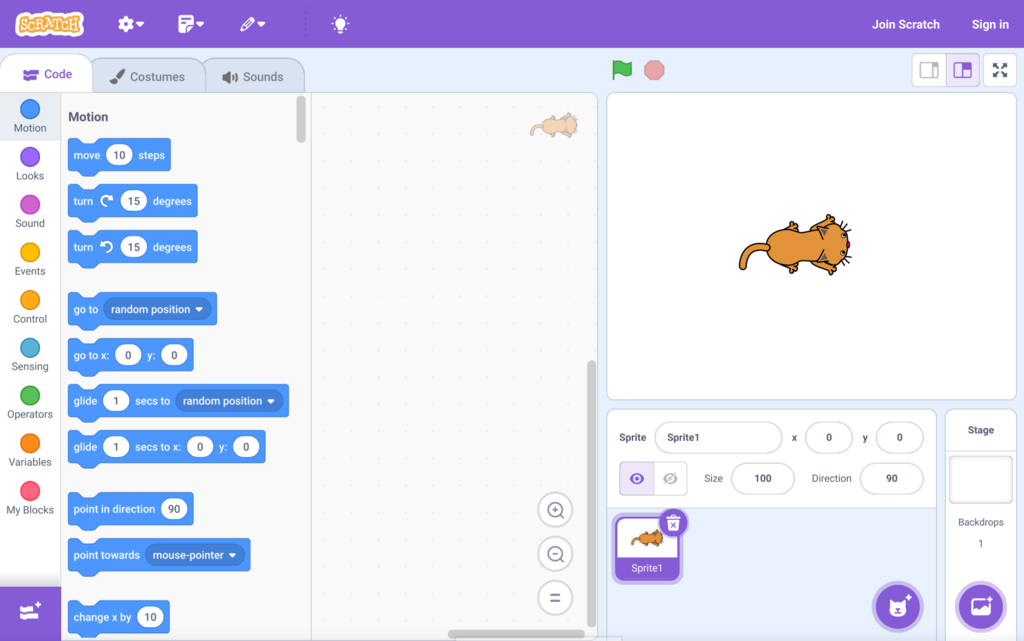
On the left is the Block Palette, which holds all the code blocks. The large, empty space in the middle is the Scripting Area, where you'll build your programs. And on the right, you'll find the Stage, which is where your program runs and your creations come to life.
Sprites and the Stage
Sprite
noun
A character or object in a Scratch project that can be programmed to move, talk, and interact with other sprites.
Think of the Stage as the setting of a play. It's the visual area where everything happens. The actors in your play are called sprites. A sprite can be a person, an animal, a bouncing ball, or anything else you can imagine.
You control what a sprite does by giving it instructions. Below the stage, you'll find the Sprite Pane, which lists all the sprites in your project. You can add new sprites, change their appearance, and select which one you want to program.
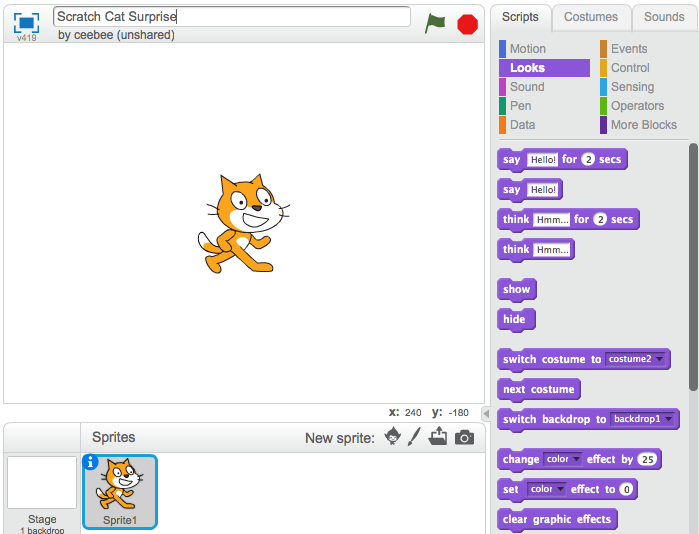
The Stage can also have different backgrounds, called Backdrops, to change the scene of your story or game.
The Block Palette
The Block Palette contains all the puzzle-piece blocks you'll use to code. These blocks are organized into categories by color and function. For example:
- Motion (blue): Blocks that move sprites around the stage.
- Looks (purple): Blocks that change a sprite's appearance or make it speak.
- Sound (magenta): Blocks that play sounds and music.
- Events (yellow): Blocks that start scripts, often when the green flag is clicked or a key is pressed.
- Control (orange): Blocks for loops and conditional logic, like repeating actions or making decisions.
To create a program, you drag blocks from the palette into the Scripting Area and snap them together. The shapes of the blocks are a helpful guide; only blocks that fit together logically can be connected. This simple drag-and-drop system is the core of what makes Scratch so easy to learn.
Now that you've been introduced to the basic building blocks of Scratch, let's test your knowledge.
What is the primary goal of the Scratch programming environment?
In the Scratch editor, where do you find all the available code blocks organized by category?