Scratch 3 Simple Project Creation
Introduction to Scratch 3
Welcome to Scratch
Scratch is a creative way to start programming. Instead of typing complex code, you snap together colorful blocks, much like digital LEGOs. It was developed by the MIT Media Lab to make coding accessible and fun for everyone. With Scratch, you can build your own interactive stories, games, and animations.
Exploring the Interface
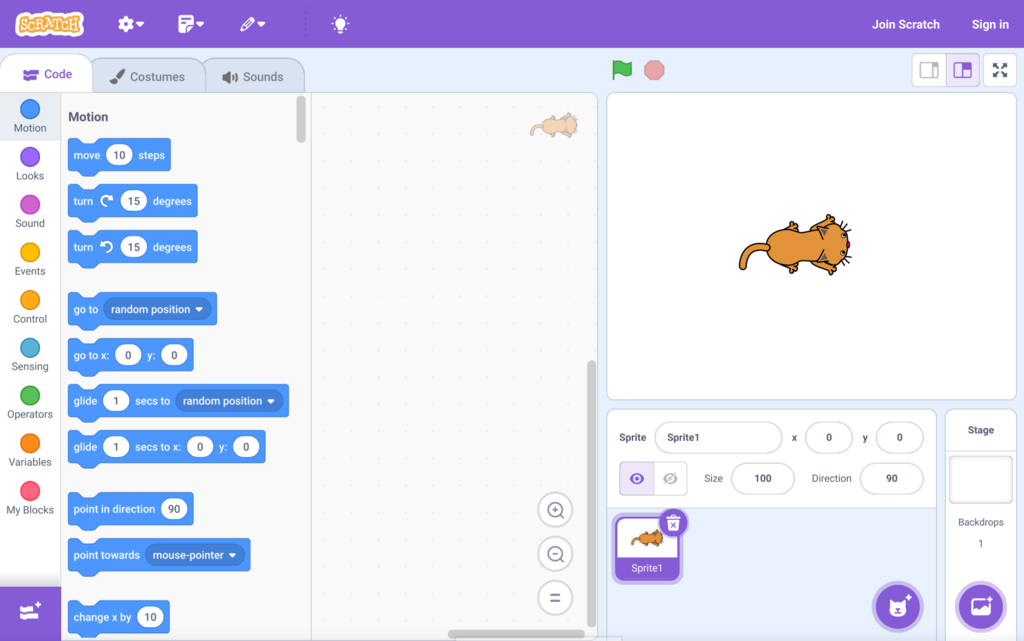
When you open a new Scratch project, you'll see a few key areas. Let's break them down.
On the right is the Stage. This is where your creations come to life. It's the performance area for your characters and the setting for your scenes.
Below the Stage is the Sprite Pane. A "sprite" is just an object or character in your project. The default sprite is the Scratch Cat, but you can add or create your own. This pane is where you manage all your sprites and the Stage's background, known as the Backdrop.
On the left, you'll find the Block Palette. This is your toolbox. It contains all the code blocks you'll use, organized into categories by color and function.
Think of it this way: Sprites are the actors, and the Backdrop is the set. You use the blocks to give instructions to your actors and change the set.
Sprites are the characters that move and interact. Backdrops are the backgrounds that set the scene.
Your Coding Toolbox
The code blocks are the heart of Scratch. They are organized into categories like Motion, Looks, Sound, Events, and Control. Each category has a distinct color so you can easily find what you need.
- Motion blocks (blue) move your sprites around the Stage.
- Looks blocks (purple) change a sprite's appearance.
- Sound blocks (magenta) add sounds and music.
- Events blocks (yellow) start your scripts. For example, the
when green flag clickedblock is one of the most common ways to begin a program.
To build a script, you simply drag blocks from the palette and snap them together in the central area, called the Code Area. The shapes of the blocks are designed to fit together logically.
Finally, let's talk about saving. If you're using the online editor, Scratch saves your work automatically. Just give your project a name at the top of the screen. If you're using the offline editor, you'll need to go to File > Save to your computer.
Starting with Scratch provides a solid foundation in fundamental programming concepts like loops, conditional statements, and variables.
Now that you know your way around, you're ready to start creating. Let's test your knowledge of the basics.
In Scratch, what is a 'Sprite'?
Which area of the Scratch editor is the main performance area where your creations come to life?
Great work. You've taken the first step into the world of Scratch. The best way to learn is by exploring and experimenting with the different blocks.