Reviving Your Slow Computer
Understanding Computer Performance
What Makes a Computer Fast?
Think of your computer as a kitchen. To cook a meal, you need a chef (the CPU), counter space (RAM), and a pantry (storage). The speed of your meal prep doesn't just depend on how fast the chef is. It depends on how much counter space they have and how quickly they can grab ingredients from the pantry. Computer performance works the same way. It’s a team effort between several key components.
The main players are the Central Processing Unit (CPU), Random Access Memory (RAM), the storage drive, and the operating system that manages them all. When these parts work together smoothly, your computer feels fast and responsive. When one part can't keep up with the others, it creates a bottleneck, slowing everything down.
The Brain of the Operation
The CPU is the brain. It executes the instructions from your programs, from opening a web browser to calculating numbers in a spreadsheet. Its speed is often measured in gigahertz (GHz). A higher GHz means the CPU can perform more cycles, or basic operations, per second.
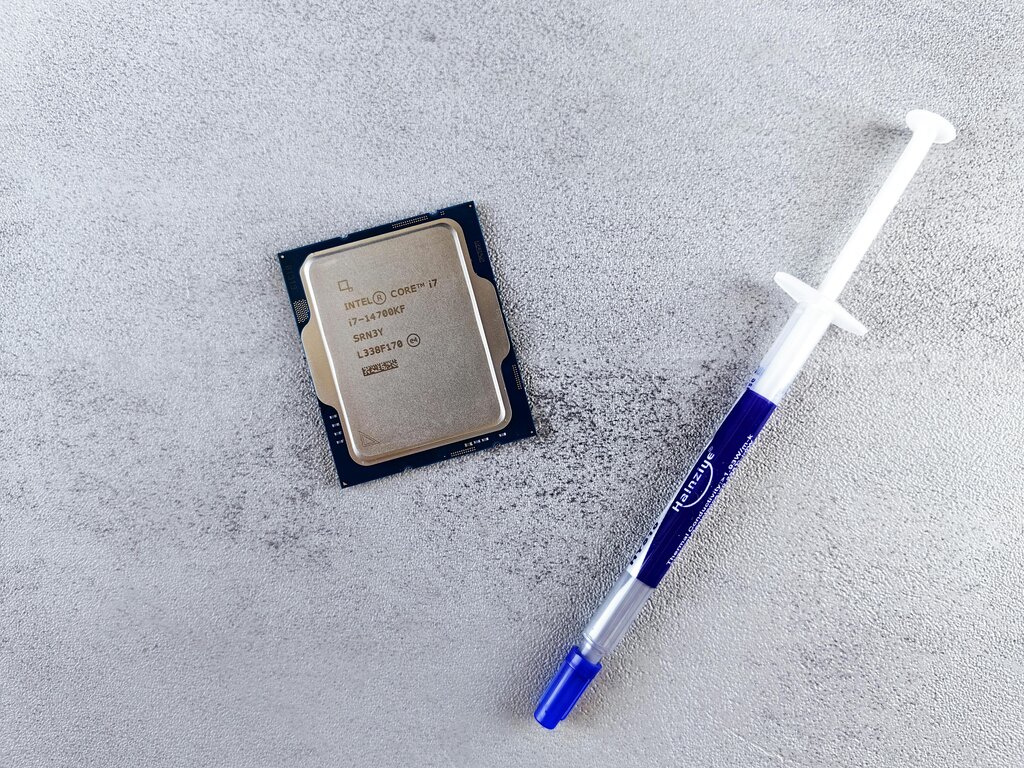
Modern CPUs also have multiple "cores." A core is like an individual processor within the main CPU. A dual-core CPU has two, a quad-core has four, and so on. Having more cores is like having multiple chefs in the kitchen. It allows the computer to work on several tasks simultaneously without slowing down.
A faster CPU with more cores can handle more complex tasks and multitask more effectively, making the whole system feel quicker.
Workspace and Storage
RAM is your computer's short-term memory, or its active workspace. When you open a program, its data is moved from the slow permanent storage into the super-fast RAM so the CPU can access it instantly. The more RAM you have, the more applications and files you can have open at once without a slowdown.
If you run out of RAM, the operating system has to temporarily move data back to the much slower main storage drive. This process, called "swapping," is a major cause of sluggishness. It's like your chef running out of counter space and having to constantly run back to the pantry for every single ingredient.
Your storage drive is the long-term library where your operating system, applications, and personal files are kept. There are two main types: Hard Disk Drives (HDDs) and Solid-State Drives (SSDs).
| Feature | Hard Disk Drive (HDD) | Solid-State Drive (SSD) |
|---|---|---|
| Technology | Spinning magnetic disks | Flash memory chips |
| Speed | Slower | Much faster |
| Moving Parts | Yes | No |
| Impact | Slower boot and load times | Quick boot and load times |
Upgrading from an HDD to an SSD is one of the most noticeable performance improvements you can make. Because SSDs have no moving parts, they can read and write data significantly faster. This means your computer boots up in seconds, and applications launch almost instantly.
The Conductor
The operating system (OS), like Windows, macOS, or Linux, acts as the conductor of an orchestra. It manages all the hardware and software, ensuring the CPU, RAM, and storage work together efficiently. The OS decides which tasks get the CPU's attention, how memory is allocated, and how files are read from and written to storage.
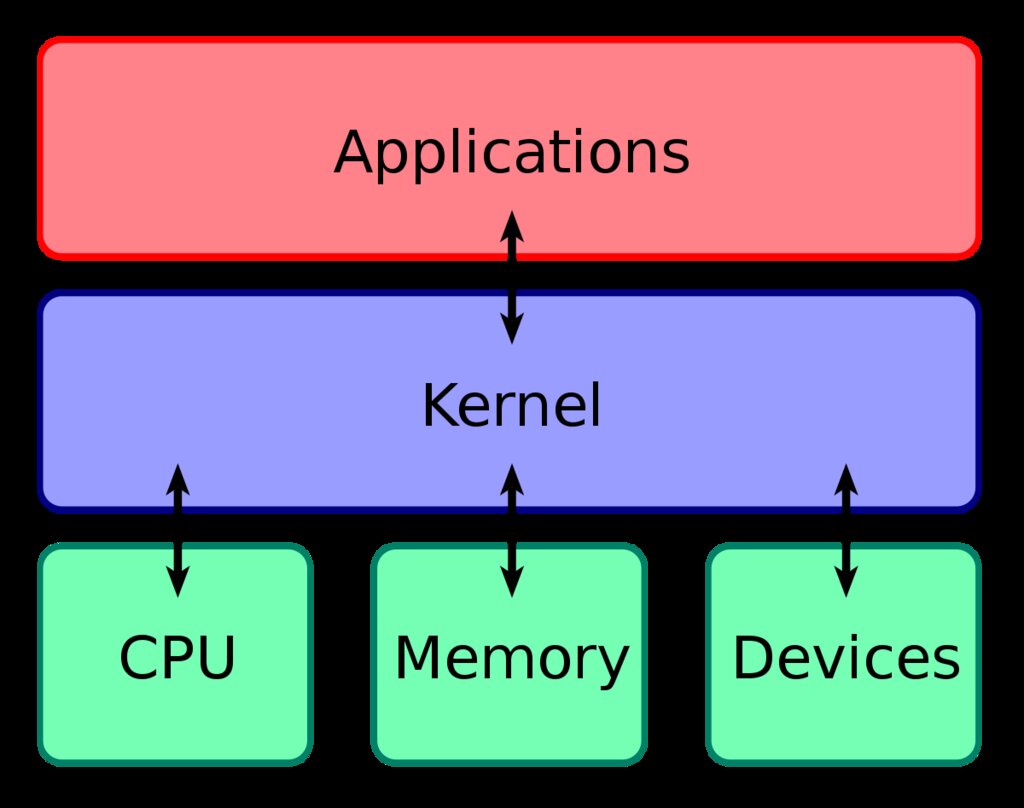
A well-managed OS keeps things running smoothly. However, if too many programs are running in the background or if the OS itself is bogged down with unnecessary files, it can't manage resources effectively. This leads to common performance issues.
Signs of a performance bottleneck include long boot times, applications that are slow to load, freezing or stuttering, and a general feeling of lag when you're trying to get things done.
In the analogy of a computer as a kitchen, what does the RAM represent?
What is the primary benefit of a CPU having multiple cores?
Understanding how these core components work together is the first step in recognizing why a computer might feel slow and what parts are most critical for the tasks you perform.