Revive Your Slow Computer
Understanding Computer Performance
What Makes a Computer Fast?
A computer's speed isn't about a single part. It’s a team effort. Think of it like a kitchen. You have a chef (the processor), a countertop for active cooking (memory), and a pantry for ingredients (storage). If any one of these is slow or too small, the whole process of making a meal gets bogged down. The same is true for your computer. Let's look at the key players that determine how fast your computer feels.
The Hardware Trio
Three main hardware components dictate most of your computer's performance: the CPU, RAM, and storage.
CPU
noun
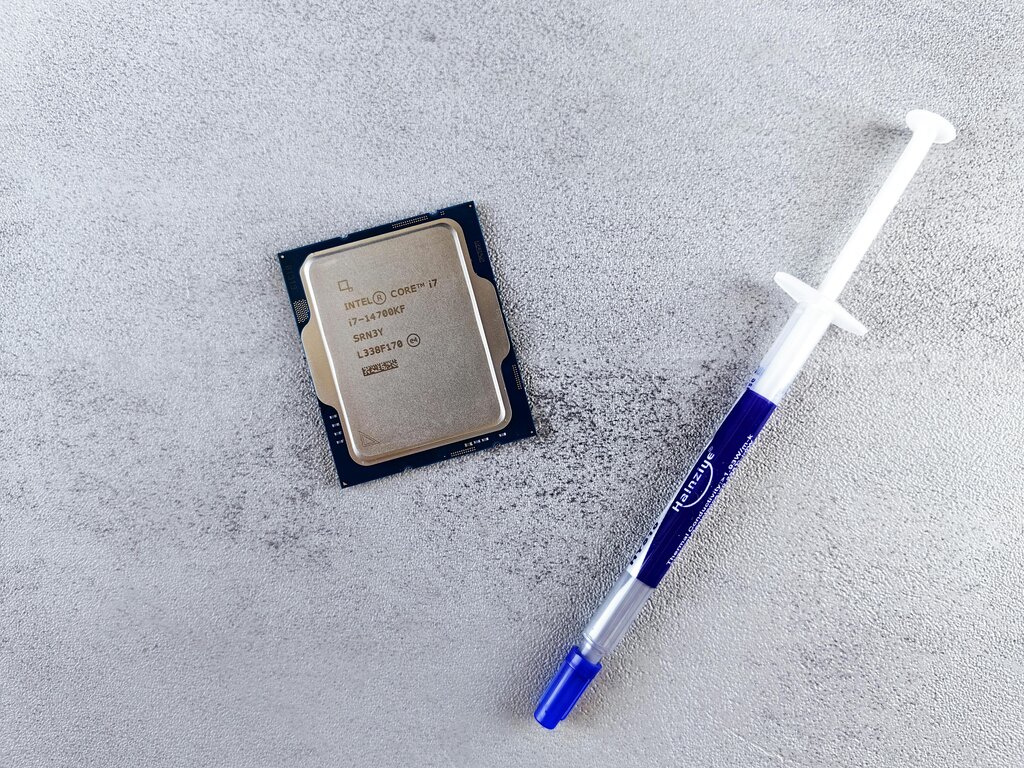
The Central Processing Unit, or CPU, is the primary component of a computer that executes instructions. It's essentially the computer's brain.
The CPU is the core of the action. It carries out the commands from all your programs. The faster your CPU's clock speed (measured in gigahertz, or GHz), the more instructions it can handle per second. A fast CPU means programs open quickly, complex calculations in a spreadsheet finish in a flash, and the whole system responds instantly to your clicks.
Next up is RAM, or Random Access Memory. If the CPU is the chef, RAM is the countertop space. It's a temporary holding area for data that the computer is actively using. When you open a program, it's loaded from your storage into RAM so the CPU can access it quickly.
The more RAM you have, the more applications you can run smoothly at the same time. Not enough RAM is like having a tiny countertop; things get cluttered and slow down as you try to juggle multiple tasks.
Finally, there's the storage drive. This is your computer's filing cabinet or pantry. It's where your operating system, programs, and files are kept permanently. There are two main types: Hard Disk Drives (HDDs) and Solid-State Drives (SSDs).
HDDs are older technology that use spinning magnetic disks to store data. They're slow because they have moving parts. An SSD is modern, using flash memory with no moving parts. This makes SSDs dramatically faster. Upgrading from an HDD to an SSD is one of the most noticeable performance improvements you can make.
The Manager in Charge
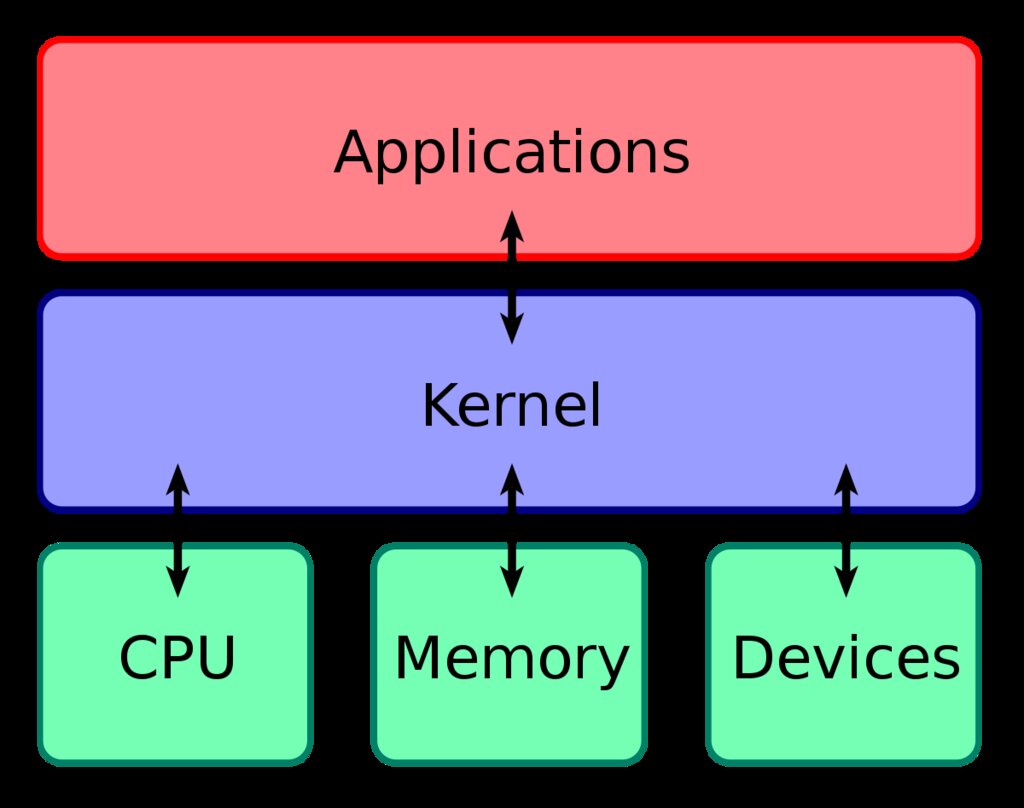
Hardware is only half the story. The operating system (OS), like Windows, macOS, or Linux, is the software that manages all the hardware and runs your programs. It's the traffic cop directing how and when applications can use the CPU, RAM, and storage.
An efficient OS uses resources wisely. However, over time, operating systems can get bogged down by unnecessary software, background processes, and fragmented files. Too many programs trying to run at startup can make your computer feel sluggish before you've even opened an application. A clean, well-maintained OS helps your powerful hardware run at its full potential.
Common Symptoms of Slowdown
When performance degrades, it shows up in frustrating ways. Recognizing the symptoms can help you guess the cause.
| Symptom | Common Causes |
|---|---|
| Very slow startup and loading times | Slow storage drive (HDD), too many startup programs |
| Lagging when multiple apps are open | Not enough RAM |
| General slowness in all tasks | Older CPU, inefficient OS, or background processes |
| System is unresponsive or freezes | Could be any component, often RAM or storage being overworked |
Understanding these relationships between the CPU, RAM, storage, and your OS is the first step. By knowing what each part does, you can better understand why your computer behaves the way it does.