Revive Your Slow Computer
Understanding Computer Performance
What Makes a Computer Fast?
Think of your computer like a kitchen. To cook a meal, you need a chef, counter space, and a pantry. In this analogy, the Central Processing Unit (CPU) is the chef, the one who follows the recipe and does the actual work. The Random Access Memory (RAM) is the counter space, where the chef keeps ingredients and tools handy. The storage drive (like a hard drive or solid-state drive) is the pantry, where all the ingredients are stored for the long term.
A computer's performance depends on how well these three parts work together. A star chef with a tiny counter will be slow. A huge counter with a slow chef won't be efficient. And a well-stocked pantry is useless if it takes forever to find anything. Let's look at each component's role.
The Chef, the Counter, and the Pantry
The CPU: The Brains of the Operation The CPU is your computer's main processor. It executes the instructions from all your programs, from opening a web browser to calculating numbers in a spreadsheet. The faster your CPU, the more instructions it can handle per second. This speed is often measured in gigahertz (GHz). A higher GHz number generally means a faster chef who can read and follow recipe steps more quickly.
RAM: The Digital Workspace RAM is your computer's short-term memory. It’s the counter space where the CPU keeps the data it's actively using. When you open a program, its data is loaded from the slow pantry (storage) onto the fast counter (RAM) so the CPU can access it instantly. The more RAM you have, the more programs you can run at once without slowdowns. If you run out of counter space, the chef has to constantly go back to the pantry, which takes a lot of extra time. This is why a computer with too little RAM feels sluggish when multitasking.
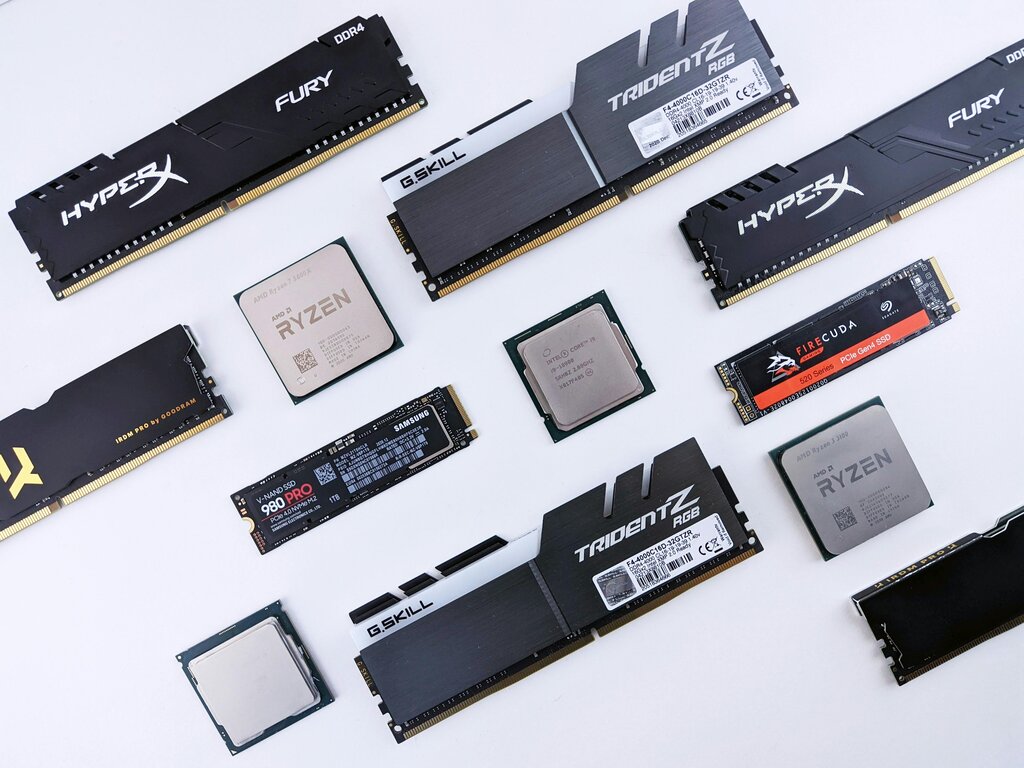
Storage: The Long-Term Archive Your storage drive is the pantry. It holds your operating system, programs, and personal files permanently. When you turn off your computer, everything in RAM is cleared, but your data on the storage drive remains. There are two main types: Hard Disk Drives (HDDs) and Solid-State Drives (SSDs).
HDDs are older and work like tiny record players with a spinning disk and a moving arm to read data. SSDs are newer, with no moving parts. They use flash memory, making them significantly faster at loading programs and opening files. An SSD is like having a perfectly organized pantry where you can instantly grab any ingredient, while an HDD is like having to search through cluttered shelves.
Software's Role in Performance
Hardware isn't the whole story. The software—your operating system (like Windows or macOS) and applications—is the recipe the chef follows. The operating system (OS) is like the head chef, managing all the tasks. It decides which programs get to use the CPU, how memory is allocated, and when to read or write data to storage.
Inefficient or bloated software can slow down even the most powerful hardware. A poorly written recipe with confusing steps will slow down any chef. Likewise, having too many programs running in the background is like asking the chef to cook a dozen different meals at once. Each one uses up a bit of the CPU's attention and RAM's workspace, leading to a slower experience overall.
When your computer feels slow, it's often a sign that one of its core components—CPU, RAM, or storage—is struggling to keep up with the demands of the software.
Now that you have a better sense of what makes a computer tick, let's test your knowledge.
In the analogy of a computer as a kitchen, which component is the 'chef' that performs the work?
If you have many applications open at once and your computer becomes very slow, which component is most likely the bottleneck, acting like a 'counter space that is too small'?
Understanding these core components is the first step in diagnosing why a computer might be underperforming. It's all about the balance between the chef, the counter, and the pantry.