Revive Your Slow Computer
Understanding Computer Performance
What Makes a Computer Fast?
A computer's speed isn't about just one part working hard. It's a team effort. Think of it like a highly efficient kitchen. You have a chef, a countertop for active work, and a pantry for ingredients. If any one of these is slow or too small, the whole operation bogs down.
In a computer, the main players are the Central Processing Unit (CPU), Random Access Memory (RAM), and storage drives. Each has a distinct job, and how well they work together determines your computer's overall performance. Let's break down what each component does.
The Brain: CPU
The CPU, or Central Processing Unit, is the brain of the computer. It executes the instructions that make your programs run, from opening a web browser to calculating a spreadsheet. The faster your CPU can process these commands, the snappier your computer feels.
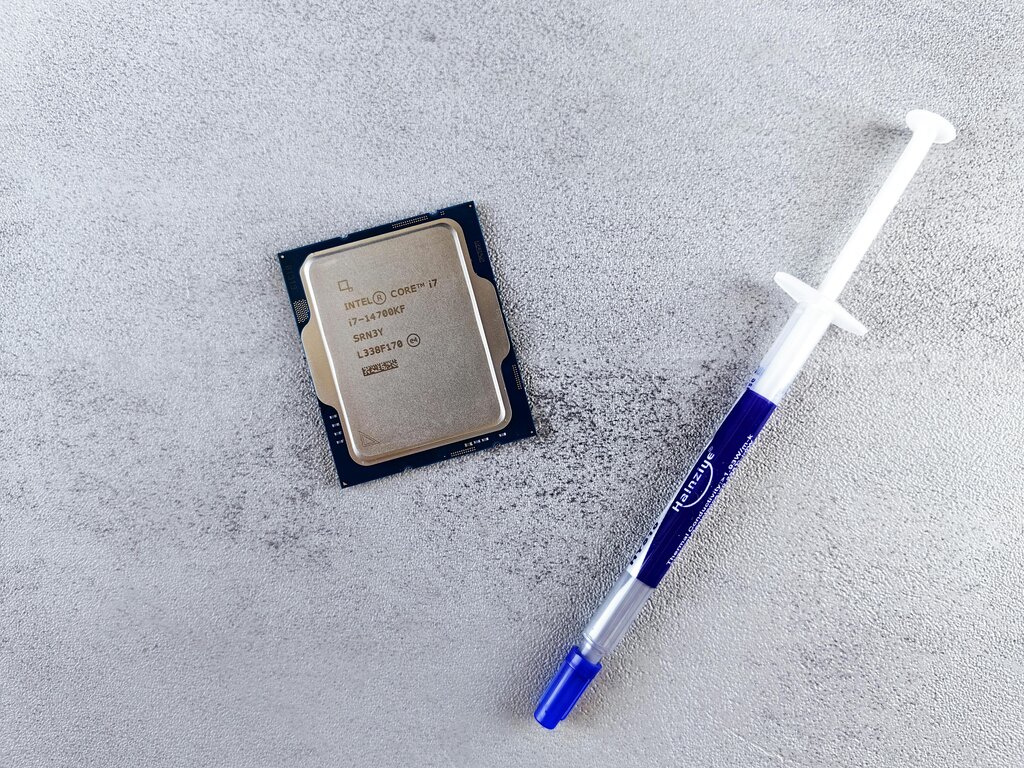
Two key factors determine a CPU's speed:
-
Clock Speed: Measured in gigahertz (GHz), this is how many cycles (or simple instructions) a CPU can perform per second. A 3.5 GHz processor can execute 3.5 billion cycles per second. A higher clock speed generally means a faster processor.
-
Cores: Modern CPUs have multiple cores. Think of each core as an individual brain. A dual-core CPU has two brains, a quad-core has four, and so on. Multiple cores allow the computer to work on several tasks simultaneously, which is essential for multitasking.
A fast CPU with multiple cores can run demanding software and handle many applications at once without slowing down.
The Workbench: RAM
RAM, or Random Access Memory, is your computer's short-term memory. It's like a workbench where you keep the tools and materials you're currently using. When you open a program or a file, it's loaded from your long-term storage into RAM so the CPU can access it quickly.
RAM is much faster than a storage drive, so having more of it allows you to keep more applications open at once without a performance hit. If you run out of RAM, your computer has to temporarily move data back to the much slower storage drive. This process, known as 'swapping' or using 'virtual memory', is what causes noticeable slowdowns when you have too many tabs or programs open.
RAM capacity is measured in gigabytes (GB). For basic tasks, 8 GB might be enough, but 16 GB or more is better for heavy multitasking, gaming, or professional applications.
The Pantry: Storage
If RAM is the workbench, the storage drive is the pantry. It’s where your operating system, applications, and all your files are stored permanently. The speed of your storage drive dramatically affects how quickly your computer starts up and how long it takes to load programs.
There are two main types of storage drives:
| Type | How It Works | Performance |
|---|---|---|
| HDD (Hard Disk Drive) | Uses spinning magnetic platters and a moving read/write head. | Slower, less durable, but offers large capacity for a lower cost. |
| SSD (Solid-State Drive) | Uses flash memory with no moving parts, like a giant USB drive. | Much faster, more durable, and quieter, but more expensive per gigabyte. |
Upgrading from an HDD to an SSD is one of the most impactful performance boosts you can give an older computer. The difference in boot time and application loading is night and day.
The Conductor: Operating System
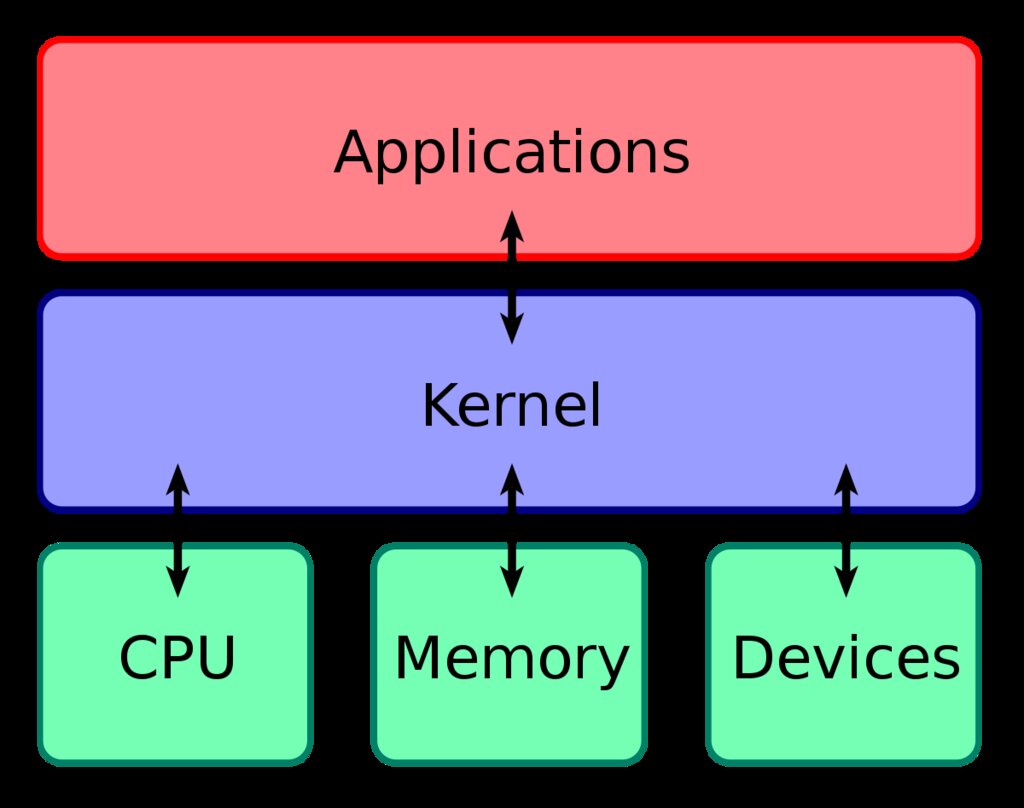
The operating system (OS), like Windows, macOS, or Linux, is the master conductor. It manages all the hardware (CPU, RAM, storage) and software, making sure they work together harmoniously. The OS allocates CPU time to different processes, manages how RAM is used, and handles reading and writing files to your storage drive.
An efficient OS can make the most of the hardware you have. It juggles countless background tasks, from checking for updates to managing your network connection. Keeping your OS updated and free of unnecessary background programs helps ensure it can dedicate resources to the tasks you care about most.
Keeping an Eye on Performance
How do you know which component is working hard or causing a bottleneck? Computers come with built-in monitoring tools that give you a real-time look at your system's health.
On Windows, this tool is the Task Manager (accessible with Ctrl+Shift+Esc). On macOS, it's the Activity Monitor. These utilities show you exactly how much of your CPU, RAM, and storage is being used at any given moment, and which applications are the most resource-hungry.
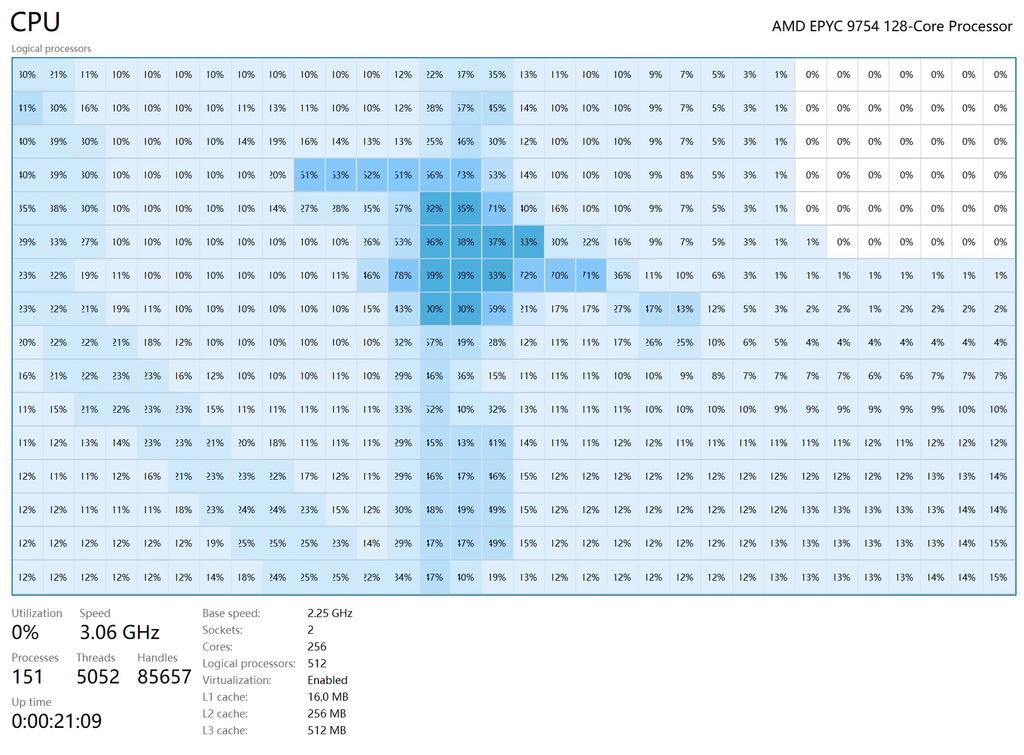
By checking these tools, you can see if your CPU is maxed out, if you're running out of RAM, or if a particular program is constantly accessing your storage drive. This is the first step in understanding your computer's performance and diagnosing potential issues.
What is the primary role of Random Access Memory (RAM) in a computer system?
Which two factors are the most crucial for determining a CPU's overall processing capability?
Understanding these core components gives you the power to know what's happening under the hood. A fast CPU, sufficient RAM, and a quick storage drive, all managed by a lean operating system, create a responsive and enjoyable user experience.