Revive Your Slow Computer
Understanding Computer Performance
The Computer's Brain
Think of the Central Processing Unit, or CPU, as your computer's brain. It's the primary component responsible for executing instructions and performing calculations. Every time you click, type, or run a program, the CPU is doing the heavy lifting to make it happen.
A CPU's speed is measured in gigahertz (GHz). A higher number means the CPU can process more instructions per second. Modern CPUs also have multiple "cores," which are like individual brains within the main CPU. Having more cores allows the computer to work on several tasks simultaneously, which is why a quad-core processor is much better at multitasking than a single-core one.
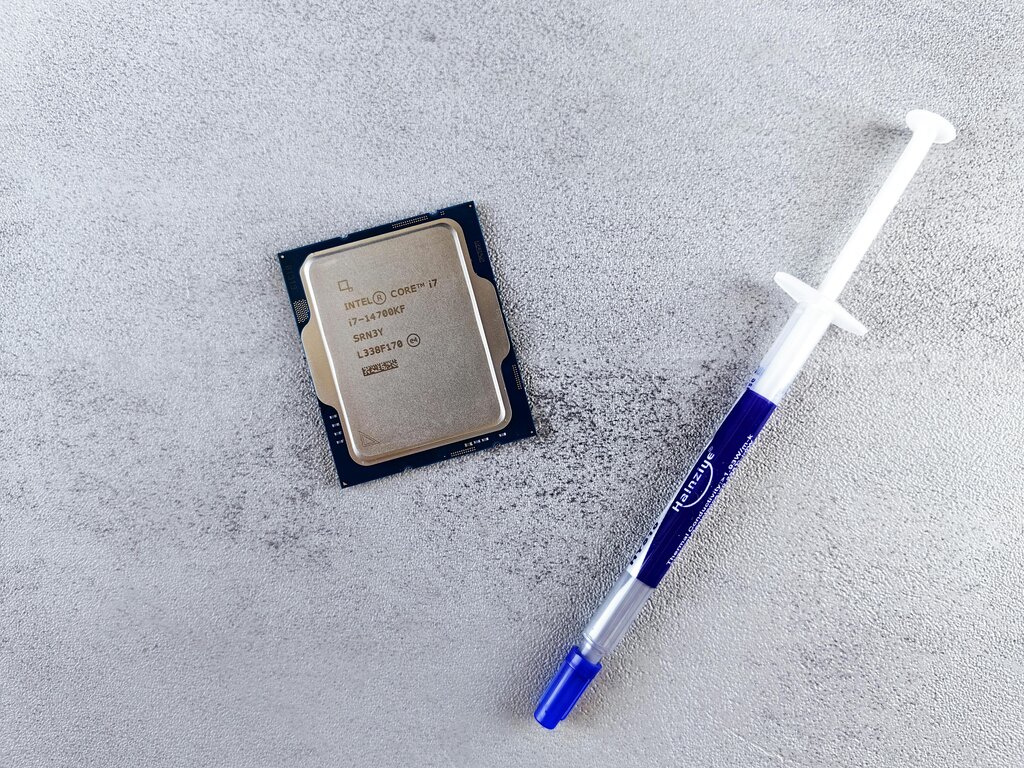
A faster CPU with more cores can think about more things at once, making your computer feel snappier.
Short-Term Memory
Random Access Memory, or RAM, is the computer's short-term memory. If the CPU is the brain, RAM is the workbench. It's a temporary storage space where your computer holds the data for the applications that are currently running. This memory is much faster than long-term storage, allowing the CPU to access the information it needs almost instantly.
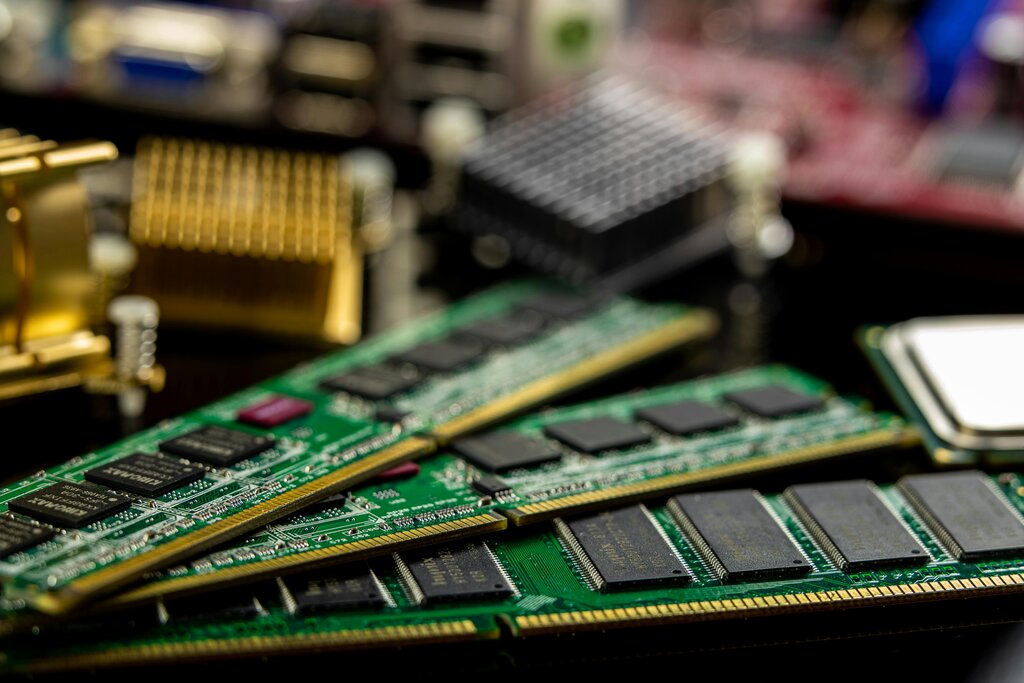
The amount of RAM you have directly affects how many tasks you can do at once. With plenty of RAM, you can have a web browser with dozens of tabs, a music player, and a photo editor all running smoothly. If you run out of this workspace, the computer has to temporarily move data to the much slower long-term storage. This process, called swapping, is what causes noticeable slowdowns and lag when you're multitasking heavily.
Long-Term Storage
While RAM is for the here and now, your storage drive—the hard drive or solid-state drive—is for permanent keeping. It's the file cabinet where your operating system, applications, photos, and documents are stored, even when the computer is turned off. The speed of this drive has a huge impact on how quickly your computer starts up and how fast your programs load.
There are two main types of storage drives:
| Drive Type | How it Works | Key Benefit |
|---|---|---|
| HDD (Hard Disk Drive) | Uses spinning magnetic platters and a moving read/write head. | High capacity for a lower cost. |
| SSD (Solid-State Drive) | Uses flash memory chips, with no moving parts. | Significantly faster performance. |
Upgrading from an HDD to an SSD is one of the most effective ways to make an older computer feel new again. Boot times, file transfers, and application loading all become dramatically faster.
The Manager in Charge
The operating system (OS), like Windows, macOS, or Linux, is the master manager of all your computer's resources. It's the software that coordinates the CPU, RAM, and storage, telling them what to do and when. A well-functioning OS ensures that all the hardware components work together efficiently.
The OS manages which programs get to use the CPU and for how long. It allocates chunks of RAM for each open application and handles the flow of data to and from your storage drive. It also runs essential processes in the background to keep everything secure and up-to-date.
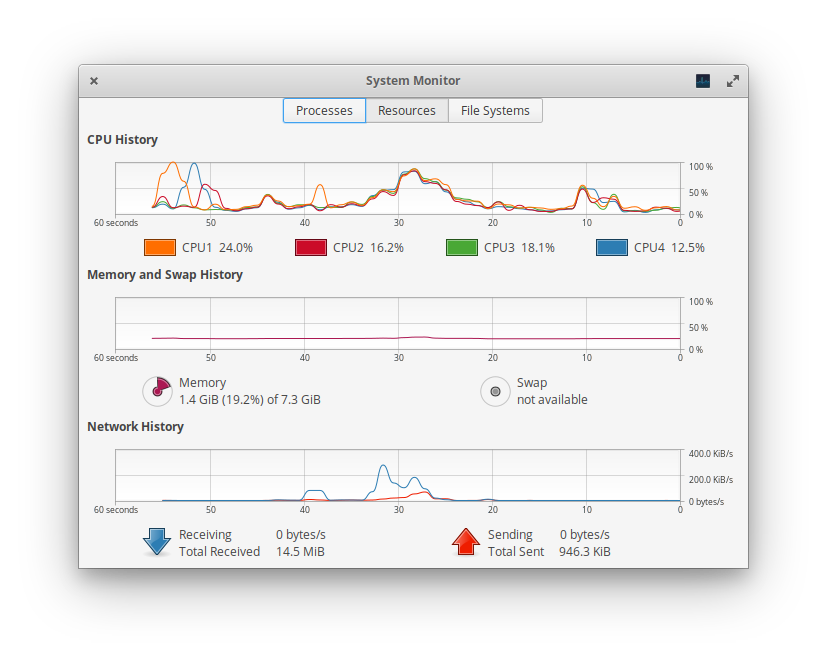
Sometimes, performance issues aren't about the hardware itself but how the OS is managing it. Having many unnecessary programs running in the background can consume valuable CPU time and RAM, leaving less available for the tasks you're actively working on. This is why keeping your system tidy by uninstalling unused software can often lead to a noticeable performance boost.
Programs that run in the background will take up valuable processing power and slow your computer down.
Now that you understand the key players, let's test your knowledge.
Which component is primarily responsible for executing instructions and performing calculations, acting as the 'brain' of the computer?
A computer's performance slows down significantly when multiple applications are open at once. This 'lag' is often caused by the system running out of short-term memory and having to move data to long-term storage. What is this process called?
Understanding these core components is the first step toward diagnosing why a computer might feel slow. Each part has a distinct job, and they all must work together seamlessly for a fast and responsive experience.