React Native and Expo for Mobile Development
Introduction to React Native and Expo
Build Apps with JavaScript
Traditionally, if you wanted to build an app for both iPhones and Android phones, you had to write two separate apps. One would be in Apple's language, Swift, and the other in Google's, Kotlin. This means double the work, double the code, and double the potential for bugs.
React Native changes this. It’s a framework that lets you build a mobile app using JavaScript and the React library. You write your code once, and React Native translates it into the native user interface elements for both iOS and Android. It’s like having a skilled interpreter who can instantly convey your message in two different languages, ensuring it looks and feels right for each audience.
This approach saves a huge amount of time and effort. You maintain a single codebase for the core of your app, which makes updates and bug fixes much simpler. Plus, if you already know React for web development, you're already halfway there.
Meet Your Toolkit Expo
While React Native is powerful, getting a new project started can involve a lot of setup and configuration for both iOS and Android environments. This is where Expo comes in.
Expo is a set of tools and services built around React Native that simplifies the development process. Think of it as a starter kit for building your app. It handles all the complex configuration for you, so you can jump straight into writing code. It also provides a helpful app, Expo Go, that lets you run and test your project on your physical phone in minutes.
Expo lets you focus on building your app's features, not on wrestling with native build tools.
Setting Up Your Workspace
Before you can create your first app, you need a few things on your computer. The setup is straightforward and only takes a few minutes.
First, you'll need Node.js. This is a JavaScript runtime that allows you to run JavaScript code outside of a web browser. The Expo Command Line Interface (CLI), which we'll use to create and manage our project, runs on Node.js. Make sure to install the LTS (Long-Term Support) version from the official Node.js website.
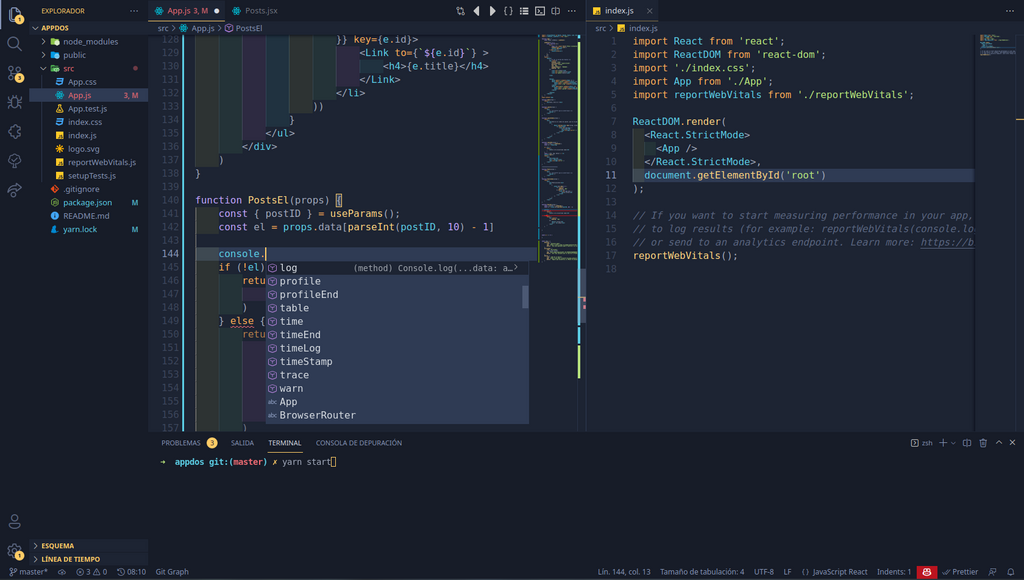
Second, you need a code editor. While you can use any text editor, Visual Studio Code is a popular choice in the developer community. It has excellent support for JavaScript and React Native, with many extensions that can make your work easier.
With Node.js installed, you can now install the Expo CLI. This is a command-line tool that lets you create and manage your Expo projects. Open your terminal (or Command Prompt on Windows) and run the following command:
npm install -g expo-cli
The -g flag tells npm (Node Package Manager, which comes with Node.js) to install the package globally, so you can use the expo command from any directory on your computer.
Creating and Running Your App
Now for the fun part. Let's create a new project. In your terminal, navigate to the folder where you want to store your projects and run this command:
expo init my-first-app
The CLI will ask you to choose a template. For your first project, select the blank template. It provides a minimal app, perfect for learning.
Once the process is complete, navigate into your new project directory and start the development server:
cd my-first-app
npm start
This command will start the Metro Bundler, which is a JavaScript bundler for React Native. It will also open a new tab in your web browser with the Expo Developer Tools. Here you will see a QR code.
To see the app on your phone, install the Expo Go app from the App Store or Google Play. Once installed, open it and scan the QR code from your terminal or the browser window. Your app will load on your phone. Any changes you make to the code will now appear almost instantly on your device.
If you prefer to work with an emulator, you can run your app on an iOS Simulator (on macOS) or an Android Emulator. In the terminal where the development server is running, just press i to launch the iOS Simulator or a to launch the Android Emulator.
With your environment set up and a basic app running, you're ready to start building. Let's review what we've covered before moving on.
Time to check your understanding.
What is the primary problem that React Native was designed to solve?
In the context of React Native development, what is the main purpose of Expo?
You now have a solid foundation in what React Native and Expo are and how to get a project up and running. In the next section, we'll start exploring the basic components you'll use to build your user interface.