R Programming for Data Analysis
Introduction to R
Setting Up Your Workspace
R is a programming language built for statistics and data analysis. Think of it as a powerful calculator that you can program to perform complex tasks. But to use R, we need a good workspace. That's where RStudio comes in.
RStudio is an Integrated Development Environment, or IDE. It’s a workbench that makes writing and running R code much easier. It gives you a text editor, a console to see your output, and other helpful tools all in one place.
Your first step is to install both R and RStudio. You must install R first, as RStudio needs it to function. Both are free and available for Windows, Mac, and Linux.
- Go to the official R project website to download and install R.
- Then, visit the Posit website (the company that makes RStudio) to download and install the free RStudio Desktop.
Once both are installed, open RStudio. Don't open R directly. RStudio is your portal to R.
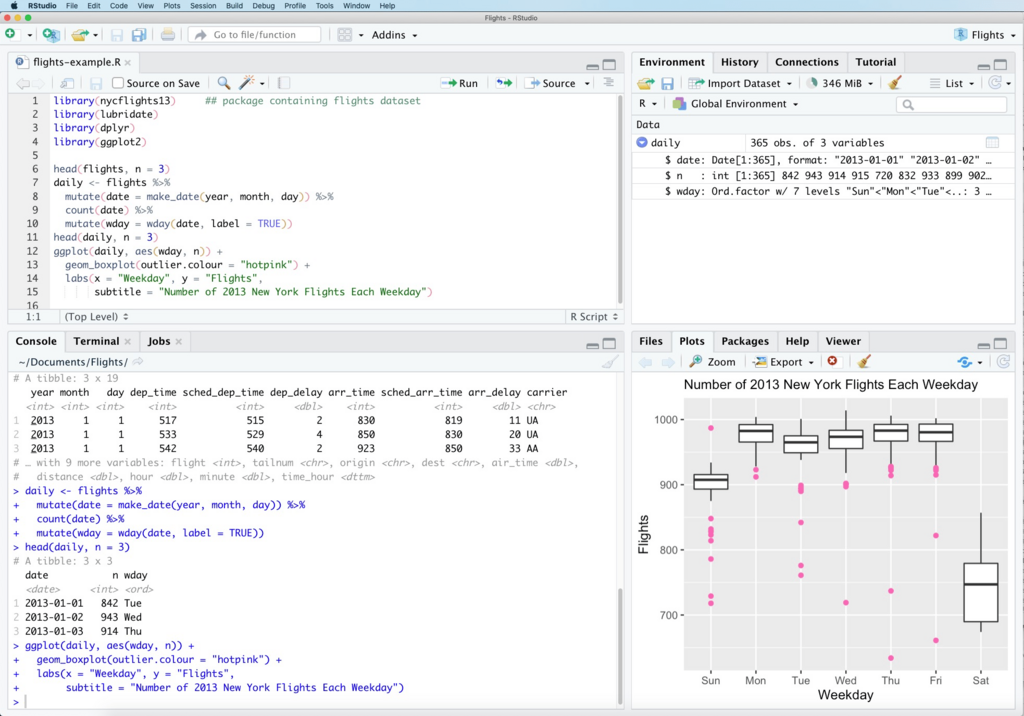
The RStudio Environment
When you open RStudio, you'll see a few different panels, or panes. It can look a bit busy at first, but each section has a clear purpose.
The most important pane for now is the Console. It's where R lives. You can type commands directly into the console, press Enter, and R will execute them immediately. You'll recognize it by the > prompt.
Try typing this into the console and pressing Enter:
2 + 2
R will respond instantly.
[1] 4
The [1] just indicates that the answer is the first element of the output. For now, you can ignore it.
The console is great for quick tests, but it’s not ideal for writing longer programs. Once you close RStudio, everything you typed in the console is gone. For work you want to save, you'll use a script.
Writing Your First Script
script
noun
A text file containing a sequence of commands for a computer program to execute.
An R script is just a plain text file, usually saved with a .R extension. It’s where you’ll write and save your code. In RStudio, you create one by going to File > New File > R Script. This will open the Script Editor pane.
Let’s try some basic operations. We can store values in variables using the assignment operator, <-.
# This is a comment. R ignores anything after a #

# Assign the value 10 to a variable named 'a'
a <- 10

# Assign the value 5 to a variable named 'b'
b <- 5
Notice that when you type this into the script editor, nothing happens in the console. The script is just a text file. To run the code, you need to send it to the console. You can run one line at a time by putting your cursor on the line and pressing Ctrl+Enter (or Cmd+Return on a Mac). You can also highlight a block of code and use the same shortcut.
Once you’ve run those lines, the variables a and b exist in your R session. You can now use them in calculations.
a + b
a - b
a * b
Run those lines from your script and watch the answers appear in the console. The power of a script is that you can save your work, close RStudio, and come back later to run the same commands again. This is the key to reproducible analysis.
Let's check what you've learned.
When setting up your programming environment, what is the correct installation order?
Which pane in RStudio is designed for writing and saving code that you want to reuse later?
You've successfully set up your environment and run your first few lines of R code. You now have the fundamental tools to start exploring the world of data analysis with R.