Python Programming Fundamentals
Introduction to Python
What Is Python?
Python is a programming language, which is a way for us to give instructions to a computer. Think of it like learning a new spoken language, but this one is for talking to machines. What makes Python special is its simplicity. Its rules, or syntax, are designed to be clean and readable, almost like plain English.
It was created in the late 1980s by a Dutch programmer named Guido van Rossum. He wanted to make a language that was powerful but also fun to use. The name doesn't come from the snake, but from Guido's favorite comedy troupe, Monty Python's Flying Circus.
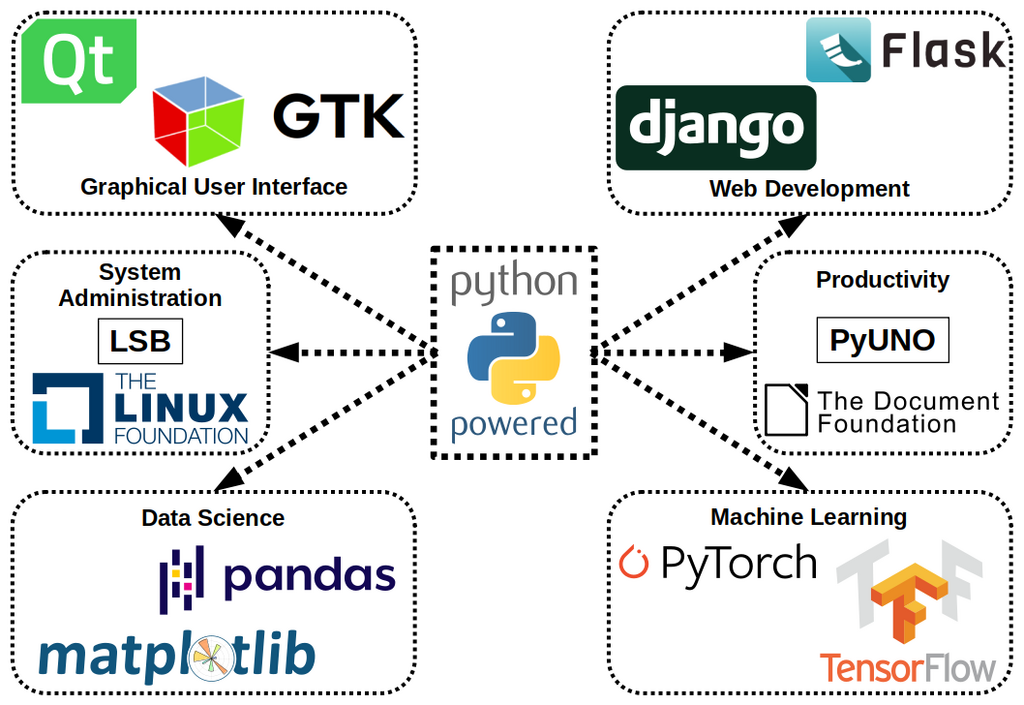
A few things make Python a favorite among beginners and experts alike:
- Readable Code: The syntax is straightforward, making it easier to write and understand programs.
- Versatility: You can use Python for web development, data analysis, artificial intelligence, automating tasks, and much more.
- Large Community: A massive global community supports Python, meaning if you ever get stuck, help is easy to find.
Getting Python Ready
Before you can start writing Python code, you need to have it installed on your computer. Many computers, especially those running macOS or Linux, already have Python installed. You can check by opening your terminal (on Mac/Linux) or Command Prompt (on Windows) and typing one of these commands:
python --version
Or, if that doesn't work, try:
python3 --version
If you see a version number like Python 3.9.5, you're all set. If not, or if the version is older than 3.6, it's best to install a fresh copy. The official Python website, python.org, is the best place to get the installer for your operating system (Windows, macOS, or Linux).
During installation on Windows, make sure to check the box that says "Add Python to PATH." This small step makes it much easier to run Python from your command prompt.
Your First Conversation with Python
The easiest way to start using Python is with its interactive shell. This is a program that reads a single Python command, executes it, and prints the result. It's a great way to experiment and see immediate results. This process is often called a REPL, which stands for Read-Eval-Print Loop.
To open the shell, just go to your terminal or command prompt and type python or python3. You'll see a prompt that looks like >>>. This means Python is waiting for your command.
Let's try some simple math. Type the following lines and press Enter after each one.
>>> 2 + 2
4
>>> 10 - 3
7
>>> 5 * 6
30
>>> 100 / 10
10.0
Python instantly calculates the answer and shows it to you. The interactive shell is like a powerful calculator that understands programming commands. To exit the shell, you can type exit() and press Enter.
Writing Your First Script
The interactive shell is great for quick tests, but for anything more complex, you'll want to save your code in a file. This is called a script. A Python script is just a plain text file that ends with the extension .py.
Let's create the classic first program: "Hello, World!". Open any text editor (like Notepad on Windows, TextEdit on Mac, or a code editor like VS Code) and type the following line:
print("Hello, World!")
Save this file as hello.py in a place you can easily find, like your Desktop.
Now, go back to your terminal or command prompt. You'll need to navigate to the directory where you saved your file. For example, if it's on your Desktop, you might type cd Desktop. Once you're in the right directory, you can run your script with this command:
python hello.py
If you need to use python3 to open the shell, you'll use it here too: python3 hello.py. When you press Enter, you should see the output:
Hello, World!
Congratulations! You've just written and executed your first Python script. You gave the computer a set of instructions in a file, and it followed them perfectly.
Now let's check your understanding of these first steps.
What does the acronym REPL stand for in the context of Python's interactive shell?
If you save a Python script as first_script.py, what command would you use in the terminal to run it?
This is just the beginning. You now have the basic tools to install Python, experiment with commands, and run simple programs.