Python Programming Fundamentals
Setting Up Python
Getting Python Running
Before you can write Python code, you need to install it on your computer. Think of it like learning a new spoken language. First, you need the alphabet and words; with programming, you first need the language itself installed.
Installing Python
The official home for Python is python.org. This is where you'll find the installers for your operating system. The process is slightly different for Windows, macOS, and Linux.
On Windows:
- Go to the Python website's download page and get the latest version.
- Run the installer file you just downloaded.
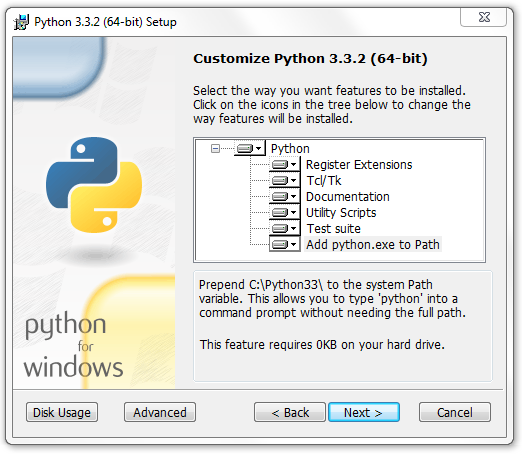
- On the first screen of the setup, make sure to check the box that says "Add python.exe to PATH." This is important because it lets you run Python from your computer's command line easily.
- Click "Install Now" and follow the prompts.
On macOS:
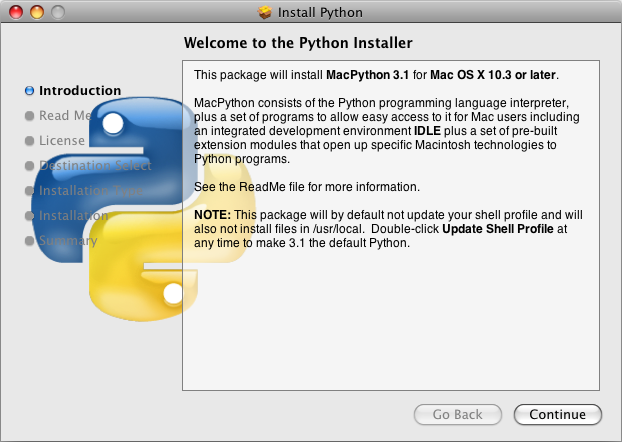
- Visit the Python download page and grab the macOS installer.
- Open the downloaded
.pkgfile. It works just like installing any other Mac application. - Follow the on-screen instructions. You'll click through a few screens to agree to the license and confirm the installation.
On Linux:
Most Linux distributions come with Python already installed. You can check by opening a terminal and typing python3 --version. If it's not there or you want a newer version, you can install it using your distribution's package manager. For Debian-based systems like Ubuntu, the command is:
sudo apt update
sudo apt install python3
Your First Code Editor
Now that Python is installed, you need a place to write your code. While you could use a simple text editor, an Integrated Development Environment (IDE) makes the process much easier. An IDE is software that combines a text editor with other helpful tools for programmers.

We recommend starting with Thonny. It's an IDE built specifically for beginners. It has a simple interface and comes with Python built-in, so you don't have to configure anything. Just download it from thonny.org and install it like any other program.
Hello, World!
A long-standing tradition in programming is to make your first program print the text "Hello, World!" to the screen. It's a simple way to confirm that everything is working correctly.
Open Thonny. You'll see a large white area for writing code. Type the following line into it:
print("Hello, World!")
Now, click the green "Run" button (it looks like a play symbol). Thonny will ask you to save the file first. Save it as hello.py. The .py extension is how you tell the computer it's a Python file.
Once saved, the code will run. In the "Shell" area at the bottom of the window, you should see your message:
Hello, World!
That's it! You've installed Python, set up your code editor, and run your very first script. You're officially a Python programmer.
What is the official website for downloading the Python language installer?
On a Debian-based Linux system (like Ubuntu), what is the typical command to install Python if it's not already present?