Python Programming Fundamentals
Python Setup
Getting Python Ready
Before you can write Python code, your computer needs to be able to understand it. This is the job of the Python interpreter, a program that translates your commands into instructions the machine can execute.
First, check if you already have it. Open your terminal (Command Prompt on Windows, Terminal on macOS/Linux) and type python --version or python3 --version. If you see a version number, you're set. If not, or if it's an old version (anything before 3.6), it's time for a fresh install.
Head to the official Python website, python.org, and download the latest stable version for your operating system. The installer will guide you through the process.

During installation on Windows, you'll see a checkbox that says "Add Python.exe to PATH". Make sure to tick this. It allows you to run Python from any folder on your computer directly from the command line, which is incredibly useful. On macOS and Linux, installers and package managers like Homebrew typically handle this for you.
Your Coding Workspace
You could write Python in a basic text editor, but an Integrated Development Environment (IDE) makes life much easier. An IDE bundles a text editor with other essential tools, like syntax highlighting that colours your code for readability and a simple way to run your programs.
Think of an IDE as a fully equipped workshop for a craftsman, whereas a simple text editor is just a workbench. Both work, but the workshop is far more efficient.
There are many great IDEs, but two are excellent starting points:
- Visual Studio Code (VS Code): A lightweight, free, and highly customisable editor from Microsoft. It's not a Python-specific IDE, but with the official Python extension, it becomes one of the most powerful and popular choices.
- PyCharm: Made by JetBrains, this is a dedicated Python IDE. It comes in a free Community edition and a paid Professional version. The Community edition has everything you need for most projects.
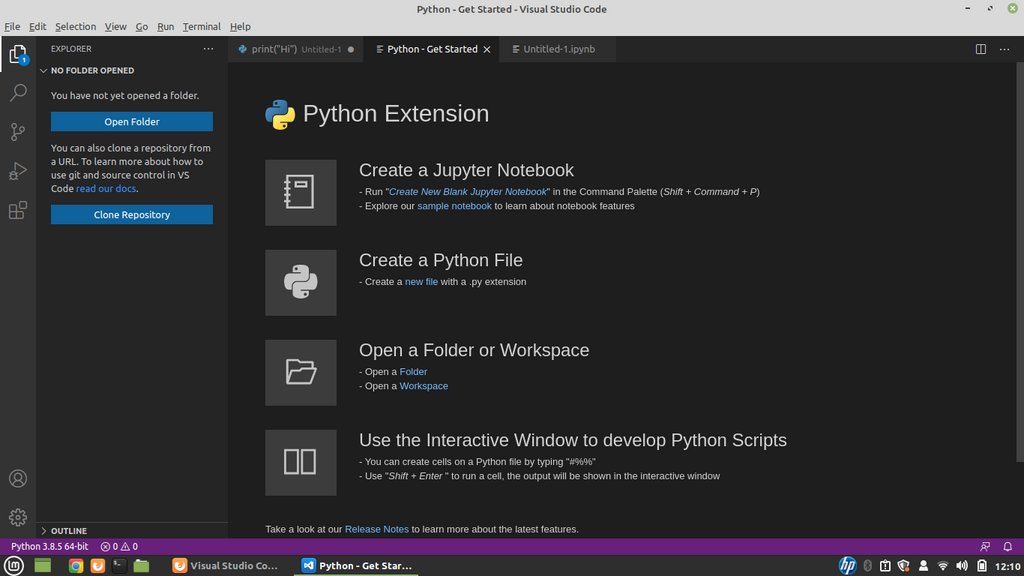
Once you've installed an IDE, you need to tell it where to find your Python interpreter. This is usually straightforward. For example, in VS Code, after installing the Python extension, the IDE will often detect your Python installation automatically. If not, you can manually select it. This step links the editor where you write code to the interpreter that runs it.
Hello, World!
With everything set up, it's time to write your first program. This is a simple test to confirm that your installation and IDE configuration are working correctly. The tradition is to make the program print the phrase "Hello, World!" to the screen.
Create a new file in your IDE and name it hello.py. The .py extension is crucial; it tells the computer that this is a Python file.
# This line is a comment. Python ignores it.
# It's here to explain the code to humans.

print("Hello, World!")
This single line of code uses the built-in print() function. A function is a reusable block of code that performs a specific action. Here, its action is to display whatever you put inside the parentheses.
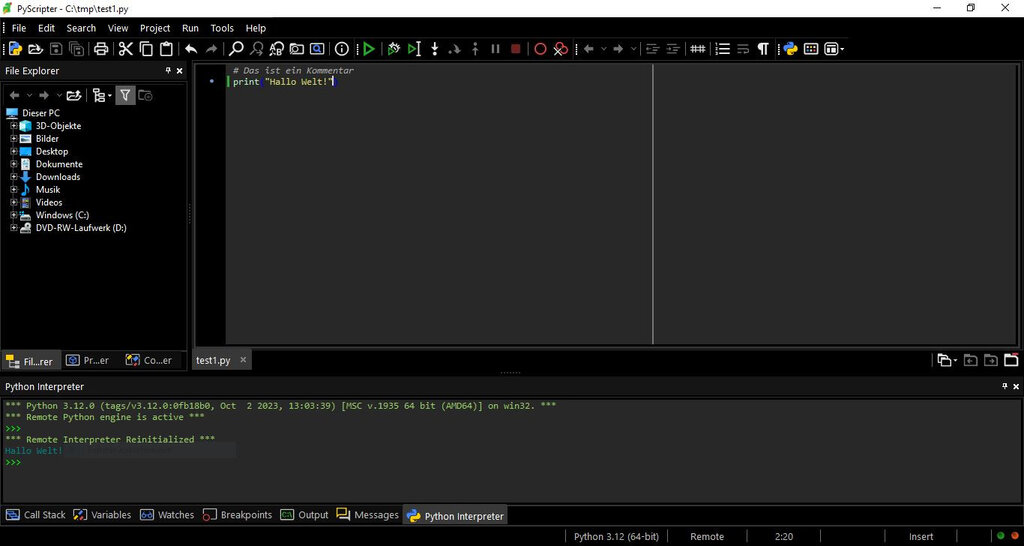
Now, run the file. Most IDEs have a "Run" button (often a green triangle) that executes the current file. You can also run it from the integrated terminal within your IDE by typing python hello.py and pressing Enter. You should see Hello, World! appear in the output panel or terminal.
What is the primary function of the Python interpreter?
Which of the following commands is used in a terminal to check the installed version of Python?