Python Programming Fundamentals
Python Setup
Getting Python Running
Before you can write any Python code, you need to set up your programming environment. This involves two key pieces: the Python interpreter itself, which understands and runs your code, and a code editor, where you'll write your scripts. Let's get them installed.
Installing Python
First, you need to install Python on your computer. The best place to get it is from the official source, python.org. Head to the downloads page and grab the latest stable version for your operating system, whether it's Windows, macOS, or Linux.
When you run the installer on Windows, you'll see an important option on the first screen: "Add Python to PATH." Make sure you check this box. It allows you to run Python from your computer's command line, which is a tool we'll use to execute our first script.

Once the installation is finished, you can verify that it worked. Open your command line application (Terminal on macOS/Linux, or Command Prompt/PowerShell on Windows) and type the following command:
python --version
If you see a version number like Python 3.11.3, you're all set. On some systems, you might need to use python3 instead of python.
Choosing a Code Editor
Next, you need a place to write your code. While you could use a basic text editor like Notepad, a dedicated code editor or an Integrated Development Environment (IDE) makes life much easier. An IDE is a software application that provides comprehensive tools for programming, like code highlighting, debugging, and project management.
Two popular choices for Python are:
- PyCharm: A powerful IDE with many features, great for building large, complex applications.
- Jupyter Notebook: A web-based tool that lets you write and run code in small, interactive blocks. It's especially popular for data analysis and learning.
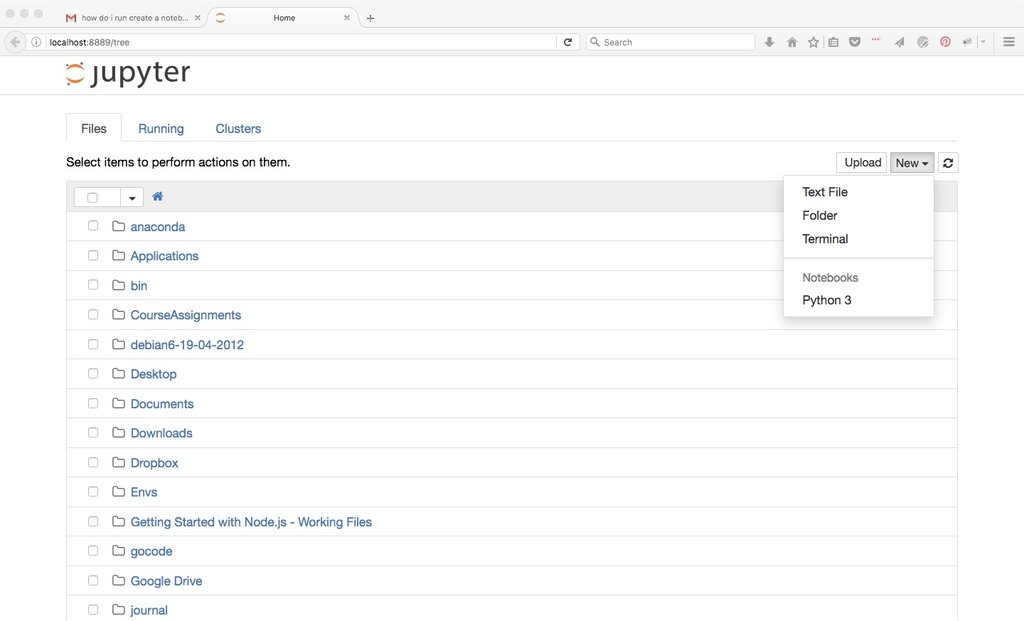
For our first program, we don't need anything fancy. Python even comes with its own simple editor called IDLE, which you can find by searching for it on your computer. Any of these options will work perfectly for now.
Your First Program
It's a long-standing tradition in programming to make your first program display the text "Hello, World!". It's a simple, effective way to confirm that your setup is working correctly.
Executing a simple "Hello, World!" program in Python is a great way to get started with coding and see how the language works.
Here's how to do it.
First, open your chosen editor (IDLE, a plain text editor, or your new IDE). Create a new file and type this single line of code:
print("Hello, World!")
Now, save the file. It's important to give it a .py extension, which tells your computer it's a Python script. Let's name it hello.py.
To run the program, go back to your command line. Navigate to the directory where you saved hello.py. Once you're in the correct folder, run the script by typing:
python hello.py
Again, you might need to use python3 depending on your system. If everything is set up correctly, you'll see the output printed directly in your terminal.
Hello, World!
Congratulations! You've just written and executed your first Python program. This confirms your environment is ready for you to start building more interesting things.
Now, let's test your understanding of these initial steps.
What is the official and recommended source for downloading the Python interpreter?
When installing Python on Windows, what is the significance of checking the "Add Python to PATH" option?
With a working setup, you have the foundation needed to explore everything Python has to offer.