Python Game Development Fundamentals
User Interface Design
Building Your Game's Interface
A game's user interface, or UI, is the bridge between the player and the game world. It includes everything from the main menu to the health bar on the screen. A good UI is intuitive and doesn't get in the way of the fun. In Pygame, you build the UI from the same basic building blocks you use for the game itself: shapes, images, and text.
Making Interactive Buttons
At its core, a button is just a shape with text on it that your code knows how to respond to. You've already learned how to draw shapes and render text, so you have all the skills you need. Typically, a button consists of a rectangle and a text surface blitted on top of it.
To make a button feel interactive, you need to provide visual feedback. A common technique is to change the button's color when the player's mouse hovers over it. You can check the mouse position in your game loop and, if it's within the button's rectangular area, draw the button in a different color. This simple change tells the player, "Hey, you can click this!"
import pygame

# --- Setup (colors, font, etc.) ---
pygame.init()
screen = pygame.display.set_mode((800, 600))
WHITE = (255, 255, 255)
GREEN = (0, 200, 0)
BLUE = (0, 0, 128)

font = pygame.font.Font(None, 50) # Use default font, size 50

# --- Function to draw a button ---
def draw_button(surface, rect, color, text, text_color):
    # Draw the button rectangle
    pygame.draw.rect(surface, color, rect)

    # Create and center the text
    text_surf = font.render(text, True, text_color)
    text_rect = text_surf.get_rect(center=rect.center)

    # Draw the text onto the screen
    surface.blit(text_surf, text_rect)

# --- In the game loop ---
# Define the button's rectangle
start_button_rect = pygame.Rect(300, 250, 200, 80) # x, y, width, height

# Get mouse position
mouse_pos = pygame.mouse.get_pos()

# Check if mouse is hovering over the button
if start_button_rect.collidepoint(mouse_pos):
    draw_button(screen, start_button_rect, GREEN, "Start", WHITE)
else:
    draw_button(screen, start_button_rect, BLUE, "Start", WHITE)

pygame.display.flip() # Update the screen
This code defines a function that draws a rectangle and centers text within it. In the main loop, it checks if the mouse's coordinates are inside the button's Rect object. Based on that, it chooses a different color for the button, creating a simple hover effect.
From Buttons to Menus
A menu is simply a collection of buttons. A main menu might have options like "Start Game," "Settings," and "Quit." By arranging several buttons on the screen, you can create a navigation system for your game. It's good practice to space them out evenly to make them easy to click.
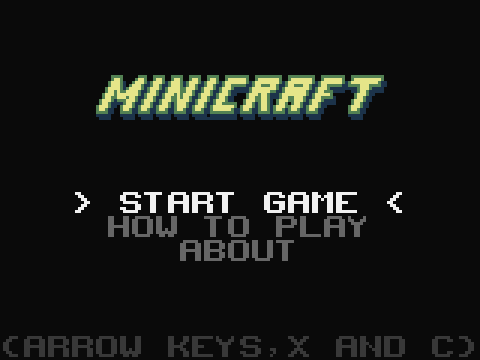
To manage multiple buttons, you can store their properties, like their rectangle and text, in a list or dictionary. Then, you can loop through this collection to draw each button and check for interactions. This approach keeps your code clean and makes it easy to add or remove menu items.
Implementing a HUD
A Heads-Up Display (HUD) provides the player with critical information during gameplay without pausing the action. This can include a health bar, score, ammo count, or a mini-map. Unlike a menu, which usually takes over the whole screen, a HUD is an overlay on top of the game world.
Implementing a HUD in Pygame involves rendering text and simple graphics directly onto the main game surface after all the game objects have been drawn. This ensures the HUD elements always appear on top. For a score display, you would render the score value as text and blit it to a fixed position on the screen, like the top-left corner, on every frame.
A health bar can be made by drawing two rectangles: a background rectangle (e.g., red or gray) and a foreground rectangle (e.g., green) on top. The width of the green rectangle is then adjusted based on the player's current health percentage.
# --- Function to draw a health bar ---
def draw_health_bar(surface, x, y, width, height, current_hp, max_hp):
    # Calculate the percentage of health remaining
    if max_hp > 0:
        health_percentage = current_hp / max_hp
    else:
        health_percentage = 0

    # Calculate the width of the health-filled portion
    fill_width = width * health_percentage

    # Define the rectangles for the background and the fill
    background_rect = pygame.Rect(x, y, width, height)
    fill_rect = pygame.Rect(x, y, fill_width, height)

    # Define colors
    RED = (255, 0, 0)
    GREEN = (0, 255, 0)

    # Draw the background (empty part of the bar)
    pygame.draw.rect(surface, RED, background_rect)
    # Draw the foreground (filled part of the bar)
    pygame.draw.rect(surface, GREEN, fill_rect)

# --- In the game loop, after drawing the game world ---
# Assuming player_health and max_player_health are tracked elsewhere
player_health = 75
max_player_health = 100
draw_health_bar(screen, 10, 10, 200, 25, player_health, max_player_health)
This function calculates the health ratio and uses it to determine the width of the green fill_rect. By drawing it after the game world but before updating the display, you create a persistent HUD element.
What is the primary role of a User Interface (UI) in a game?
In Pygame, what are the two most basic components needed to create a simple, clickable button from scratch?
With buttons, menus, and a HUD, you can build a complete and user-friendly interface for your game.