Python Fundamentals for Beginners
Setting Up Python
Getting Your Tools Ready
Before you can start writing Python code, you need two things: the Python language itself and a place to write your code. Think of it like learning a new spoken language. First, you need to learn the words and grammar (Python), and then you need a notebook and pen to practice writing (your code editor).
The first step in your Python adventure is to install Python on your computer.
We'll install Python first. It's the interpreter that reads your code and translates it into instructions the computer can understand. After that, we'll set up a simple Integrated Development Environment, or IDE, which is a special program designed to make writing code easier.
Installing Python
The best place to get Python is from its official website, python.org. The installation process is slightly different for Windows and macOS, so follow the steps for your system.
For Windows Users
- Go to python.org and download the latest installer for Windows.
- Run the installer. On the first screen, it's very important to check the box that says "Add python.exe to PATH" at the bottom.
- Click "Install Now" and follow the on-screen instructions.
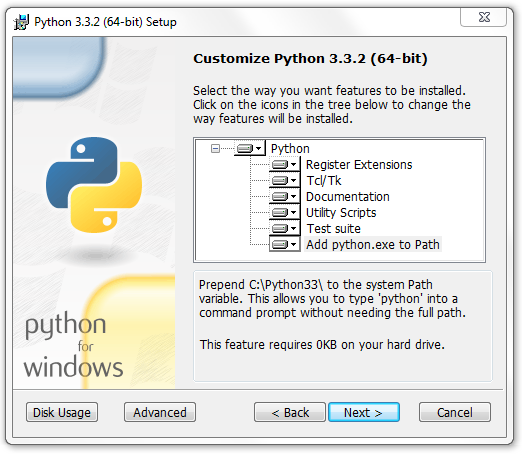
Adding Python to the PATH lets you run Python from any folder on your computer using the command prompt, which is very convenient.
For macOS Users
- Go to python.org and download the latest installer for macOS.
- Open the downloaded
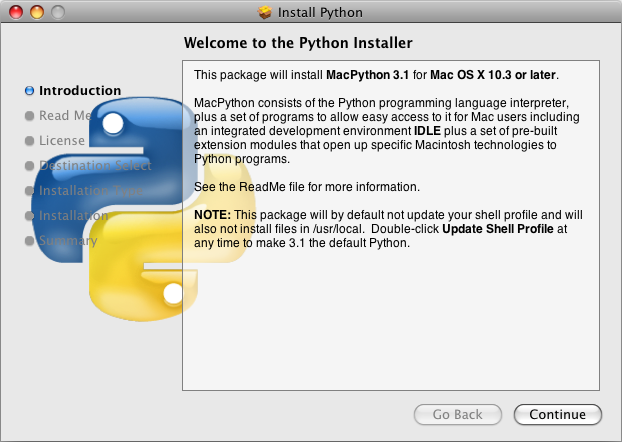
.pkgfile to start the installation.- Follow the on-screen instructions, agreeing to the license and clicking through the steps. You may need to enter your computer's password to authorize the installation.
Once it's done, you can verify that Python was installed correctly. Open the Command Prompt (on Windows) or Terminal (on macOS) and type the following command:
python --version
If that doesn't work, particularly on macOS or Linux, try this:
python3 --version
Press Enter. You should see something like Python 3.12.3, which confirms that Python is ready to go.
Your Coding Workspace
Now that Python is installed, you need a place to write your code. You could use a simple text editor like Notepad, but programmers usually use an Integrated Development Environment (IDE). An IDE is a text editor supercharged with tools that help you write, test, and fix your code more efficiently.
IDE
noun
Stands for Integrated Development Environment. It's a software application that provides comprehensive facilities to computer programmers for software development. An IDE normally consists of at least a source code editor, build automation tools, and a debugger.
There are many IDEs available, but for beginners, one of the best is Thonny. It was specifically designed for learning to code. It comes with Python built-in and has a very simple, clean interface that isn't overwhelming. It lets you see how your program runs step-by-step, which is incredibly helpful for understanding what your code is doing.

To get it, just go to thonny.org and download the installer for your operating system. The installation is straightforward—just follow the prompts.
Writing Your First Script
Let's write a simple program to make sure everything is working. This is a classic tradition in programming called "Hello, World!"
- Open Thonny.
- In the main editor window, type the following line of code. Pay close attention to the syntax, including the parentheses and quotation marks.
print("Hello, Python!")
- Go to
File > Save Asand save the file. Name ithello.py. The.pyextension is important because it tells the computer that this is a Python file. - To run your program, click the green "Run current script" button (it looks like a play symbol) in the toolbar.
You should see the text Hello, Python! appear in the "Shell" panel at the bottom of the Thonny window. This panel is where the output of your programs will show up. Congratulations, you've just written and run your first Python script!
What are the two fundamental components you need to begin writing and running Python programs?
What is the primary role of the Python interpreter?
Now that you have your environment set up, you're ready to start diving into the fundamentals of the Python language.