Python Fundamentals for Beginners
Introduction to Python
What is Python?
Python is a programming language known for its simplicity and readability. Think of it less like a complex mathematical language and more like a set of clear instructions. Its syntax is clean and straightforward, which is why it's often recommended for beginners.
But don't let its simplicity fool you. Python is incredibly powerful and versatile. It's used by major companies for a huge range of tasks, from building websites and apps to analyzing data and powering artificial intelligence.
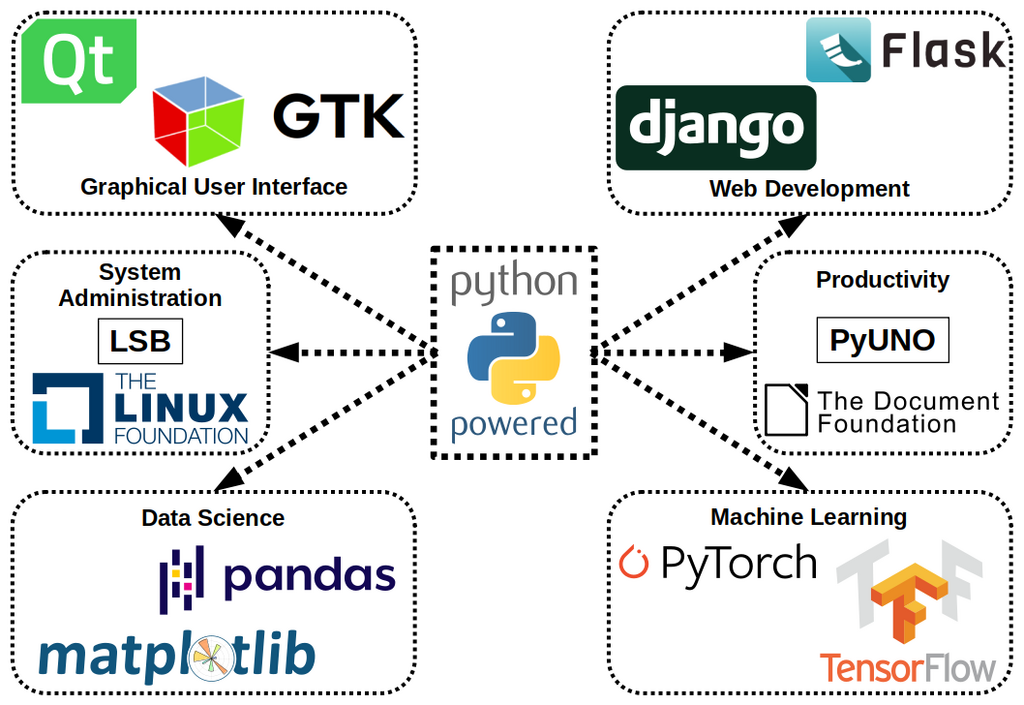
Here are just a few things you can do with Python:
- Web Development: Create the backend logic for websites and web applications.
- Data Science: Analyze, visualize, and manipulate large datasets.
- Automation: Write scripts to automate repetitive tasks, like organizing files or sending emails.
- Machine Learning: Build models that can make predictions or decisions.
Getting Python on Your Computer
To start writing Python, you first need to install it on your computer. The official source for Python is python.org. You'll want to download the latest stable version available.

The installation process is straightforward. Here’s a general guide:
| Operating System | Installation Steps |
|---|---|
| Windows | Download the installer from python.org. Run it and make sure to check the box that says "Add Python to PATH" before clicking "Install Now". This makes it easier to run Python from the command line. |
| macOS | Download the macOS installer from python.org. Open the downloaded package and follow the on-screen instructions. |
| Linux | Most Linux distributions come with Python pre-installed. You can check by opening a terminal and typing python3 --version. If it's not there, you can install it using your distribution's package manager (e.g., sudo apt-get install python3). |
Your Coding Workspace
While you can write Python code in a simple text editor, most developers use an Integrated Development Environment, or IDE. An IDE is a software application that combines a text editor, a debugger, and other tools to make coding easier and more efficient.
For beginners, we recommend an IDE called Thonny. It’s designed specifically for learning Python. It comes with Python already built-in and has a very simple, uncluttered interface, so you can focus on learning to code without getting overwhelmed by complex features.

You can download Thonny from its official website, thonny.org. Once it's installed, you'll have everything you need to start writing and running Python programs.
Your First Program
It's a tradition in programming to make your first program display the text "Hello, World!". This is a simple way to confirm that your setup is working correctly and to get a feel for the language's syntax.
Open Thonny. You'll see a text editor at the top and a command-line area called the "Shell" at the bottom. In the top editor, type the following line of code:
print("Hello, World!")
Let's break this down:
print()is a function. A function is a named block of code that performs a specific task. Theprint()function's job is to display output to the screen."Hello, World!"is the argument we're giving to the function. It's the piece of information the function needs to do its job. In this case, it's the text we want to display.
Now, click the green "Run" button in Thonny's toolbar (it looks like a play symbol). You'll be asked to save the file. Name it something like hello.py (the .py extension is important).
After you save it, you should see the text Hello, World! appear in the Shell at the bottom of the window.
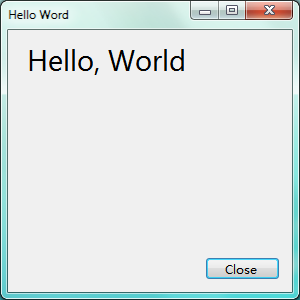
Congratulations! You've just written and executed your first Python program.
Time to check what you've learned.
What is Python primarily known for in the programming world?
What is an IDE (Integrated Development Environment)?
Now that you have your environment set up and you've run your first program, you're ready to dive deeper into the fundamentals of Python.