Python Fundamentals
Python Setup
Get Python on Your Computer
Before you can write Python code, you need the Python interpreter. Think of the interpreter as a translator that converts your Python code into instructions the computer can understand. The best place to get it is from the official source.
Go to python.org and download the latest version for your operating system (Windows, macOS, or Linux). The website usually detects your OS and suggests the correct file.
Installing Python is just like installing any other application. Open the downloaded file and follow the on-screen instructions. There’s one important step: on the first screen of the Windows installer, make sure to check the box that says “Add Python to PATH.” This makes it easier to run Python from the command line.

Once the installation is complete, you can check that it worked. Open your computer’s command line tool (Terminal on macOS/Linux, or Command Prompt/PowerShell on Windows) and type python --version or python3 --version and press Enter. If Python is installed correctly, you’ll see its version number printed back to you.
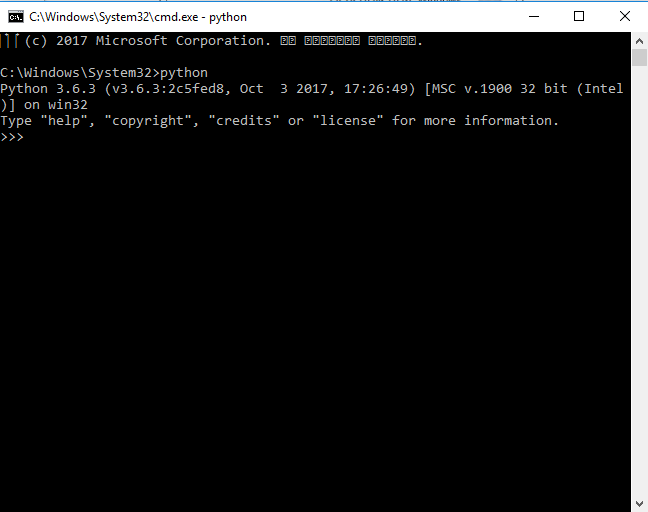
If you get an error message like "'python' is not recognized," it means the installation might not have been added to your system's PATH. Re-running the installer and making sure to check the “Add Python to PATH” box usually fixes this.
Your Coding Workspace
You can write Python code in a simple text editor like Notepad, but most programmers use an Integrated Development Environment, or IDE. An IDE is a program designed specifically for writing code. It bundles a text editor with other helpful tools, like a way to run your code and features that help you find mistakes.
IDE
noun
An Integrated Development Environment is a software application that provides comprehensive facilities to computer programmers for software development. An IDE normally consists of at least a source code editor, build automation tools, and a debugger.
IDEs make coding much easier with features like syntax highlighting, which colors your code to make it more readable, and code completion, which suggests code as you type. There are many IDEs to choose from, but here are a few great options for beginners:
- Thonny: Made specifically for learning Python. It has a very simple interface and a built-in debugger that helps you see how your code runs step-by-step.
- VS Code: A popular, free code editor from Microsoft. It's lightweight but very powerful, with thousands of extensions you can add to customize it, including a great one for Python.
- PyCharm: A professional IDE focused entirely on Python. It has a free Community edition that includes everything a beginner needs.
Don't spend too much time choosing an IDE. Just pick one, install it, and start coding. You can always switch later. Thonny is an excellent first choice.

Your First Program
A long-standing tradition in programming is to make your first program display the text "Hello, World!". It's a simple way to test that your setup is working correctly. Let's do it.
Open your new IDE and create a new file. Save it as hello.py. The .py extension is important—it tells the computer that this is a Python file. Now, type the following line of code into the file:
print("Hello, World!")
This code uses Python's built-in print() function to display the text inside the parentheses on the screen. The text itself is wrapped in double quotes to mark it as a string—a sequence of characters.
Now, run the file. Most IDEs have a "Run" button, often shown as a green triangle. When you click it, you should see Hello, World! appear in an output window or terminal panel within your IDE.
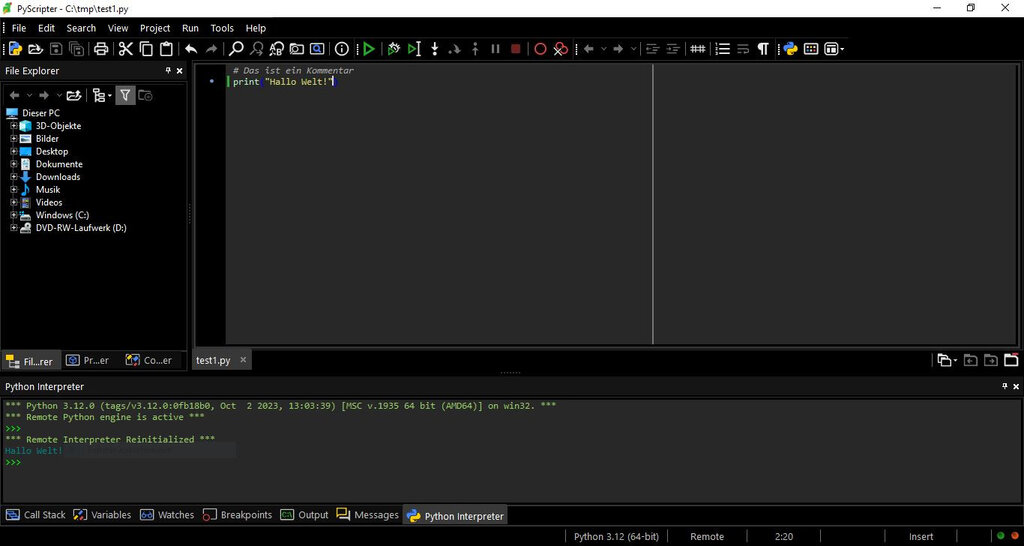
Congratulations! You've just set up your Python environment and written and executed your first program. You now have all the tools you need to start exploring the world of Python.
What is the primary role of the Python interpreter?
During Python installation on Windows, what is the main reason to check the “Add Python to PATH” option?